This article contains affiliate links. If you purchase through these links, 9to5Kindle earns from qualifying purchases at no extra cost to you. Our recommendations are based on our independent research and editorial judgment. Here is how it works
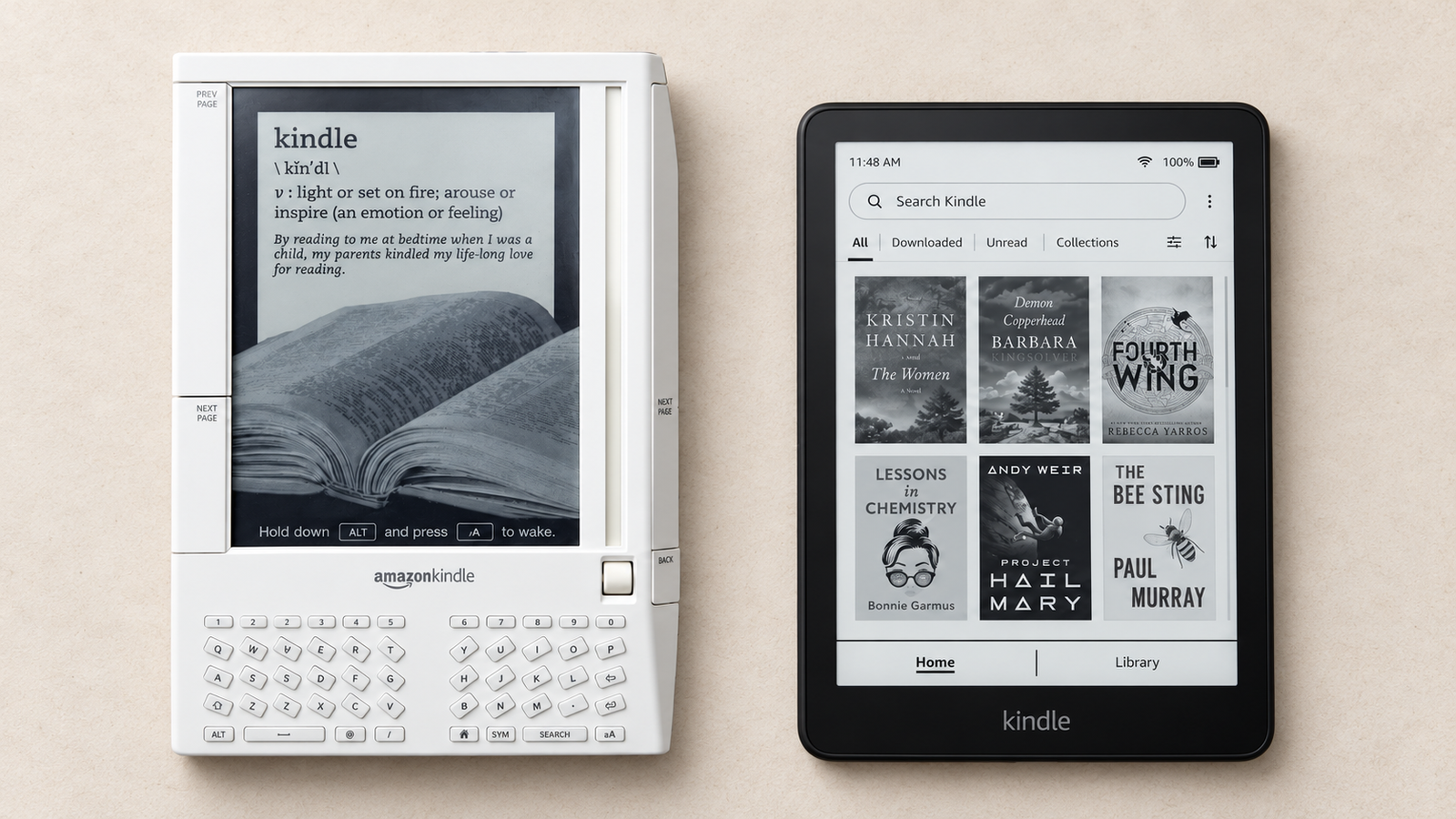
The first Kindle looked like a piece of office equipment. It had a white wedge-shaped body, a full keyboard of tiny keys, oversized page-turn bars on both edges, and a scroll wheel that moved a silver cursor up the side of the screen. Today’s Kindle is a flat slab barely thicker than a pencil. Some models come in color, and the Scribe ships with a pen.
It’s tempting to assume the 2007 original was a basic digital paperback and everything since has been an addition. It wasn’t. The first Kindle could already buy books wirelessly, look up words in a dictionary, search text, and save typed notes.
Kindle’s history is uneven. Some changes transformed reading. Others were conveniences, depended on a subscription or region, or took away things readers valued. This guide separates new hardware, software updates, and services, because they are different kinds of change. If you want to see how individual devices stack up, here’s how the different Kindle models compare.
A quick timeline of Kindle’s biggest changes
| Year | Feature or change | First relevant Kindle/platform | Why it mattered |
|---|---|---|---|
| 2007 | Wireless book delivery, dictionary, search, notes | Original Kindle | No computer needed to get books |
| 2009 | Text-to-speech, Whispersync | Kindle 2 | Listening option; synced position |
| 2009 | 9.7-inch screen, native PDF | Kindle DX | Large-screen reading and documents |
| 2009 | Kindle apps | iPhone app (March), PC app later that year | Books left the device |
| 2010 | Wi-Fi | Kindle Keyboard (3rd generation) | Cheaper connected Kindles |
| 2011 | Real page numbers | Software update, Kindle 3 | Matched print editions where available |
| 2011 | US library lending | Kindle devices and apps | Free borrowing, title-dependent |
| 2011 | Touchscreen, X-Ray | Kindle Touch | Tap controls; character and term lookup |
| 2012 | Front light, Time to Read | Kindle Paperwhite | Reading in the dark |
| 2013 | Vocabulary Builder, Smart Lookup, Page Flip | Paperwhite (2nd generation) | Better word and navigation tools |
| 2014 | 300 ppi, adaptive light, PagePress | Kindle Voyage | Sharper text; pressure page turns |
| 2014–15 | Family Library, Word Wise, Bookerly | Software platform | Sharing, inline hints, better typography |
| 2016 | Asymmetric design, VoiceView | Oasis; Kindle (8th gen.), Paperwhite with adapter | Ergonomics and screen-reader access |
| 2017 | Waterproofing, Bluetooth Audible | Oasis (2nd generation) | Bath and beach reading; audiobooks |
| 2019 | Adjustable warm light; front light on entry model | Oasis (3rd generation); Kindle (10th gen.) | Warmer light; no more unlit base model |
| 2021 | USB-C; wireless charging | Paperwhite (5th gen.); Paperwhite Signature Edition | Modern charging |
| 2022 | 300 ppi on entry model; pen input | Kindle (11th gen.); Kindle Scribe | Sharper base model; handwriting |
| 2024 | Color E Ink | Kindle Colorsoft | Color covers, comics, highlights |
| 2025 | Recaps (US) | Kindle devices, iOS app | Series refreshers |
| 2025–26 | 11-inch Scribe, color writing, AI notebook search | Kindle Scribe lineup | Productivity tools |
| 2026 | Flush-front redesign, Kindle Click remote, Page-Turn Cover | 2026 Kindle family | Official page-turn accessories |
Dates refer to first availability on the listed device or platform. Some software features arrived on older devices later.
What the original Kindle already offered in 2007
Wireless book buying was the defining feature
The original Kindle went on sale in November 2007 for $399. Its key feature wasn’t the E Ink screen, which earlier e-readers had already used. It was Whispernet, Amazon’s name for free cellular connectivity built into the device.
Whispernet ran over a US cellular data network, not Wi-Fi. You could browse the Kindle Store, buy a book, and have it arrive in about a minute, with no computer, cable, or data plan. Earlier e-readers usually required syncing through desktop software, which made the Kindle feel like a different category of device. Amazon’s retrospective on the original Kindle covers how the launch came together.
The original Kindle did not have Wi-Fi. That arrived three years later.
Dictionary, search, notes, and reading controls
Several features people think of as modern were already there in 2007:
- Dictionary lookup. A built-in dictionary let you move the cursor to a line and see definitions without leaving the page.
- Search. You could search the current book, your library, the Kindle Store, and Wikipedia.
- Adjustable text size. Several font sizes, a major selling point for readers who struggle with small print.
- Bookmarks, highlights, and typed notes. The physical keyboard made annotation practical, and notes were saved to a text file you could copy off the device.
- Physical controls. Page-turn bars on both sides, a keyboard, and a scroll wheel with a cursor.
These were baseline capabilities, not later inventions. What changed later was how easy they were to use.
The features modern Kindles left behind
The 2007 Kindle also had hardware no current Kindle offers: an SD card slot for expanding storage, a user-replaceable battery, a headphone jack, and speakers for Audible audiobooks and MP3 files. It also had a basic experimental web browser. Some of these were dropped within a few years; others lasted into the early 2010s. Those losses are covered in a later section.
2009–2011: Kindle became more connected, and easier to navigate
Text-to-speech added another way to read
The Kindle 2 arrived in February 2009 with text-to-speech: a synthesized voice that could read books aloud through the speakers or headphones.
Text-to-speech is not an audiobook. It’s a computer voice reading the text, with no performance, pacing, or character voices. A professionally narrated Audible audiobook is a separate product. Some publishers objected to the feature, and Amazon let rights holders disable text-to-speech on individual titles, so availability varied book to book.
The Kindle 2 also introduced Whispersync, which synced your last-read position between Kindle devices.
Kindle DX introduced large-screen reading
The Kindle DX, launched in 2009, had a 9.7-inch E Ink screen, much larger than the 6-inch standard. It was aimed at newspapers, textbooks, and documents, and it included a native PDF reader and auto-rotation for switching between portrait and landscape.
That’s worth remembering when people call the Scribe the first big-screen Kindle. Large-screen Kindle reading dates to 2009. What the Scribe added, in 2022, was handwriting.
Wi-Fi and Kindle apps expanded the ecosystem
Kindle apps began appearing in 2009, starting with the iPhone app in March and followed by apps for PC and other platforms. Your books were no longer tied to the device. You could start a chapter on a Kindle and continue on your phone.
The 2010 Kindle Keyboard (the third-generation model) added Wi-Fi. Amazon sold a Wi-Fi-only version alongside a 3G-plus-Wi-Fi version, and the Wi-Fi model brought the price down considerably.
Synchronization grew in stages. Position sync came first; syncing of notes, highlights, and bookmarks across devices and apps followed, and Whispersync for Voice, which links Kindle books with matching Audible audiobooks, came later still. These capabilities didn’t all appear at once.
Touch controls and X-Ray changed interaction
The Kindle Touch (2011) was the first E Ink Kindle with a touchscreen. Instead of moving a cursor with arrow keys, you could tap to turn pages, press on a word to look it up, and drag to highlight. It used an infrared touch layer rather than the capacitive touchscreens on phones.
The Kindle Touch also introduced X-Ray. X-Ray shows the characters, places, terms, and topics that appear in a book, with short descriptions and where they recur. It’s useful when you pick up a novel after a week and can’t remember who a minor character is.
X-Ray depends on the book. Amazon generates it for many titles, but not all, so availability varies.
Library borrowing and real page numbers
In February 2011, a software update added real page numbers to supported books. These match the page numbering of a specific print edition, which helps in book clubs and classrooms. Many books have them; plenty still don’t. Kindle’s own “locations” system remains the fallback.
In September 2011, Amazon launched US public-library lending for Kindle through OverDrive. Libraries could now lend e-books that arrived on a Kindle like any other book. Today that runs through Libby, and the rules still matter: Libby says most of its books can be read on a Kindle e-reader, in the US only, and not every library e-book supports Kindle delivery.
For a step-by-step walkthrough, see how to borrow compatible library e-books on Kindle.
2012–2015: Paperwhite, sharper text, and smarter reading tools
The first Paperwhite made the front light a major selling point
The 2012 Kindle Paperwhite was the first Kindle with a built-in light.
The distinction matters. A phone or tablet uses a backlight that shines through the screen toward your eyes. The Paperwhite used a front light: LEDs at the edge feed light into a thin layer on top of the E Ink display, which spreads it across the page. The screen still reflects light like paper; it’s lit from the front.
The first Paperwhite let you adjust brightness, not color temperature. Warm light came seven years later.
The Paperwhite also introduced Time to Read, which estimates how long it will take to finish the chapter or book based on your reading speed. It’s an estimate, and it changes as your pace does.
Vocabulary Builder, Smart Lookup, and Goodreads
The second-generation Paperwhite (2013) added several reading tools:
- Vocabulary Builder saves words you look up so you can review them later as flashcards.
- Smart Lookup combined the dictionary, X-Ray, and Wikipedia in one panel, so pressing a word could show its definition and background.
- Translation of selected words or passages, which requires a connection.
- Page Flip let you peek at another part of the book without losing your place.
Goodreads integration arrived around the same period, after Amazon bought Goodreads in 2013. It let readers rate books, track shelves, and share progress from the device.
Cloud Collections followed in 2014. Collections, Kindle’s version of folders, now synced across devices instead of having to be rebuilt on each one.
Most of these depend on something: Wikipedia and translation need a connection, X-Ray needs a supported book, and some features vary by language and region.
Word Wise and family reading features
Word Wise launched in 2015. It shows simple definitions in small text above harder words, without opening a lookup panel. It’s aimed at language learners and younger readers, and you can adjust or turn off the hints.
These three tools work differently:
- Dictionary lookup: you press a word and see its full definition.
- Vocabulary Builder: your looked-up words are saved for later practice.
- Word Wise: hints appear automatically, before you look anything up.
On the family side, Kindle FreeTime (now Amazon Kids) brought child profiles and parental controls to E Ink Kindles in 2013. Family Library, which lets two adults in an Amazon household share eligible purchases, arrived in 2014. Amazon now calls the household program Amazon Family.
Voyage introduced premium display and page-turn controls
The Kindle Voyage (2014) introduced several features that have since spread across the lineup:
- 300 ppi text, the first Kindle with this pixel density. Ppi means pixels per inch; higher numbers mean sharper letters, especially at small font sizes.
- Flush-front construction, with glass running edge to edge instead of a raised bezel around a recessed screen.
- Adaptive brightness, which adjusts the front light based on ambient light.
- PagePress, pressure-sensitive areas on the bezel that turned pages and responded with a small vibration.
PagePress wasn’t a set of physical buttons. The sensors detected pressure on a solid surface. That gave the Voyage page-turn controls without breaking up its clean front, but some readers preferred the click of real buttons, which the Oasis later brought back.
Bookerly and improved typography
In 2015, Amazon introduced Bookerly, a typeface designed for reading on screens. It appeared first in Kindle apps and on Fire tablets, then on E Ink Kindles with the third-generation Paperwhite that summer.
The same year, Amazon rolled out Enhanced Typesetting, which improved hyphenation, spacing, kerning, and drop caps on supported books. It’s less noticeable than a new font but affects every page.
Many readers never explore these settings. Our guide to Kindle features most owners never discover covers the ones worth trying.
2016–2019: Better ergonomics, accessibility, and bedtime reading
Oasis changed the shape of the Kindle
The 2016 Kindle Oasis broke the Kindle’s symmetrical design. One side was thicker, with physical page-turn buttons, so you could hold it in one hand like a book’s spine. The screen rotated so left-handed and right-handed readers could use either side.
The first Oasis came with a charging cover that had its own battery and recharged the Kindle while attached. That arrangement was unique to the first Oasis. The 2017 and 2019 Oasis models dropped the battery cover.
Amazon discontinued the Oasis in 2024, which left the lineup without a model that has built-in page-turn buttons.
VoiceView improved nonvisual access
VoiceView is a screen reader. It reads out menus, buttons, and settings as well as book text, so blind and low-vision readers can navigate the device by sound.
VoiceView is different from:
- The original text-to-speech, which read only book text through built-in speakers.
- Audible playback, which plays narrated audiobooks.
- Later read-aloud features for sighted readers, such as Assistive Reader on supported models, which read book text aloud for people who want to listen along.
VoiceView first required an accessory. In 2016, Amazon released the Kindle Audio Adapter, which plugged into the Paperwhite’s USB port and connected to headphones. The 2016 entry-level Kindle supported VoiceView over Bluetooth audio, and later models made Bluetooth standard.
Amazon’s overview of Kindle accessibility features covers what’s currently offered. For a reader-focused walkthrough, see Kindle for Seniors: Accessibility Features Explained.
Page Flip, font customization, and display options expanded
Page Flip was redesigned over several software updates after its 2013 debut. Its current form shows a map of nearby pages and a zoomed-out view of the book.
Display and typography options expanded through the late 2010s:
- Font boldness, for darker text.
- OpenDyslexic, a typeface with weighted letter bottoms. Some readers with dyslexia prefer it, though it doesn’t treat dyslexia and research on its benefits is mixed.
- Custom fonts, which you could load onto the device yourself.
- Larger interface text and saved display themes.
- Dark mode, which shows white text on a black background.
Waterproofing and Bluetooth Audible arrived on supported models
The second-generation Oasis (2017) was the first waterproof Kindle, rated IPX8. The 2018 Paperwhite brought waterproofing to the mainstream model.
IPX8 means the device survived lab tests in fresh water at a specified depth and duration. It doesn’t make a Kindle safe in hot tubs, saltwater, or chlorinated pools for unlimited periods, and Amazon’s guidance has specific limits. Not every Kindle is waterproof: Amazon markets waterproofing on the Paperwhite and Colorsoft, not on the entry-level Kindle.
The 2017 Oasis was also the first Kindle to play Audible audiobooks over Bluetooth. Playback needs compatible hardware, an Audible title, and regional availability.
Adjustable warm light came later than the front light
Adjustable warm light, which shifts the front light from white toward amber, debuted on the third-generation Oasis in 2019. It reached the Paperwhite in 2021.
Separately, in 2019 the entry-level Kindle finally got a front light. Before then, the cheapest Kindle was unlit, a meaningful difference for bedtime readers.
Amazon describes warm light as more comfortable for night reading. Whether it improves sleep is a separate claim this article doesn’t make.
2020–2022: Modern charging, sharper entry models, and the first Scribe
USB-C removed an everyday inconvenience
The fifth-generation Paperwhite (2021) was the first Kindle with USB-C, replacing micro-USB.
The connector change means you can use the same cable as most phones and laptops, and it plugs in either way. It doesn’t automatically mean faster charging or different file-transfer behavior. Those depend on the device.
Signature Edition added wireless charging
The Kindle Paperwhite Signature Edition (2021) was the first Kindle with wireless charging, using standard Qi chargers.
The Signature Edition combined several distinct features: wireless charging, auto-adjusting front light, and 32 GB of storage. Warm light was shared with the standard Paperwhite. These are separate features that have appeared on different models in different combinations.
The entry-level Kindle gained 300 ppi
The 2022 entry-level Kindle got a 300 ppi display, USB-C, and 16 GB of storage. Text sharpness had been one of the main reasons to choose a Paperwhite. After 2022, the base model matched it. The differences shifted to screen size, waterproofing, warm light, and battery life.
Kindle Scribe introduced pen input
The 2022 Kindle Scribe was the first Kindle you could write on. It had a 10.2-inch 300 ppi display and a pen.
At launch, it supported:
- Handwritten notebooks, with templates such as lined, grid, and planner pages.
- A battery-free pen, powered by the screen’s electromagnetic layer, so there was nothing to charge.
- Sticky notes in Kindle books. You could write notes attached to a passage, but not directly on the page of most e-books.
- PDF annotation, writing directly on documents.
- Document import, through ‘Send to Kindle’.
Many Scribe features arrived later through software updates rather than at launch: more pen styles, folders, converting handwriting to text, and writing in book margins. See the next section.
Which upgrades matter for everyday reading?
For most readers, the meaningful changes after 2019 are a front light, 300 ppi text, and USB-C. Those are all on the current entry-level Kindle.
- Need a small, sharp, lit reader? The entry-level Kindle covers it. Check current availability on Amazon
- Read in the bath, at the pool, or in bed with warm light? The Paperwhite adds waterproofing and adjustable warm light. Check current availability on Amazon
Our Kindle Paperwhite vs Kindle Basic comparison goes into the details.
2023–2026: Color, expanded handwriting, and reading assistance
Scribe’s software grew beyond its launch feature set
After launch, Amazon kept adding to the Scribe through software updates:
- More pen tools, including additional brushes, pencils, and shading.
- Notebook folders and better sorting.
- Handwriting conversion, so notes can be sent as text.
- Active Canvas (2024), which lets you write directly in a book’s text. The text flows around your note.
- AI-powered features (2024), which summarize notebook pages and refine handwriting into neater script.
The 2024 second-generation Scribe launched with Active Canvas and the AI tools. Amazon said some of these would also reach the original Scribe through updates, so check your model’s software notes before assuming a feature is available.
Colorsoft introduced color E Ink to Kindle
The Kindle Colorsoft, announced in October 2024, was the first Kindle with a color E Ink display.
Color helps with book covers in the library view, comics and graphic novels, cookbook photos, maps, charts, and colored highlights. The trade-offs show up in the specs. On the current Scribe Colorsoft, Amazon lists 300 ppi for black-and-white content but 150 ppi for color, and notes that the added color filter layer can make the screen’s texture or brightness look different from a monochrome display. Color images on E Ink are muted compared with a tablet.
Color doesn’t mean handwriting. The standard Colorsoft is a reading device. It doesn’t support a pen.
Later Scribes added new display and productivity options
The next Scribe family, announced in fall 2025, came in three versions: a standard Kindle Scribe, a version without a front light, and the first color writing model, the Kindle Scribe Colorsoft. They have a larger 11-inch display, up from 10.2 inches.
Shipping started with the front-lit Scribe in December 2025, with the other models following. Amazon lists prices of $499.99 for the Kindle Scribe, $629.99 for the Scribe Colorsoft, and $429.99 for the version without a front light. If note-taking is the main reason you’re considering one, our guide to the best Kindle for note-taking and our roundup of Kindle Scribe accessories go further.
New software features for the lineup include:
- AI-powered notebook search across all your notebooks, with summaries.
- Google Drive and Microsoft OneDrive integration, for importing documents to mark up and exporting annotated PDFs.
- Send to Alexa, which sends notebooks and documents to Alexa so they can be used to create lists, calendar events, and reminders.
Some features were announced before they shipped. Send to Alexa+, for example, was initially described as coming early the following year. Check current availability rather than assuming every announced feature is live on your device.
Recaps, Story So Far, and Ask this Book need careful labeling
These are Amazon’s AI-assisted reading features. They do different things, and their availability differs.
Recaps, launched in April 2025, summarizes books in a series you’ve already read. Amazon describes it as a “Previously on…” refresher. It’s available in the US on Kindle devices, the iOS app, and series pages on Amazon.com.
Story So Far summarizes the current book only up to where you’ve stopped reading, so it doesn’t spoil what’s ahead. It’s available for thousands of popular fiction titles on Kindle devices and the iOS app in the US.
Ask this Book answers questions about plot, characters, and themes, limited by default to your current position in the book. Amazon says it’s available on the Kindle iOS app in the US and will expand to Kindle devices and the Android app later, so it may not appear on your e-reader yet.
All three are limited to US customers and thousands of bestselling English-language e-books, purchased or borrowed. Treat their output as a reading aid, not an authority. AI-generated summaries and answers can be wrong.
What changed in the 2026 Kindle family
On October 1, 2026, Amazon announced a redesigned Kindle, Kindle Paperwhite, and Kindle Colorsoft. The key changes:
- Construction. Every model now has a flush-front display with no raised border, made possible by a new display assembly Amazon calls “reverse stack.” The devices are thinner and lighter than the previous generation.
- Kindle. The 6-inch model starts at $149.99 with 16 GB of storage. A new aluminum-backed version has 32 GB for $189.99.
- Paperwhite. It remains waterproof with adjustable warm light. The Signature Edition adds an aluminum back, 32 GB, an auto-adjusting front light, pogo-pin dock charging, and double tap to turn pages.
- Colorsoft. It has a redesigned color display and an equivalent Signature Edition.
“Edge-to-edge color” doesn’t mean color screens. Amazon uses the phrase for the exterior finish, meaning the device’s color now wraps from front to back. Only the Colorsoft models have color E Ink displays. The standard Kindle and Paperwhite remain black and white.
Charging changed too. Amazon’s announcement describes the 2026 Signature Edition models as using pogo-pin dock charging, with an optional $59.99 Charging Dock, rather than the Qi wireless charging that defined the 2021 Signature Edition. For a closer look at the launch, see our coverage of Amazon’s new Kindles and page-turn accessories.
Page turning now comes in four forms, and they’re easy to confuse:
- Built-in buttons. No current Kindle has them. They were last offered on the Oasis.
- Gesture controls. Double tap to turn pages is a feature of the 2026 Signature Editions.
- Bluetooth remote. The Kindle Click ($34.99) is Amazon’s own Bluetooth page-turn remote. It works with the new devices and Kindle models from 2024 or later.
- Button cover. The Page-Turn Cover ($79.99) is a magnetic case with physical buttons that connects through pogo pins. It works only with the Paperwhite Signature Edition and Colorsoft Signature Edition.
Want physical page turns? If your Kindle is from 2024 or later, the Kindle Click remote is compatible. If you’re buying a new Paperwhite or Colorsoft Signature Edition, the Page-Turn Cover adds buttons directly to the case.
Color reading or handwriting?
They’re different upgrades, and most readers need neither.
- Comics, cookbooks, color covers: the Kindle Colorsoft. Check current availability on Amazon. Weighing other color readers too? See Kindle Colorsoft vs. Kobo Libra Colour.
- Notes, PDF markup, journaling: the Kindle Scribe. Our best Kindle for note-taking guide compares the Scribe models.
- Both: the Kindle Scribe Colorsoft, at a significantly higher price.
The quieter features that also deserve a place in Kindle’s history
Some features don’t need their own section but have shaped how people use Kindles. Where a reliable first-release date couldn’t be confirmed, the table says “documented by” the year it was known to exist.
| Feature | What it does | Where it works | When |
|---|---|---|---|
| Send to Kindle | Sends documents and DRM-free e-books to your library | Email, web, desktop apps, mobile apps | Email delivery existed at launch; web uploads documented by 2022 |
| Personal-document cloud storage | Keeps sent documents in your Kindle library | Account-wide | Documented by 2012 |
| EPUB via Send to Kindle | Converts DRM-free EPUBs to Kindle format | Send to Kindle | 2022 |
| Collections, filters, sorting | Organizes your library | Devices, apps | Cloud Collections 2014; library redesign 2021 |
| Series grouping | Groups books in a series | Devices, apps | Documented by 2023 |
| Cover on lock screen | Shows the current book’s cover when the Kindle sleeps | Ad-free devices | Documented by 2021 |
| Reading progress display | Location, page, time left, or percentage | Devices, apps | Locations at launch; Time to Read 2012 |
| Popular Highlights | Shows passages many readers highlighted | Devices, apps | Documented by 2010 |
| Highlight and note export | Emails or exports your notes | Devices, web notebook | Documented by 2016 |
| Screenshots | Captures the screen | Devices | Documented by 2011 |
| Passcode and parental controls | Locks device or limits content | Devices | Documented by 2012; FreeTime 2013 |
| Multiple dictionaries and languages | Lookup and interface in several languages | Devices | Expanded over many updates |
| Panel View for comics | Zooms panel by panel in supported comics | Devices, apps | Documented by 2015 |
| Experimental browser | Basic web browsing | Devices | Present from 2007 in some form |
EPUB conversion is not native EPUB support. When you send a DRM-free EPUB through Send to Kindle, Amazon converts it to a Kindle format before delivering it. You can’t simply copy an EPUB file onto a Kindle over USB and open it. Our guide explains how to send EPUB files to Kindle, and our list of Kindle settings you should change immediately covers display and reading options.
Kindle services are part of the story, but not hardware features
Many things people think of as Kindle features are actually services that work across devices and apps:
- Kindle Unlimited: a paid subscription to a large catalog of eligible titles. Many major bestsellers aren’t included.
- Prime Reading: a smaller rotating catalog included with Prime. It replaced the Kindle Owners’ Lending Library in 2016.
- Amazon Kids+: a children’s content subscription, bundled with Kids Kindle editions.
- Public-library borrowing: free loans through Libby, limited to the US for Kindle delivery and to eligible titles.
- Audible and Whispersync for Voice: narrated audiobooks, plus switching between a Kindle book and its matching audiobook where both are owned.
- Family Library: sharing eligible purchases between adults in an Amazon household, now called Amazon Family.
- Kindle apps and Kindle for Web: reading without a Kindle device.
For the two reading subscriptions, see our comparison of Kindle Unlimited vs Prime Reading.
Features Kindle lost, restricted, or replaced
Kindle has also lost things along the way, and some of those losses matter.
Hardware that disappeared
- Physical keyboards. The last keyboard models were the 2010 Kindle Keyboard and the Kindle DX. Touchscreens replaced them.
- User-removable storage. Only the original Kindle had an SD card slot. Every Kindle since has fixed internal storage.
- Replaceable batteries. Also unique to the original.
- Speakers and headphone jacks. These were dropped starting with the 2011 Kindle 4. Audio returned years later, over Bluetooth only.
- Built-in page-turn buttons. These disappeared from the lineup with the Oasis. They’re now available only through accessories.
- Cellular connectivity. Free 3G, and later 4G on some models, let older Kindles download books anywhere. Current models are Wi-Fi only, and older 3G networks in the US have shut down, so legacy 3G models now depend on Wi-Fi.
- Text-to-speech through built-in speakers. This went away with the speakers. VoiceView and newer read-aloud features now cover listening on supported models.
Services that ended or changed
- Kindle Owners’ Lending Library, replaced by Prime Reading in 2016.
- Kindle Vella, Amazon’s serialized-fiction platform, closed in 2025.
- Kindle FreeTime and Amazon Household, renamed Amazon Kids and Amazon Family.
A download workflow that changed
Amazon removed the “Download & Transfer via USB” option for purchased books on February 26, 2025. It had let you download a purchased book to a computer and copy it to a Kindle by cable, a workaround for Kindles without Wi-Fi and a way to keep a separate copy.
That doesn’t mean USB transfers ended. You can still copy your own documents and DRM-free files to a Kindle by cable, and Send to Kindle still works. What changed is how purchased Kindle Store books reach the device: over Wi-Fi.
What this means if you’re buying used
A secondhand Kindle older than 2012 has no light. Models older than 2017 aren’t waterproof, and only the Oasis was waterproof before 2018. Pre-2021 models charge over micro-USB. Some very old Kindles may no longer support current store features or software, so check whether a used model still receives updates before you pay. Our guide to how long a Kindle lasts covers what owners report about aging devices.
Which Kindle features actually justify an upgrade?
| Current limitation | Useful feature | Hardware or software? |
|---|---|---|
| Can’t read in the dark | Front light | Hardware (pre-2019 entry models and pre-2012 Kindles lack it) |
| Light feels harsh at night | Adjustable warm light | Hardware |
| Text looks soft at small sizes | 300 ppi display | Hardware |
| Text too small | Larger fonts, boldness, larger interface | Usually software; check your model’s settings |
| Annoying charging cable | USB-C | Hardware |
| Tired of plugging in | Dock or wireless charging | Hardware (Signature Editions; check the specific model) |
| Reading near water | Waterproofing | Hardware |
| Comics, cookbooks, color covers | Color E Ink | Hardware (Colorsoft) |
| Want to write notes or mark up PDFs | Pen input | Hardware (Scribe) |
| Need a screen reader | VoiceView over Bluetooth | Hardware with Bluetooth, plus software |
| Want physical page turns | Kindle Click or Page-Turn Cover | Accessory (2024+ models; Signature Editions for the cover) |
| Forget plot details | Recaps, Story So Far, X-Ray | Software or service; US and title limits apply |
Keeping an older Kindle makes sense if it has a front light, still receives updates, holds a charge, and you mostly read text-heavy books in dry places. Most reading features (fonts, X-Ray, Vocabulary Builder, Send to Kindle) work the same on a 2019 Kindle as on a 2026 one. If your current Kindle doesn’t frustrate you, an upgrade probably won’t change much.
Where to start if you’ve found a real limitation
9to5Kindle may earn a commission from qualifying purchases.
- No light, or a soft display, on an old Kindle: the entry-level Kindle. Check current availability on Amazon
- Warm light and water resistance: Kindle Paperwhite. Check current availability on Amazon
- Dock charging, auto-brightness, and the Page-Turn Cover: Paperwhite Signature Edition. Check current availability on Amazon
- Color reading: Kindle Colorsoft. Check current availability on Amazon
- Handwriting and PDFs: Kindle Scribe. See our best Kindle for note-taking guide.
For full recommendations, see our guide to the best Kindle in 2026, and check prices on our Kindle Deal Watch page before you buy.
Frequently asked questions
Did the original Kindle have a light?
No. Kindles had no built-in light until the 2012 Paperwhite. The entry-level Kindle didn’t get a front light until 2019. Before that, readers needed a lamp or a clip-on book light.
Which Kindle first had a touchscreen?
The 2011 Kindle Touch was the first E Ink Kindle with a touchscreen. Earlier models used a keyboard or a five-way controller.
Which Kindle first introduced waterproofing?
The second-generation Kindle Oasis, released in 2017, with an IPX8 rating. The 2018 Paperwhite brought waterproofing to the more affordable model. Not every current Kindle is waterproof; check the specific model.
When did Kindle get USB-C?
In 2021, with the fifth-generation Paperwhite. The entry-level Kindle switched in 2022. Earlier models use micro-USB.
Can older Kindles receive newer features?
Some can. Many reading features arrive through software updates and reach older supported models. Hardware features such as warm light, waterproofing, color, pen input, and new charging methods can’t be added by software. Very old Kindles eventually stop receiving updates.
Do all Kindles support Audible or text-to-speech?
No. Current Kindles play Audible audiobooks over Bluetooth, but only with compatible hardware, owned or eligible titles, and regional availability. The old speaker-based text-to-speech is gone. VoiceView and Assistive Reader now cover reading aloud on supported models.
Does every Kindle support handwriting?
No. Only Kindle Scribe models support pen input. The Kindle Colorsoft has a color screen but no pen.
Are Kindle app features also available on e-readers?
Not always. Some features launch on one platform first. Ask this Book, for example, started on the US iOS app. Apps also handle audio and color differently from E Ink devices. Check a feature’s listed platforms before assuming it’s on your Kindle.
Does every new Kindle have a color screen?
No. Amazon’s 2026 “edge-to-edge color” describes the device’s exterior finish. Only Colorsoft models have color E Ink displays.
Which discontinued features do newer Kindles lack?
Physical keyboards, SD card slots, replaceable batteries, speakers, headphone jacks, cellular connectivity, and built-in page-turn buttons. Amazon also removed the “Download & Transfer via USB” option for purchased books in 2025, though copying your own files by cable still works.
Choose the capability that changes your reading
Kindle’s history isn’t a straight line of progress. It includes real breakthroughs (wireless delivery, the front light, 300 ppi text, waterproofing), smaller conveniences (USB-C, dock charging, Recaps), and losses some readers still miss (keyboards, speakers, physical buttons, storage you could expand).
The newest Kindle isn’t automatically the right one. Start with what bothers you about the one you have. Then work out what fixes it: a setting you haven’t found, a software update, an accessory, or genuinely new hardware.
If the answer is new hardware, our Kindle buying guide matches each current model to the reader it suits.