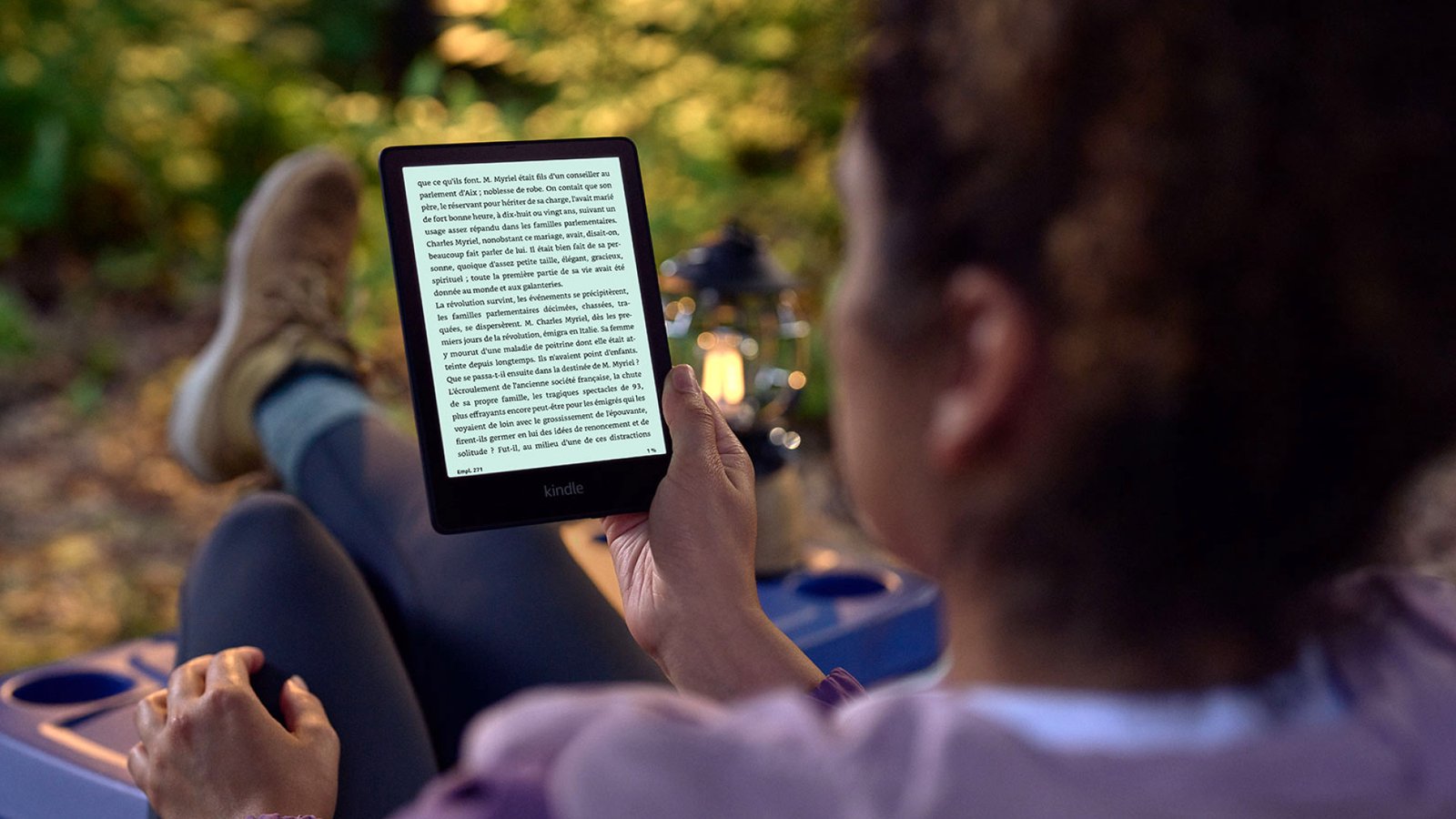
You don’t have to buy every book you want to read on your Kindle e-reader. If you have a library card, there’s a good chance your library offers free access to e-books through Libby. And in the U.S., many of those titles can be sent straight to a Kindle.
The catch is that the process isn’t quite as simple as buying a book from the Kindle Store. You start with your library and an app called Libby, and Amazon handles the final delivery to your device.
Quick answer: Yes, you can borrow many library e-books on a Kindle, but it depends on your library and the title. In the U.S., the usual method is to borrow the e-book in Libby, choose “Read With…” and then “Kindle,” sign in to Amazon, and select “Get Library Book.” The title becomes available on the Kindle devices associated with that Amazon account.
This guide walks through the entire process — getting set up, borrowing, sending a book to your Kindle, reading it, returning it, and fixing the most common problems. One limitation matters more than any other, so it’s worth stating up front: sending library books directly to a Kindle e-reader is currently a U.S.-only feature. Libby itself is available through participating libraries outside the U.S., but the Kindle delivery feature remains exclusive to the United States.
Can You Borrow Library Books on a Kindle?
Yes — Kindle e-readers can be used to read a large number of library ebooks, but a few conditions apply.
The process typically runs through Libby, your library card, and your Amazon account together. Not every e-book your library offers is available for Kindle; whether you can send a particular title to Kindle depends on the formats and reading options available for that title through your library’s digital collection. And the direct delivery-to-Kindle option is currently limited to U.S. libraries.
It’s also worth separating Kindle e-readers from Fire tablets and the Kindle app, since they don’t all work identically. A book being available in Libby does not automatically mean it’s available on Kindle — Libby has a specific “Read With” section on every title page that tells you which formats and devices are supported, and Kindle needs to be one of the listed options before any of the steps below will work.
Is Libby compatible with all Kindle e-reader models
All Kindle e-readers are compatible with Libby (exclusively in the U.S.), provided they were launched after 2012. Because e-ink Kindle e-readers cannot run the Libby app directly, you must use a smartphone or computer to borrow a book and select the “Read with Kindle” option, which routes the book wirelessly to your device through your Amazon account. However, because Amazon officially cut off Kindle Store access and server connectivity for legacy models released in 2012 or earlier, the “Send to Kindle” feature is completely disabled on those 13 older models, preventing them from downloading Libby books over Wi-Fi. If you own a 2013 or newer Kindle (such as the Paperwhite 2 and later), it remains fully compatible with Libby
What You Need Before Borrowing a Library Book on Kindle
A compatible Kindle e-reader
Make sure your Kindle is registered to the Amazon account you plan to use for delivery and connected to Wi-Fi. The process is exactly the same for all current-generation Kindle devices.
A library card
You’ll need an active card with a library that offers digital lending. Your library card and its associated PIN or login credentials are typically used to access the library’s e-book collection, though some libraries add residency or membership requirements before you can borrow digitally.
The Libby app or Libby website (on a phone, tablet, or computer)
It helps to think of the whole system as a simple chain: Library → Libby → Amazon → Kindle e-reader. Libby is the app and website that connects you to your library’s digital catalog; Amazon is the final step that gets the book onto your device.
One thing worth knowing before you start: your Kindle e-reader can’t run the Libby app itself. Kindle e-readers aren’t built to install third-party apps at all, so the “Libby” side of this process — searching, borrowing, and choosing “Read With Kindle” — always happens somewhere else. You’ll need a smartphone, tablet, or computer to install Libby (or just a browser, via libbyapp.com), and your Kindle only comes into the picture at the very end, once Amazon delivers the finished book to it.
An Amazon account
When you choose Kindle as your reading option in Libby, you’ll be redirected to Amazon to finish the delivery. You’ll need to be signed in to the Amazon account associated with your Kindle.
Don’t have a Kindle yet? If reading library e-books is your main goal, it’s worth checking our guide to the best Kindle e-readers before you buy.
Best Kindle in 2026: Which Kindle Should You Buy?
What Is Libby and Why Do You Need It?
Libby is a free digital library app developed by OverDrive. It lets library members browse, borrow, place holds on, and manage e-books, audiobooks, and magazines through participating libraries — all tied to their library card rather than a subscription. What your library offers through its digital collection determines what shows up in Libby; the app itself doesn’t add or remove titles from your library’s collection.
Libby works on smartphones, tablets, and computers through the Libby website, libbyapp.com. For libraries in the U.S., eligible e-books can be sent to a Kindle as one of the available reading options, although Kindle compatibility varies by title. You never pay Libby directly to borrow a book from your public library, although you may have to wait for a title if all available copies are already on loan.
How to Set Up Libby With Your Library Card
- Install Libby on your phone, tablet, or computer. It’s free from the App Store and Google Play, or you can use it directly at libbyapp.com without installing anything. Remember: this step isn’t done on the Kindle itself, since Kindle e-readers can’t install apps.
- Find your library. Libby lets you search by location or enter your library’s name directly.
- Sign in with your library card. You’ll typically enter your card number and PIN, although some libraries use other sign-in methods.
- Add more than one library card if you have access to it. Libby allows multiple library cards on one account. This can give you more borrowing options and potentially reduce your wait, since a book that’s unavailable at one library might be available to borrow immediately through another. This only works for libraries where you’re legitimately eligible for a card. Eligibility rules vary by library and may depend on where you live, work, attend school, or other requirements set by the library.
How to Find Kindle-Compatible Library Books
Search Libby the way you’d search any library catalog — by title, author, series, or subject. Once you’re on a book’s page, scroll to the “Read With” section. This shows you which reading options are available for that specific title.
If Kindle doesn’t appear in that list, there’s no workaround that forces the title onto a Kindle e-reader through Libby’s normal delivery process. If Kindle isn’t available, the title may simply not be offered for Kindle through your library’s digital collection.
To skip the guesswork, Libby also has a Kindle filter. Open the filter menu, find “Read With,” and select Kindle — this narrows your library’s catalog to titles that are available for Kindle through Libby.
How to Borrow a Library Book and Send It to Kindle
- Tap Borrow. Once you’ve found a Kindle-compatible title, borrowing it works the same as any other Libby loan.
- Open your Shelf. Borrowed titles land here, under Loans.
- Choose “Read With…” next to the title.
- Select Kindle. Libby hands off to Amazon at this point.
- Sign in to Amazon — specifically, the account associated with the Kindle you want the book delivered to.
- Select “Get Library Book.” This is the step that actually completes the delivery on Amazon’s end.
- Sync your Kindle. Make sure it is connected to Wi-Fi, and the borrowed book should appear on the device once Amazon delivers it. Delivery time can vary.
How to Find the Library Book on Your Kindle
Once Amazon has processed the loan, connect your Kindle to Wi-Fi and wait for the book to sync to your device. You can also manually sync the device if the option is available in your Kindle’s menu. The book should then appear in your Home or Kindle library section. If you don’t see it right away, search your Kindle library directly; new titles can occasionally take a few extra minutes to appear, especially with a slow or unstable Wi-Fi connection.
The book is delivered to whichever Amazon account you signed into during the “Get Library Book” step, so if it’s missing, that’s the first thing worth checking.
What Happens After You Borrow a Library Book on Kindle?
Offline reading: Once a library book has downloaded to your Kindle, you can generally read it without an internet connection, the same as any other Kindle book, until the loan ends.
Kindle features: Font size, bookmarks, highlights, notes, built-in dictionary lookups, and search generally work the same way they do on purchased titles. Some library titles may have limited functionality depending on the e-book’s format or publisher settings, so don’t assume every feature behaves identically across every loan.
How it looks and feels: A library book reads like a normal Kindle book on the page. What’s different is what’s happening behind the scenes — it’s a time-limited library loan delivered through your Amazon account, not a book you’ve purchased and permanently own.
How Long Can You Keep a Library Book on Kindle?
Your library sets the loan period, not Amazon or Kindle, and that period can vary from library to library and sometimes from title to title. Check the loan details in Libby rather than assuming every library uses the same loan period — some common periods are 7, 14, or 21 days, but treat that as a range, not a rule. Downloading the book to your Kindle doesn’t change this; the loan still expires on schedule.
What Happens When a Kindle Library Loan Expires?
When a loan reaches its end date, your access to that title ends automatically — you don’t need to do anything, and there’s no late fee. This is different from manually removing the book from your Kindle: removing the file from your device is a storage decision, while the loan itself is tracked and automatically expires through the lending system behind Libby. After the loan period ends, the title becomes inaccessible on your Kindle even if you never manually removed it from the device.
How to Return a Library Book Early
If you finish a book before the due date, you can return it early through Amazon or directly from your Kindle. In Amazon’s Manage Your Content and Devices section, find the borrowed title and select the option to return it. You can also return it from your Kindle if the option is available. Once you return the Kindle book through Amazon or your Kindle, the loan will be removed or updated in Libby as the return is processed.
A common misconception is that deleting the book from your Kindle counts as returning it. It doesn’t. Removing the downloaded file just frees up space on your device — the loan itself remains active in the library’s system until you return it through Amazon or your Kindle, or the loan simply expires.
Can You Renew a Library Book on Kindle?
Sometimes. Renewal availability depends on your library’s policy and whether another patron is waiting on a hold for that title — if there’s a queue, you typically can’t renew. When renewal is available, it’s managed inside Libby, not on the Kindle itself. If a title isn’t renewable, you can borrow it again once it becomes available, or place a hold if it’s currently checked out.
What If Someone Else Has the Book?
Popular titles often have waiting lists, the same as physical library copies. Libraries often have a limited number of licenses or lending copies available for an e-book, depending on the publisher’s terms — it’s not that they have unlimited access and simply choose to make you wait.
Placing a hold works the same as reserving a physical book: Libby adds you to the queue and provides an estimated wait based on factors such as the number of copies available and how many people are ahead of you.
Managing your hold includes checking your position in the queue, getting notified when it’s your turn, and — on titles that support it — suspending your hold if you’re not ready to read it yet without losing your place. Once a hold becomes available, you’ll typically have a short window to borrow it before it moves to the next person.
How Many Library Books Can You Borrow at Once?
This is set entirely by your library, not by Kindle or Libby as a platform. Some libraries cap you at 5 or 10 simultaneous digital loans, while others allow more or fewer, and hold limits can be different.
It’s also worth separating a few things that sound similar but aren’t: your library’s borrowing limit, your Kindle’s storage capacity, the number of active Libby loans, and the number of holds you’re allowed to place. These are separate limits, and one doesn’t automatically determine the others.
Can You Borrow Library Books on the Kindle App?
The Kindle app on iPhone, iPad, and Android can receive library books delivered through the same Libby-to-Amazon process — once a title is sent to your Amazon account, it shows up in the Kindle app the same way it shows up on a physical Kindle. Fire tablets work a little differently: Libby can be installed directly on supported Fire tablets, so you can browse and borrow inside the Libby app itself rather than routing everything through Amazon’s delivery flow. Kindle Unlimited is a separate system entirely and isn’t involved in any of this — more on that distinction below.
Can You Borrow Library Books on Kindle Outside the U.S.?
This is one of the most common points of confusion, so it’s worth stating plainly: Libby is available in many countries, but the direct Kindle delivery option for library ebooks is currently limited to libraries based in the U.S. Owning a Kindle outside the U.S. doesn’t change that — Libby’s own help documentation labels the Kindle-books feature as U.S.-only.
Switching your Amazon account’s country or region setting does not unlock this feature. If your library isn’t in the U.S., check what ebook formats it actually supports in Libby and which of your devices are compatible with those formats — the “Read With” section on each title will show you what’s actually available to you.
Why Can’t I Send This Library Book to My Kindle?
A handful of causes account for most cases:
The book isn’t available in Kindle format. Not every title a library licenses includes Kindle rights. Check “Read With” on the title page before borrowing if this matters to you.
Your library is outside the U.S. See the section above — this is currently a hard limitation, not a bug.
You already downloaded the book in another format. If you grabbed the EPUB version first, Libby generally won’t let you switch that same loan over to Kindle. You’ll need to return the title and borrow it again, then choose Kindle from the start.
Your reading preference is set to Libby. Check your app settings — if “Libby” is set as your default reading option, switch it to Kindle before borrowing.
You’re signed into the wrong Amazon account. If you have more than one Amazon account, or a household account setup, double-check which one is linked to the Kindle you’re trying to use.
Your Kindle hasn’t synced. Confirm Wi-Fi is on, then manually trigger a sync from your device’s menu.
What to Do If Your Library Book Doesn’t Appear on Kindle
- Confirm the book actually shows as borrowed in Libby.
- Confirm you selected Kindle as the reading option, not another format.
- Confirm you signed into the correct Amazon account.
- Confirm your Kindle is connected to Wi-Fi.
- Manually sync the Kindle.
- Check your Kindle content and device settings on Amazon’s website.
- Try redelivering the book (see below).
- Restart the Kindle.
- Recheck the loan status in Libby.
- If none of this works, contact Libby support, your library, or Amazon, depending on where the process is breaking down.
How to Redeliver a Library Book to Your Kindle
If a book was sent to the wrong device, or simply never arrived, you can usually redeliver it from Amazon’s book-management page. Find the title under your digital content, open its delivery or device options, choose the correct Kindle, and save the change. Then sync the Kindle to pull it down. Amazon’s interface labels and menu locations shift periodically, so if these exact names don’t match what you see, look for anything referencing “Deliver” or “Manage Content and Devices.”
Can You Borrow Library Books Without Libby?
Libby is the dominant app for library ebook lending in the U.S. and the workflow this guide focuses on, but it isn’t the only one. Some libraries run their own digital platforms or use other lending services, and whether those support Kindle delivery depends entirely on the platform. If your library doesn’t use Libby, check with them directly about which formats and devices their digital collection supports.
Kindle vs. Libby for Reading Library Books
| Feature | Read in Libby | Read on Kindle |
|---|---|---|
| E Ink screen | No | Yes |
| Library borrowing | Yes | Yes, for eligible Kindle-supported loans |
| Kindle reading features (highlights, dictionary, etc.) | No | Yes |
| Phone/tablet reading | Yes | Via Kindle app |
| Offline reading | Yes | Yes |
| Requires a Kindle device | No | Yes, for the e-reader experience |
| Availability | Broad, international | Kindle delivery currently U.S.-only |
This reflects the general experience — individual libraries and titles can vary.
Kindle Library Books vs. Kindle Unlimited
These two get confused constantly, and they’re not the same thing.
Library borrowing comes through a participating public library, requires a library card, and costs nothing beyond your existing tax-funded library membership. What’s available depends entirely on your library’s collection, and loans have fixed borrowing periods.
Kindle Unlimited is a paid Amazon subscription with its own separate catalog, unrelated to any library. You pay monthly for access, and it has nothing to do with library licensing or your library card.
You do not need a Kindle Unlimited subscription to borrow eligible library books through Libby.
Kindle Paperwhite vs Kindle Basic: Which Kindle Should You Buy in 2026?
Which Kindle Is Best for Library Books?
Library compatibility isn’t really the deciding factor between current Kindle models — nearly all of Amazon’s current e-readers can receive library loans over Wi-Fi. What actually separates them is screen size, front-light quality (including warm lighting for night reading), weight, waterproofing, battery life, storage, and price.
The entry-level Kindle is the lightest and most affordable option and works fine for straightforward text-based library e-books. The Kindle Paperwhite adds a larger display, waterproofing, and longer battery life, and is generally the best all-around pick for most readers. The Kindle Colorsoft is worth considering if you borrow a lot of comics, manga, or illustrated titles, since it can display color. The Kindle Scribe is aimed at note-takers and isn’t necessary just for library reading.
You don’t need the most expensive Kindle to borrow library books — the base model handles the process the same way the premium ones do.
Best Kindle for most library readers: the Kindle Paperwhite. It balances screen quality, portability, and price better than the entry-level model, without paying for Scribe-level features most library readers won’t use.
Check Latest Price of Kindle Paperwhite 16 GB (newest model) on Amazon
Check Latest Price of Kindle Paperwhite Signature Edition 32 GB (newest model) on Amazon
Can You Borrow Audiobooks on Kindle?
Library audiobooks are handled separately from ebooks. Libby fully supports borrowing and listening to audiobooks, but a Kindle e-reader is built for reading text, not audio playback. Borrowing an audiobook through Libby doesn’t mean it can be transferred to a Kindle e-reader the way an ebook can — for audiobooks, you’ll generally be listening directly in Libby or through the Kindle app rather than on the e-reader itself.
Can You Borrow Magazines and Comics on Kindle?
Library catalogs typically include more than novels — magazines, comics, graphic novels, and children’s books are often part of the collection too. Whether any specific title supports Kindle delivery depends on the same “Read With” licensing rules as regular ebooks, and illustrated or magazine-format content is less consistently available for Kindle than standard text ebooks. Check the title page before assuming it will work the same way.
Important Things Kindle Library Borrowers Should Know
- Not every ebook in Libby can go to Kindle. This is the single most important thing to understand before you start.
- Your library controls the catalog, not Amazon. What’s available to borrow is a library and publisher licensing decision.
- Digital loans still have limits. Libraries license a set number of copies, so popular titles run out just like physical copies do.
- A library loan isn’t a purchase. You’re borrowing access, not buying the book.
- Amazon is part of the delivery chain. The loan starts with your library and Libby, but Amazon completes the handoff to your Kindle.
- Your Amazon account determines where the book lands. Sign into the wrong one, and the book won’t show up where you expect.
- Multiple library cards can expand your options — different systems, different collections, and sometimes shorter waits — as long as you’re legitimately eligible for each card.
Common Mistakes to Avoid When Borrowing Library Books on Kindle
- Assuming every Libby ebook works on Kindle
- Assuming Kindle library delivery works outside the U.S.
- Forgetting to select Kindle as the reading option before finishing checkout
- Signing into the wrong Amazon account
- Confusing Kindle Unlimited with library borrowing
- Assuming deleting a book from your Kindle returns the loan
- Ignoring hold queues on popular titles
- Assuming every library has identical borrowing limits
- Expecting the Kindle e-reader, Kindle app, and Fire tablet to behave identically
- Downloading a different format first, then trying to switch that same loan to Kindle
Frequently Asked Questions
Is borrowing library books on Kindle free? Borrowing through your public library doesn’t cost anything per book, though library membership itself may have its own rules depending on where you live.
Do I need a library card to borrow Kindle books this way? Yes — the library-borrowing method requires an active card with a participating library.
Can I borrow any Kindle book from my library? No. The library has to own the title, and that specific title has to support Kindle delivery.
Can I borrow library books on Kindle without Libby? It depends on your library’s platform. Libby is the primary system covered in this guide and the most common one in the U.S.
Can I read library books offline on Kindle? Yes, once the book has downloaded, you can read it without an internet connection until the loan ends.
Can I keep a library book forever on Kindle? No — it’s a time-limited loan, not a purchase.
Can I renew a Kindle library book? Sometimes, depending on your library’s policy and whether anyone else is waiting on a hold for that title.
Can I return a Kindle library book early? Yes, through Libby’s Manage Loan menu or directly on Amazon’s site.
Why isn’t the Kindle option showing in Libby? Usually one of four reasons: the title doesn’t support Kindle, your library is outside the U.S., your reading preference is set to Libby, or you already downloaded the book in a different format.
Can I use multiple library cards with Libby? Yes, as long as you’re legitimately eligible for each library you add.
Can I borrow library books on a Kindle Paperwhite? Yes — any current Wi-Fi-enabled Kindle e-reader that supports the standard library-delivery process can be used.
Can I borrow library books on the Kindle app? Yes, books sent to your Amazon account through the Libby process will also appear in the Kindle app on phones and tablets.
Can I borrow library books on Kindle outside the U.S.? Not through the direct delivery option — that’s currently limited to U.S. libraries.
Do I need Kindle Unlimited to borrow library books? No. They’re unrelated systems.
What happens when my library loan expires? Your access ends automatically, with no late fees, and the title is no longer readable as an active loan.
Final Verdict — Is Borrowing Library Books on Kindle Worth It?
If you already own a Kindle and have access to a participating U.S. library, borrowing through Libby is one of the most cost-effective ways to keep your reading list full without buying every title outright. Once you understand the relationship between your library, Libby, and Amazon, the process itself is fairly quick.
The real limitations aren’t technical difficulty — they’re title availability, individual library policies, loan periods, and the current U.S.-only restriction on direct Kindle delivery. Checking a title’s “Read With” section before you borrow will save you the most frustration.
Want to get more out of your Kindle? Check out our other Kindle guides for settings, accessories, and buying advice that can help you get more from your device.
How to Send EPUB Files to Kindle: The Complete Step-by-Step Guide (2026)
Kindle Settings You Should Change Immediately (For a Better Reading Experience)