Instructions verified November 17, 2026. This article contains affiliate links. As an Amazon Associate, 9to5Kindle earns from qualifying purchases. Read our affiliate disclosure.
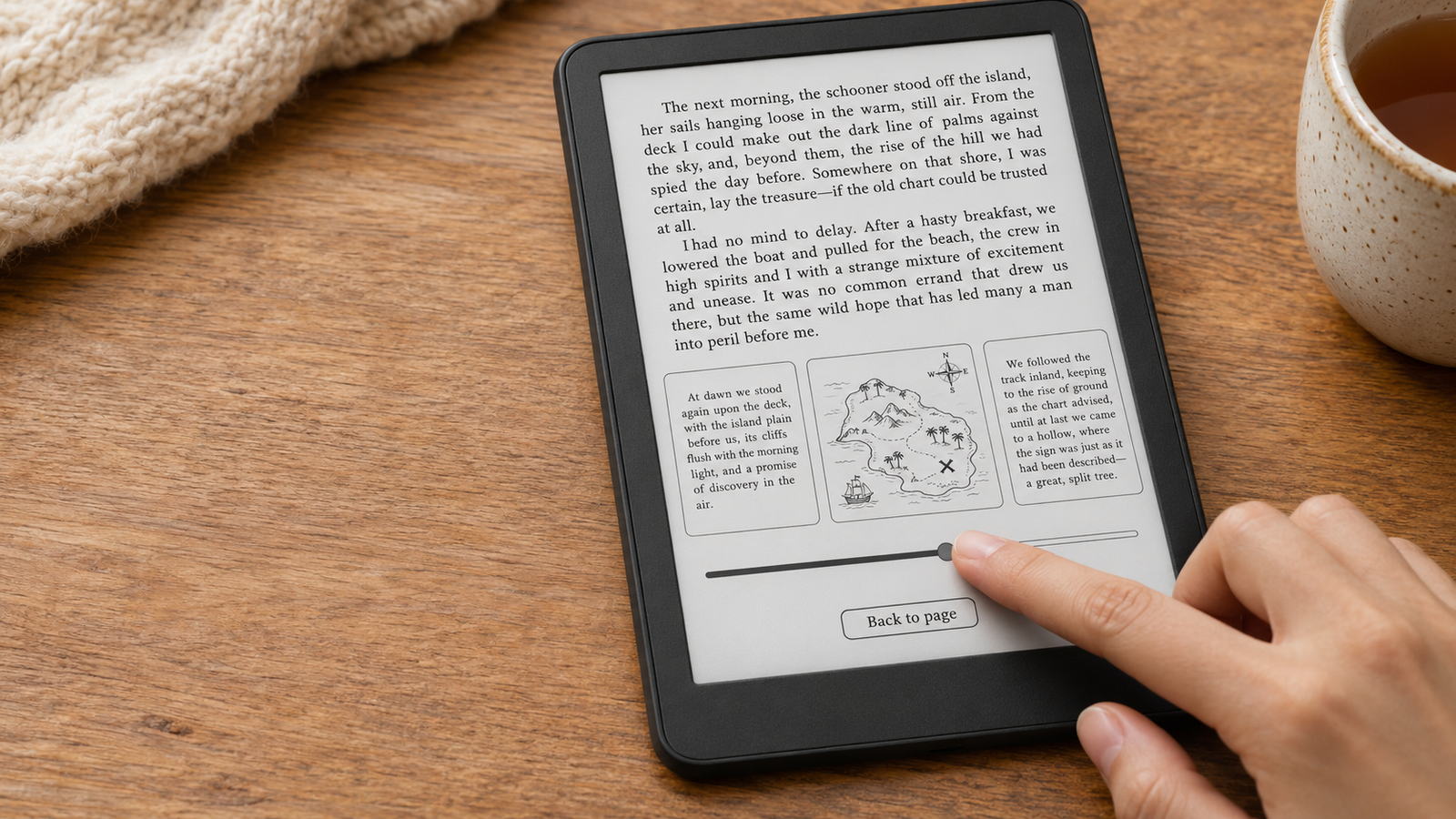
You’re halfway through a fantasy novel and need to check the map. You could drag the progress bar and hope you find your way back. Or you could use Page Flip to look around without losing your spot.
That’s the kind of Kindle shortcut worth learning: one that keeps you in the book.
This guide covers 50 distinct actions. Touchscreen Kindles come first, then the Kindle Scribe, accessibility gestures, the Kindle for Windows app, and two shortcuts for the old Kindle Keyboard. Each section is labeled, so jump straight to your device.
The best shortcuts remove friction from things you already do: find a passage, save your place, change how the page looks, or get back to reading. A shortcut only helps if you know where to start, what to do, and whether it works on your setup. So that’s what every entry tells you.
Find the shortcuts that work on your Kindle
| Your device | Sections that apply |
|---|---|
| Modern touchscreen Kindle, Paperwhite, or Colorsoft | Shortcuts 1–30, 36–40 |
| Paperwhite or Colorsoft Signature Edition (2024 or later) | Everything above, plus double tap (5) |
| Kindle Scribe | Shortcuts 1–30, 31–35, 36–40 |
| Kindle for Windows app | Shortcuts 41–48 |
| Legacy Kindle Keyboard (3rd generation) | Shortcuts 49–50 |
Not sure which Kindle you have? Amazon’s Identify Your Kindle E-Reader page matches your device to its model name.
One naming trap: Kindle Keyboard is the name of a specific 2010 model with physical keys. The keyboard shortcuts at the end of this guide work only on that model and the Windows app. Typing Alt + B on a Paperwhite won’t do anything.
The touchscreen steps below follow Amazon’s current e-reader software. Menus move around between updates, so if a label looks slightly different on your Kindle, look for the nearest match.
Touchscreen shortcuts for reading and getting around
Turn pages and open controls
1. Tap to turn pages. Touchscreen Kindle. In a book, tap almost anywhere on the page to go forward, and tap a narrow strip on the left side to go back. Amazon designs this zone, which it calls EasyReach, to be reachable from either hand. In a right-to-left book such as some manga, the direction can flip.
2. Swipe to turn pages. Touchscreen Kindle. Swipe right to left for the next page, left to right for the previous one. It’s easier than tapping when you’re holding the Kindle at an angle or don’t want to aim for the back zone.
3. Open the reading toolbar. Touchscreen Kindle. While reading, tap the top of the screen. You’ll get the toolbar with Aa (display settings), Go To, search, bookmarks, and the book’s menu, without leaving the page.
4. Open Quick Actions. Touchscreen Kindle. Swipe down from the top of the screen, or tap the small arrow at the top center of the Home screen. This is a different panel from the reading toolbar: it holds brightness, Airplane Mode, Bluetooth, Dark Mode, Sync, and All Settings.
5. Double-tap the side or back to advance. Select Signature Editions. On a Paperwhite Signature Edition or Colorsoft Signature Edition released in 2024 or later, turn it on in Settings > Device Options > Double tap. Then a double tap on the side or back of the device, not the screen, turns the page forward or scrolls down in Home and Library. It only moves forward; swipe to go back. Amazon says it’s tested with its official cases and may not work with every third-party case. Full instructions are on Amazon’s double tap help page.
Jump around a book and return to your place
6. Open Page Flip. Touchscreen Kindle. While reading, swipe up from the bottom of the screen. Page Flip shows other pages while your original page stays one tap away. Tap Back to page # (or Back to loc #) to return. This is how you check a map or diagram without losing your spot.
7. Jump to a chapter or location. Touchscreen Kindle. Tap the top of the screen, then Go To. The Contents tab lists chapters. You can also enter a page or location number. Real page numbers only appear in books that include them, so some books offer locations only.
8. Search within the current book. Touchscreen Kindle. Tap the top of the screen, then the magnifying glass, and type a phrase or character name. Results come from the book you’re reading, including your own notes and highlights. Searches won’t find text inside images, such as a scanned map.
9. Add a bookmark from the page. Touchscreen Kindle. Tap the upper-right corner of the page. A black bookmark appears. Tap the corner again to see your bookmark list. Amazon changed how bookmarks work in a late-2025 update, so if an older guide describes different steps, trust the corner tap.
10. Bookmark a page from Page Flip. Touchscreen Kindle, recent software. Kindle software 5.19.5, released in June 2026, added a bookmark icon to the page thumbnails in Page Flip. Tap it to bookmark a page you’re previewing, without going there first. It’s handy for marking the map in a fantasy novel while you’re still a chapter away. If you don’t see the icon, update your Kindle’s software.
Change how the page looks without slowing down
Adjust text and layout
11. Resize text with a pinch. Touchscreen Kindle. While reading, spread two fingers apart to make text bigger and pinch them together to make it smaller. In a normal e-book, the text reflows to fit. In fixed-layout books such as comics, picture books, and many PDFs, the same gesture zooms the whole page instead.
12. Increase font boldness. Touchscreen Kindle. Tap the top of the screen, then Aa > Font, and raise the Boldness setting. Amazon offers five levels. Bolder letters can look larger and easier to read without bumping up the size, so you keep more words on each page.
13. Save a reading theme. Touchscreen Kindle. Set up the page how you like it, then open Aa > Themes and save your current settings as a new theme. Make one with bigger type and wider spacing for reading on a treadmill, and another that fits more text for reading in bed. Switching then takes one tap instead of five.
14. Change reading orientation. Touchscreen Kindle. Open Aa > Layout and choose portrait or landscape. Don’t expect the page to rotate when you turn the Kindle sideways; you switch it here. Landscape can help with wide tables and code samples.
Amazon’s text display guide lists every Aa option and notes which ones vary by model. For more setup ideas, see our list of more Kindle settings worth changing.
Set up a cleaner page for daytime or bedtime
15. Cycle the reading progress display. Touchscreen Kindle. Tap the bottom-left corner of the page while reading. Each tap switches to the next option: page in book, time left in chapter, time left in book, location, or nothing at all. To choose one directly, go to Aa > More > Reading progress. Page numbers only appear in books that include them.
16. Show the clock while reading. Touchscreen Kindle. Open Aa > More and turn on Show clock while reading. It’s a small thing, but it stops “one more chapter” from turning into 2 a.m.
17. Switch to Dark Mode. Touchscreen Kindle. Open Quick Actions (swipe down from the top) and tap Dark Mode. On standard Kindles, it inverts everything: white text on a black background in books and menus alike. Colorsoft and Scribe models may offer more granular controls, such as choosing which screens go dark, so check your model’s settings.
18. Schedule the warm light. Kindles with adjustable warm light. Open Quick Actions and tap Schedule next to the Warmth slider. Choose Automatic to follow sunset and sunrise, or Manual to set your own times. This is separate from brightness and from auto-brightness. It needs hardware with amber LEDs, such as the Paperwhite (2021 and later), Colorsoft, Scribe, and Oasis (2019). The entry-level Kindle doesn’t have warm light.
Look up words, mark passages, and capture the screen
Use the tools that appear when you select text
19. Look up a word. Touchscreen Kindle. Press and hold a word. A card pops up with its definition. If the definition seems off, for example in a book that isn’t in your main language, tap the dictionary name on the card to switch dictionaries. To change the default, go to Settings > Language & Dictionaries > Dictionaries.
20. Translate a selection. Touchscreen Kindle, Wi-Fi needed. Select a word or passage, then swipe sideways through the lookup cards to the translation card, or open the menu on the selection toolbar and choose Translation. Amazon’s translation runs online, so it won’t work in Airplane Mode.
21. Highlight a passage. Touchscreen Kindle. Press and hold the first word, drag to the last, and tap Highlight. To fix the range afterward, press and hold one of the handles at either end and drag it. To highlight across pages, drag to the bottom-right corner and the page turns with you.
22. Attach a typed note. Touchscreen Kindle. Select text the same way, then tap Note and type with the on-screen keyboard. The note appears as a small number in the text; tap it to read it later. On a Scribe, this is separate from the handwritten sticky notes covered in the Scribe section.
23. Look up a character with X-Ray. Touchscreen Kindle, supported books. In a crowded fantasy novel, press and hold a character’s name to see an X-Ray card with who they are and where they appear. You can also open X-Ray from the book’s menu on the reading toolbar. Not every book supports it; look for X-Ray: Enabled on the book’s Kindle Store page.
24. Review looked-up words in Vocabulary Builder. Touchscreen Kindle. Every word you look up is saved automatically. Open Vocabulary Builder from the menu on the Home screen or inside a book to see your word list, filter by book, or quiz yourself with flashcards. It’s useful for language learners and for classics full of unfamiliar words.
For more features that tend to go unnoticed, see Kindle Features Most Owners Never Discover.
Take a screenshot and find the file
25. Capture a Kindle screenshot. Touchscreen Kindle. Tap two opposite corners of the screen at the same time, such as the upper right and lower left. The screen flashes to confirm. Amazon describes the gesture in its guide to lesser-known Kindle features.
To get the image off the device, connect the Kindle to a computer with a USB cable and look in its main folder. How the Kindle shows up depends on your model and computer: some appear as a regular drive, while others connect as a media device that a Mac may need a file-transfer app to open. If you don’t see it, check Amazon’s USB transfer help for your model.
Find, organize, and carry books more easily
Make a large Kindle library easier to use
26. Filter for downloaded books. Touchscreen Kindle. In your Library, tap the filter menu and choose Downloaded. You’ll see only books actually stored on the Kindle. Check this before a flight, so you know what you can read offline.
27. Add a book to a Collection. Touchscreen Kindle. In your Library, press and hold a book’s cover (or tap its three-dot menu) and choose Add to Collection. Collections are labels, not folders: adding a book doesn’t move or copy the file, and deleting a collection doesn’t delete the books in it.
28. Remove a download without deleting the title. Touchscreen Kindle. Press and hold a book and choose Remove download. The book leaves the device but stays in your cloud library, so you can download it again later. Two exceptions: files you copied over USB are deleted for good, and library loans or subscription titles can expire. Don’t confuse this with Permanently delete, which removes a purchase from your account.
29. Send a compatible EPUB to Kindle. Send to Kindle. Upload a DRM-free EPUB at amazon.com/sendtokindle, email it to your Kindle’s Send to Kindle address, or share it from the Kindle phone app. Amazon converts it and delivers it to your library. Copying an EPUB over USB won’t work, because Kindles don’t open EPUB files directly.
For every method, step by step, see How to Send EPUB Files to Kindle.
Get a reading session back on track
30. Sync a book’s reading position. Touchscreen Kindle, Wi-Fi needed. If you’ve been reading on your phone and the Kindle opens to an older page, tap the top of the screen, open the book’s menu, and choose Sync to Furthest Page Read. To sync everything at once, use Sync My Kindle in Quick Actions. Both need a connection and the same Amazon account. Personal documents only sync if they were sent through Send to Kindle and saved to your library.
Kindle Scribe shortcuts for handwriting and documents
These five work only on a Kindle Scribe. A standard Kindle has no pen support, so these gestures won’t do anything on one. Amazon’s Scribe handwriting guide documents the toolbar controls below.
31. Open a writing tool’s options. Scribe. In the writing toolbar, double tap the Pen, Highlighter, or Eraser icon to open that tool’s options, such as thickness and style. It’s quicker than hunting through menus when you want a finer pen for margin notes.
32. Turn notebook pages while a writing tool is active. Scribe. You don’t need to put the pen down or switch tools. Swipe with your finger to turn the page while any writing tool is selected. The pen writes and your finger navigates. If you’d rather use the pen to navigate, select the Pointer tool first, and the stylus will tap and swipe like a finger.
33. Move the writing toolbar to the other side. Scribe. The toolbar’s options let you place it on the left or right edge of the screen. Left-handed writers usually want it on the right, so their hand doesn’t cover it or tap it by accident, and right-handed writers the reverse.
34. Use the Premium Pen shortcut button. Scribe with Premium Pen. The Premium Pen has a side button; the Basic Pen doesn’t. Assign a tool to it in Settings > Pen Settings > Shortcut Button. Then press and hold the button while writing to switch to that tool temporarily, for example, the highlighter or a sticky note. Let go and you’re back to your pen. If the assigned tool isn’t available in the content you’re writing on, the button won’t activate it.
Check which pen came in the box before you buy a replacement. Some Scribe bundles include the Premium Pen and some don’t. [Check the compatible Premium Pen on Amazon]
35. Mark up a compatible document. Scribe. Send a PDF to your Kindle with Send to Kindle, open it on the Scribe, and write directly on the pages. On 2025 and later Scribe models, you can also import documents from Google Drive or Microsoft OneDrive and export the annotated PDF. This is different from writing in a Kindle Store ebook, where your handwriting goes into sticky notes or into the space Amazon makes beside the text.
If a bigger screen and pen input would solve a real problem for you, our guide to the best Kindle in 2026 explains which Scribe fits which reader. You don’t need a Scribe for ordinary bookmarks or typed notes, though.
Accessibility gestures and hands-free reading
Use VoiceView or Assistive Reader
VoiceView is Kindle’s screen reader for blind and low-vision readers. It speaks everything on the screen through a Bluetooth audio device, and while it’s on, ordinary taps behave differently. The gestures below come from Amazon’s VoiceView gestures guide. They’re specific to Kindle e-readers, so iPhone VoiceOver or Android TalkBack gestures won’t necessarily match.
| No. | Action | Gesture with VoiceView on |
|---|---|---|
| 36 | Explore controls by touch | Drag one finger around the screen. VoiceView announces each item your finger passes over. |
| 37 | Activate the selected item | Double tap anywhere on the screen. A single tap only selects and announces an item, so you can explore without opening things by accident. |
| 38 | Turn pages | Swipe left with two fingers for the next page, or right with two fingers for the previous page. |
39. Start Assistive Reader in a supported book. 11th-generation Kindles and newer, Scribe, Colorsoft. Assistive Reader is different from VoiceView: it reads the book aloud and underlines each word as it goes, for sighted readers who want to listen along. Pair Bluetooth headphones or a speaker first. Then, in a book, tap the top center of the screen, open Aa > More, and turn on Assistive Reader. Tap the top center again to show the player and press play. It works with Kindle Store books that support Enhanced Typesetting, including Kindle+ and library loans. It doesn’t work with sideloaded files. It’s a synthetic voice, not an Audible narration. Amazon’s Assistive Reader instructions have the full details.
Turn a page without touching the screen
40. Use Kindle Click on a compatible e-reader. 2024 and later Kindles. Kindle Click is Amazon’s small Bluetooth remote. Update your Kindle’s software first, then follow Amazon’s Kindle Click pairing steps. Once it’s paired, the two large buttons turn pages, and you can set which one goes forward in your Kindle’s accessory settings. The two side buttons adjust the front light, and holding both puts the Kindle to sleep.
It isn’t the same as the Page-Turn Cover, which adds physical buttons to a case and fits only the 2026 Paperwhite and Colorsoft Signature Editions, or the built-in buttons on the discontinued Kindle Oasis.
Compatibility: Amazon’s Kindle Click compatibility list covers the 2024 and 2026 Kindle, Paperwhite, and Colorsoft, plus the 2024 Kindle Scribe and every newer Scribe. Older Kindles aren’t supported, even if they have Bluetooth.
Weighing a remote against a stand or a case? Our guide to the best Kindle accessories you actually need compares them.
Physical keyboard shortcuts for Kindle for Windows
These work in the Kindle for Windows app only, not on Kindle e-readers, the Mac app, mobile apps, or Kindle for Web. They’re useful when you’re reading at a desk or keeping a book open while you write notes in another window.
Amazon replaced the old Kindle for PC app with the new Kindle for Windows app and stopped supporting the legacy app on June 30, 2026. The shortcuts below come from Amazon’s current Kindle for Windows keyboard shortcuts page. Older lists online may include commands that no longer work.
| No. | Action | Key combo | Where it works |
|---|---|---|---|
| 41 | Next page | Page Down or Right Arrow | While reading a book |
| 42 | Previous page | Page Up or Left Arrow | While reading a book |
| 43 | Bookmark the current page | Ctrl + D | While reading a book |
| 44 | Find text in the book | Ctrl + F | While reading a book |
| 45 | Jump to a location | Ctrl + G | While reading a book |
| 46 | Show or hide your notes and highlights | Ctrl + N | While reading a book |
| 47 | Sync with your other devices | F5 | Anywhere in the app |
| 48 | Pause or resume Assistive Reader | Space | In a book, once Assistive Reader is on (press Ctrl + A to turn it on) |
Shortcut 47 does in the Windows app what shortcut 30 does on an e-reader: it pulls your latest reading position and annotations from your other devices.
Two shortcuts for the original Kindle Keyboard generation
Legacy Kindle Keyboard (3rd generation) only. This 2010 model, sold first as the Kindle 3, has a physical QWERTY keyboard. These shortcuts don’t apply to the first Kindle, the Kindle 2, the Kindle DX, or any touchscreen Kindle.
One caveat before you dust it off: Amazon ended Kindle Store access for Kindles released in 2012 or earlier on May 20, 2026. A Kindle Keyboard still reads books already on it, but it can’t download new ones.
| No. | Action | Key combo | Notes |
|---|---|---|---|
| 49 | Add or remove a bookmark | Alt + B | While reading. Documented in Amazon’s Kindle User’s Guide for this model. |
| 50 | Capture the screen | Alt + Shift + G | Widely documented, though not in Amazon’s guide. The screen flashes, and the image is saved as a GIF in the documents folder, which you reach over USB. |
Amazon’s Kindle Keyboard support page covers the rest of this model. To find out where it sits in Kindle history, see Every Kindle Ever Released, Ranked.
Why a Kindle shortcut might not work
Work through these in order before assuming something is broken:
- The device or app. Many shortcuts are model-specific. Double tap needs a 2024-or-later Signature Edition. Pen tools need a Scribe. Keyboard commands need the Windows app or a Kindle Keyboard.
- The screen you’re on. Reading-toolbar gestures only work inside a book. Library filters only work in the Library.
- Your software. Newer features, such as bookmarks in Page Flip, need recent Kindle software. Check for updates in Settings > Device Options.
- The book’s format. A pinch resizes text in a normal ebook but zooms the whole page in a fixed-layout comic or PDF. X-Ray, real page numbers, and Assistive Reader all depend on the book.
- Modes and accessories. With VoiceView on, a single tap selects instead of opening. A thick third-party case can stop double tap from registering.
Before you buy a new Kindle or an accessory to get a missing shortcut, confirm the feature exists for your model on Amazon’s help pages. And don’t factory reset a Kindle over a missing gesture. It wipes your downloads and settings and rarely fixes the problem.
Frequently asked questions
Do the Kindle Paperwhite and Colorsoft have the same shortcuts?
Mostly. The reading gestures, Aa settings, lookups, and library tools are the same. The Signature Editions of both add double tap. Display controls such as Dark Mode can differ on color models, so check your device’s settings.
Why does my Kindle’s double tap only move forward?
That’s how Amazon built it. Double tap turns the page forward in books and scrolls down in Home and Library. To go back, swipe or tap the left side of the screen.
Why can I change the text size in one book but not another?
The book’s format decides it. Normal ebooks reflow, so text resizes. Fixed-layout books, such as comics, children’s picture books, and many PDFs, are images of pages, so you can only zoom them.
Can I use the Kindle for Windows shortcuts on a Kindle e-reader or in Kindle for Web?
No. Those key combinations belong to the Windows app. The Mac app has its own shortcuts, documented on Amazon’s help pages, and e-readers use the touch gestures in this guide.
Where do Kindle screenshots go, and why doesn’t my computer show them immediately?
They’re saved on the Kindle itself, usually in its main folder. Connect the Kindle by USB to copy them off. Some newer Kindles connect as a media device rather than a drive, so a Mac may need a file-transfer app to see them.
Do I need a new Kindle to use these shortcuts?
Most work on any recent touchscreen Kindle with up-to-date software. A few need specific hardware: double tap, warm light, Kindle Click, and the Scribe pen tools. Check the label on each entry before deciding to upgrade.
Try three shortcuts in your next reading session
You don’t need to memorize all 50. Next time you read, try three:
- Open Page Flip by swiping up from the bottom of the page, then tap back to your spot.
- Pinch to resize text until the page feels comfortable.
- Bookmark a page by tapping the upper-right corner.
Once those become a habit, come back for the rest.
Which shortcut do you use most, and on which Kindle? Tell us in the comments. Model-specific tips help us keep this guide accurate as Amazon updates its software.
If convenience is what’s missing from your setup, our guide to the best Kindle in 2026 can help you find a model with the features you want.