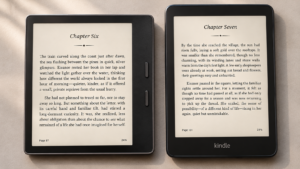
Retirement gives many people something they haven’t had in decades: the time to read. For others, the challenge isn’t time but the strain of holding heavy hardcover books or squinting at small paperback print. A Kindle solves both problems. It stores thousands of books, enlarges text with a single tap, removes glare in bright rooms or outdoors, and weighs less than most paperbacks.
However, not every Kindle is built the same way. Some models focus on portability. Others offer larger screens. Some include note-taking tools that many seniors may never need. Picking the wrong one can mean paying for features that go unused, or missing out on a feature that would have made reading much easier.
This guide compares every current Kindle and explains which one fits different needs, budgets, and eyesight levels. It is written for seniors who are shopping for themselves, and for adult children who are buying a Kindle as a gift for a parent or grandparent.
Reading habits also change with age, and that’s worth planning for. A reader who mostly enjoys mystery novels has very different needs than one who wants to journal every morning or fill in a crossword puzzle after breakfast. Vision changes, hand strength, and how often a device gets used near water all factor into which Kindle makes sense. This guide – Best Kindle for Seniors – walks through each of those considerations before recommending specific models, so the final choice fits how a person actually reads, not just what looks impressive on a spec sheet.
Quick Recommendation Table
Readers in a hurry can use this table to narrow down their options before reading further.
| Kindle | Display Size | Weight | Adjustable Warm Light | Waterproof | Battery Life | Best For | Verdict |
|---|---|---|---|---|---|---|---|
| Kindle (Base Model) | 6″ | 158g | No | No | Up to 6 weeks | Budget buyers, small hands | Good starting point, but skip if warm light or water safety matters |
| Kindle Paperwhite | 7″ | 211g | Yes | Yes (IPX8) | Up to 12 weeks | Most seniors | Editor’s Choice — the best all-around balance |
| Kindle Paperwhite Signature Edition | 7″ | 211g | Yes, auto-adjusting | Yes (IPX8) | Up to 12 weeks | Buyers who want hands-free convenience | A nice upgrade, not a necessary one |
| Kindle Colorsoft | 7″ | 215–219g | Yes | Yes (IPX8) | Up to 8 weeks | Comics, cookbooks, magazines, travel guides | Skip it if you mainly read novels |
| Kindle Scribe | 11″ | 400g | Yes, auto-adjusting | No | Weeks of reading, fewer with heavy writing | Note-takers, journal keepers, puzzle fans | Excellent for some seniors, unnecessary for most |
How We Chose the Best Kindle for Seniors
Every Kindle in this guide was evaluated using the same criteria that matter most to older readers. This approach keeps the recommendations consistent and fair, rather than favoring the most expensive device by default.
The evaluation considered:
- Display clarity and contrast
- Font readability and size options
- Adjustable warm lighting
- Overall weight and how comfortable each device feels to hold
- Ease of initial setup
- Ease of everyday navigation
- Battery life between charges
- Built-in accessibility features
- Price
- Overall value for the features included
No single Kindle wins in every category. Instead, this guide points out which device wins in the categories that matter most for aging eyes, arthritic hands, and readers who want a simple, distraction-free device.
Pricing and specifications were checked against Amazon’s current listings and confirmed against recent hands-on reviews, since Amazon occasionally adjusts pricing or storage tiers without much announcement. Readers comparing prices at the time of purchase should still double-check the current listing, as retail prices can shift during sales events.
What Makes a Kindle Good for Seniors?
Before comparing individual models, it helps to understand which features actually make a difference for older readers. Some are obvious. Others are easy to overlook until they’re missing.
Large, Easy-to-Read Text
Every Kindle lets readers increase the font size well beyond what’s printed in a physical book. Most models offer eight or more font sizes, along with several font styles, including bold options that add weight to thin letters.
Readers can also adjust line spacing and margins. Wider spacing between lines reduces the chance of losing your place mid-page, and narrower margins fit more text on the screen at a larger size. Together, these settings let a reader turn a standard paperback into something closer to a large-print edition, without buying a separate large-print book.
This flexibility also means one Kindle can serve an entire household. A spouse with excellent eyesight can keep the default settings, while another reader can switch to a larger font and bolder text, all on the same device and even the same book.
Glare-Free Display
Every Kindle uses E Ink technology instead of a traditional LCD or OLED screen, the kind found on phones, tablets, and computers. E Ink mimics the appearance of ink on paper. It doesn’t emit the same kind of light as a backlit screen, so text stays readable outdoors, even in direct sunlight.
This matters for reading comfort. Traditional tablets can cause glare and reflection that make text harder to see, especially for readers with cataracts or general age-related light sensitivity. A Kindle’s matte, paper-like screen avoids that problem entirely.
It also reduces general eye strain during long reading sessions. Many readers who struggle to get through a chapter on a phone or tablet find they can read for an hour or more on a Kindle without the same tired, gritty feeling in their eyes.
Adjustable Warm Light
Most Kindles include a front light that can shift from a cool white tone to a warmer, amber tone. Many seniors find warm light more comfortable for reading at evening, since it reduces the blue light exposure that can make it harder to wind down before bed.
The base Kindle model skips this feature and only offers a standard white light. Every other model in this guide includes adjustable warm light, and the Signature Edition models take it a step further with automatic brightness adjustment based on the room’s lighting.
For readers who like to fall asleep while reading, warm light is a small but meaningful comfort. It also tends to be easier on the eyes during long evening reading sessions, since it produces less of the harsh brightness associated with standard white light.
Lightweight Design
Weight matters more than most first-time buyers expect. A device that feels light in a store can feel heavy after thirty minutes of one-handed reading in bed or a recliner. This is especially true for readers with arthritis, tremors, or reduced grip strength.
Every Kindle in this guide weighs less than most hardcover books, and the base model and Paperwhite are light enough to hold comfortably for extended periods. The Kindle Scribe is the heaviest model by a wide margin, which is worth remembering if hand fatigue is a concern.
A lightweight cover can also shift the balance of a device in the hand, so it’s worth trying a Kindle with its case attached before assuming a given model will feel comfortable during long reading sessions.
Battery Life
Few things are more frustrating than a device that needs constant charging. Kindles are built to go weeks between charges, not hours. This means less fumbling with cables and charging ports, which can be a real hindrance for readers with limited dexterity or vision.
The Paperwhite and Paperwhite Signature Edition lead the pack at up to 12 weeks per charge. The base Kindle lasts around 6 weeks, and the Colorsoft’s color screen brings that number down to roughly 8 weeks. The Kindle Scribe’s battery life depends heavily on how much writing happens alongside reading.
These figures assume moderate daily use, roughly 30 minutes of reading with Wi-Fi turned off. Listening to audiobooks, browsing the Kindle Store, or leaving Wi-Fi on will shorten battery life somewhat, though most seniors should still go weeks between charges rather than days.
Simple User Interface
Kindle’s home screen is intentionally uncluttered. Large icons, a straightforward library view, and minimal pop-ups make it easy to find a book and start reading within a minute or two of picking up the device.
There are no notifications from social media, no app store to browse, and no cluttered settings menu. For a senior who doesn’t want to learn a new operating system, this simplicity is one of the Kindle’s biggest advantages over a general-purpose tablet.
Turning a page requires nothing more than a tap on the right side of the screen, and returning to the home screen is just as simple. This makes a Kindle a good option for readers who find a smartphone or tablet frustrating to navigate.
Audiobook Support
Every current Kindle can play Audible audiobooks. This appeals to seniors who experience eye fatigue after long reading sessions, or who simply prefer listening while doing something else, like folding laundry or relaxing outside.
Kindles don’t have a built-in speaker, so audiobooks require a pair of Bluetooth headphones or a Bluetooth speaker. This is worth planning for, since it’s an extra purchase beyond the Kindle itself. Many readers also use Whispersync, which keeps an e-book and its audiobook version in sync, so switching between reading and listening picks up at the same spot automatically.
Waterproofing
An IPX8 waterproof rating means a device can survive accidental submersion in fresh water, typically up to two meters deep for about an hour. This protects against spills, splashes, and accidental drops in places such as:
- The bathtub
- Beside the pool
- At the beach
- The kitchen counter, near a coffee cup or glass of water
The Paperwhite, Paperwhite Signature Edition, and both Colorsoft models carry this rating. The base Kindle and Kindle Scribe do not, so extra care is needed around water with those two devices.
Accessibility Features
Kindle includes several built-in tools for readers with low vision, dyslexia, or other reading challenges. These include:
- VoiceView, a screen reader that reads menus and books aloud over Bluetooth headphones or a speaker
- Screen magnification for enlarging on-screen menus and text
- Font customization, including the OpenDyslexic font, which has been specifically designed to improve readability for people with dyslexia
- Bold text options that thicken every font on the device
- Landscape mode, which can make text easier to track for some readers
These features are hidden inside the ‘Accessibility’ settings menu, so it’s worth spending a few minutes exploring them after setup, even if they don’t seem necessary right away. Vision can change gradually, and knowing where these settings live ahead of time makes it easier to adjust later without having to relearn the device from scratch.
Best Kindle Models for Seniors
Kindle (Base Model)
The entry-level Kindle is Amazon’s most affordable e-reader. It has a 6-inch, 300 PPI display, 16 GB of storage, and weighs just 158 grams, making it the lightest Kindle available. It costs $109.99 with lock-screen ads or $129.99 without them.
Who should buy it: First-time Kindle buyers who mainly want a lightweight, no-frills reading device and don’t mind a smaller screen.
Pros:
- The lightest and most compact Kindle
- Sharp 300 PPI text
- Long battery life, up to 6 weeks
- Lowest price in the lineup
Cons:
- No adjustable warm light, only a standard white front light
- No waterproofing
- Smaller screen than the Paperwhite
Verdict: The base Kindle is a reasonable starting point for seniors on a tight budget, or for anyone who just wants to try an e-reader before spending more. However, the missing warm light and waterproofing are notable trade-offs, and most seniors will be happier paying the extra $50 for the Paperwhite. It’s worth thinking of this model less as “the best Kindle for seniors” and more as “the best Kindle for someone who isn’t sure they’ll use it much yet.”
Check Latest Price of basic Kindle 16 GB on Amazon
Kindle Paperwhite
The Kindle Paperwhite is Amazon’s best-selling e-reader, and for most seniors, it’s the easiest recommendation in this guide. It has a larger 7-inch 300 PPI display, full IPX8 waterproofing, adjustable warm light, and noticeably faster performance than the base model. It costs $159.99 with ads or $179.99 without them.
The larger screen fits more text at a comfortable font size, which reduces how often a reader needs to turn the page. The waterproofing means it can travel to the bathtub or the pool without worry. The warm light setting makes nighttime reading more comfortable, and 12 weeks of battery life means more reading time and less charging time.
Ideal reader: A senior who wants one device that handles everyday reading well, without paying for extras they won’t use. This covers the large majority of buyers reading this guide.
Main strengths:
- Large, sharp 300 PPI display
- Full IPX8 waterproofing
- Adjustable warm light
- Long battery life, up to 12 weeks
- Reasonable price for the features included
Potential drawbacks:
- No auto-adjusting light sensor, which requires manually sliding the brightness setting
- No wireless charging
- No physical page-turn buttons
Who should buy it: Nearly everyone. This is the model most seniors should default to unless they have a specific reason to choose something else.
Verdict: The Paperwhite hits the best balance of price, comfort, and features in the entire Kindle lineup. It is the Editor’s Choice for seniors in this guide.
Check Latest Price of Kindle Paperwhite 16 GB on Amazon
Kindle Paperwhite Signature Edition
The Signature Edition builds on the standard Paperwhite with a few convenience upgrades, which include wireless charging, an automatic light sensor that adjusts brightness based on the room, and double the storage at 32 GB. It costs $199.99.
Who benefits: Seniors who want to set the Kindle on a wireless charging pad rather than plug in a cable, and those who prefer not to manually adjust the light throughout the day. The automatic sensor is a genuinely useful convenience feature for someone who reads at different times of day under varying lighting conditions or in different rooms.
Who doesn’t: Readers who are comfortable adjusting a slider once or twice a day, or who don’t own (and don’t want to buy) a wireless charging pad. The extra 16 GB of storage is rarely needed, since even a large personal library takes up a small fraction of the base Paperwhite’s 16 GB.
Verdict: A worthwhile upgrade for buyers who value convenience over saving $40, but not essential for most seniors.
Check Latest Price of Kindle Paperwhite Signature Edition 32 GB on Amazon
Kindle Colorsoft
The Kindle Colorsoft brings color to the Kindle lineup for the first time. It displays book covers, magazine pages, cookbooks, travel guides, and graphic novels in full color, rather than grayscale. The 16 GB version costs $249.99, and the Signature Edition with 32 GB, wireless charging, and an automatic light sensor costs $279.99.
Color makes a real difference for specific types of content. Travel guides with colorful maps, cookbooks with photos of finished dishes, and comics or graphic novels all look noticeably better than they do on a grayscale Kindle. Amazon has also worked to fix an early screen-tinting issue from the first Colorsoft models, so recent units display crisper black text than earlier reviews suggested.
However, color adds very little for readers who mainly read novels, memoirs, or other text-heavy books. The grayscale Paperwhite displays black text just as clearly, for less money and with a longer battery life.
Ideal reader: A senior who regularly reads illustrated content, whether that’s a weekly magazine subscription, cookbooks passed down through the family, or graphic novels borrowed for grandchildren visiting for the weekend.
Main strengths:
- Vibrant color for covers, images, and illustrations
- Same comfortable size and waterproofing as the Paperwhite
- Multi-color highlighting for study or reference use
Potential drawbacks:
- Shorter battery life than the standard Paperwhite
- Higher price for a feature many readers won’t use often
- Color intensity is more muted than a phone or tablet screen
Verdict: Recommended for seniors who regularly read cookbooks, travel guides, magazines, or graphic novels. Skip it if your reading list is mostly text-based fiction or nonfiction, since the color screen adds cost without adding much benefit.
Check Latest Price of Kindle Colorsoft 16 GB on Amazon
Kindle Scribe
The Kindle Scribe is the largest Kindle, with an 11-inch display, and the only one built for handwriting. It comes with a magnetic pen that never needs charging and supports note-taking, PDF annotation, and journaling. Pricing starts at $429.99 for a 16 GB version without a front light, $499.99 for the standard 32 GB version with a front light, and $629.99 and up for the color Scribe Colorsoft.
The Scribe lets readers write directly on PDFs, which is useful for filling out documents, annotating recipes, or working through downloaded worksheets. Some seniors also use its annotation tools for digital crossword puzzles and journaling templates downloaded from the Kindle Store or transferred from a computer. AI-powered notebook search can locate handwritten notes later, even without remembering the exact words used.
The trade-offs are real. At 400 grams, it’s more than twice as heavy as the Paperwhite, which can matter for readers with weaker grip strength. It’s also not waterproof, and its higher price makes it hard to justify unless the writing features will actually get used.
Ideal reader: A senior who already keeps a journal, enjoys crossword or sudoku books, or regularly annotates documents and wants to do all of it digitally, in one device, alongside their reading.
Main strengths:
- Largest, sharpest display in the lineup
- Pen never needs separate charging
- Handwritten notes can be searched and summarized
- Doubles as a digital notebook and PDF annotator
Potential drawbacks:
- Noticeably heavier than every other Kindle
- Not waterproof
- Highest price in the lineup
- Overkill for readers who only want to read books
Verdict: Excellent for seniors who enjoy journaling, working on puzzles, or annotating documents, but unnecessary for anyone who just wants to read books. Its size and price make it a poor fit as a general-purpose reading device.
Check Latest Price of Kindle Scribe 32 GB on Amazon
Check Latest Price of Kindle Scribe Colorsoft 64 GB on Amazon
Comparison Sections
Kindle vs Paperwhite for Seniors
The base Kindle and the Paperwhite share the same core reading experience, but the Paperwhite wins on nearly every point that matters for seniors. Its screen is one inch larger, which allows for bigger text without constant page turning. It also adds waterproofing and adjustable warm light, both of which the base Kindle lacks.
The base Kindle is $50 cheaper and about 53 grams lighter, which makes it appealing for anyone who wants the smallest, most affordable device possible. For most seniors, though, the extra comfort the Paperwhite provides is worth the additional cost.
Recommendation: choose the Paperwhite unless budget is the deciding factor.
Paperwhite vs Signature Edition
The differences here are smaller. Both models share the same screen, waterproofing, and battery life. The Signature Edition adds wireless charging, an automatic light sensor, and 32 GB of storage instead of 16 GB.
None of these extras are necessary for a good reading experience, but they do remove small daily frictions, like remembering to plug in a cable or adjusting the light setting when moving between rooms.
Recommendation: choose the standard Paperwhite to save $40, unless hands-free charging or automatic lighting genuinely appeals to you.
Paperwhite vs Scribe
This comparison comes down to one question: does the reader want to write, or just read? The Paperwhite is smaller, lighter, cheaper, and waterproof, all of which make it better suited to pure reading. The Scribe is larger, heavier, and more expensive, but it opens up note-taking, journaling, and PDF annotation that the Paperwhite simply can’t do.
Seniors who journal daily, take detailed notes while reading nonfiction, or want a digital surface for puzzles and worksheets may find real value in the Scribe. Everyone else will likely be happier, and save money, with the Paperwhite.
Recommendation: choose the Paperwhite for reading, the Scribe only if writing is a regular habit.
Colorsoft vs Paperwhite
The Colorsoft and Paperwhite share nearly the same body, weight, and waterproofing. The difference is the screen: Colorsoft displays color, Paperwhite does not. Colorsoft’s battery life is somewhat shorter, at up to 8 weeks compared to the Paperwhite’s 12 weeks, and it costs $90 more at the entry tier.
Color genuinely improves content that relies on it, like graphic novels, cookbooks, and travel guides. It adds little for readers who stick to standard fiction and nonfiction, where grayscale text looks identical on both devices.
Recommendation: choose Colorsoft only if color content is a regular part of your reading habits. Otherwise, the Paperwhite offers a better value.
Which Kindle Should You Buy?
Every reader has different priorities. Here are quick recommendations based on common needs.
- Best Overall: Kindle Paperwhite — the right mix of size, comfort, and price for most seniors.
- Best Budget: Kindle (Base Model) — the lowest price and lightest weight, with fewer features.
- Best Large Screen: Kindle Scribe — the biggest display in the lineup, though it comes with added weight and cost.
- Best Premium: Kindle Paperwhite Signature Edition — wireless charging and automatic lighting for buyers who want the most convenient experience.
- Best for Travelers: Kindle Paperwhite — waterproof, lightweight, and long battery life make it easy to pack and forget about charging.
- Best for Audible: Any current Kindle — all models support Audible audiobooks over Bluetooth, so this comes down to which device otherwise fits your needs.
- Best for Low Vision: Kindle Paperwhite — its larger screen, adjustable warm light, and full accessibility feature set make text easiest to read.
- Best Value: Kindle Paperwhite — consistently rated the strongest balance of price and features by reviewers and readers alike.
- Best Gift for Parents: Kindle Paperwhite — approachable, durable, and difficult to go wrong with as a gift.
Kindle Accessories Seniors May Appreciate
The right accessories can make a Kindle noticeably more comfortable to use day to day.
- Lightweight protective cover: Reduces the risk of damage from an accidental drop, which matters most for readers with reduced grip strength.
- Auto wake/sleep case: Automatically turns the screen on when opened and off when closed, removing a step from the daily routine.
- Adjustable tablet stand: Props the Kindle up at a comfortable angle for reading in bed or at a table, which reduces strain on the hands and wrists. This is especially helpful for readers who prop books up during meals or while resting in a recliner.
- Remote page turner: A small Bluetooth clicker that turns pages without touching the screen, useful for readers with limited hand mobility or tremors. It can also be mounted to a stand for fully hands-free reading.
- Reading pillow: Provides back and arm support during long reading sessions, especially helpful when reading in bed.
- USB-C charger: Some Kindles ship without a wall adapter, so a compatible charger ensures the device can be plugged in right out of the box.
- Screen protector (optional): Adds a layer of scratch protection, though it isn’t necessary for most readers.
- Bluetooth speaker: Needed for anyone who wants to listen to Audible audiobooks without headphones.
- Comfortable Bluetooth headphones: A better fit for audiobook listeners who prefer privacy or want to avoid disturbing others in the room.
- Carrying sleeve: Protects the Kindle when tossed into a bag for trips to appointments, family visits, or vacations.
Tips for Setting Up a Kindle for Seniors
A few adjustments during setup can make a big difference in day-to-day comfort. These settings only take a few minutes to configure.
- Increase the font size. Open a book, tap the center of the screen, and select the “Aa” icon to adjust text size immediately.
- Enable warm light. In the light settings, drag the warm light slider up for more comfortable evening reading.
- Choose an easy-to-read font. Bookerly and similar rounded fonts tend to be easier to read than more decorative options.
- Increase text boldness. The bold text setting adds weight to thin letters, which helps with contrast.
- Adjust margins and line spacing. Wider spacing reduces the chance of losing a place mid-page.
- Connect library services. Where available, library books can be borrowed through the Libby app and sent directly to the Kindle.
- Download favorite books. Downloading books over Wi-Fi ahead of time means they’re available offline later.
- Enable a large clock display, where available, for a quick glance at the time without picking up a phone.
- Set up Audible, if audiobooks are of interest, and pair a Bluetooth speaker or headphones in the Bluetooth settings menu.
- Practice basic navigation gestures, like tapping the right side of the screen to turn a page and tapping the center to bring up the menu.
Spending fifteen minutes on these settings after unboxing can save weeks of minor frustration later.
Frequently Asked Questions
Is Kindle good for seniors? Yes. Kindles offer adjustable font sizes, glare-free screens, long battery life, and a simple interface, all of which make reading easier for older adults, especially those managing vision changes or hand strength issues. Many seniors also find that a Kindle encourages them to read more, simply because it saves them the trouble of finding large-print editions at a bookstore or library.
Which Kindle has the largest screen? The Kindle Scribe has the largest screen at 11 inches, followed by the Paperwhite and Colorsoft models at 7 inches, and the base Kindle at 6 inches.
Can seniors enlarge the text? Yes. Every Kindle offers multiple font sizes, and most books can be enlarged well beyond standard print size, along with adjustable line spacing and margins.
Is Kindle easier to read than paper books? For many seniors, yes. The ability to instantly enlarge text, add warm lighting, and increase contrast makes reading more comfortable than a fixed-size paperback or hardcover.
Which Kindle is best for poor eyesight? The Kindle Paperwhite is generally the best choice. It combines a larger screen, adjustable warm light, and Kindle’s full accessibility toolkit, including VoiceView and screen magnification. Readers with more significant vision loss should explore VoiceView specifically, since it can read an entire book aloud alongside standard visual settings.
Do Kindles need Wi-Fi all the time? No. Wi-Fi is only needed to download or purchase books. Once downloaded, books can be read offline indefinitely.
Can seniors borrow library books? Yes. Most U.S. public libraries support Kindle book lending through the free Libby app. Borrowed books can be sent directly to a Kindle device.
Does Kindle require a subscription? No. A Kindle works without any subscription. Kindle Unlimited is an optional paid service for readers who want unlimited access to a larger book catalog.
How long does the battery last? Battery life ranges from about 6 weeks on the base Kindle to up to 12 weeks on the Paperwhite and Signature Edition, based on roughly 30 minutes of reading per day, with the Wi-Fi turned off.
Is Kindle difficult to learn? No. The interface is intentionally simple, with large icons and a straightforward library screen. Most new users feel comfortable within their first day of use.
Can two people share a Kindle? Yes. A Kindle can be shared using a single Amazon account, or through Amazon Household, which allows two adults to share purchased books across separate accounts.
Is the Kindle Paperwhite worth the extra money? For most seniors, yes. The larger screen, waterproofing, and warm light justify the roughly $50 price difference over the base Kindle for most readers.
Final Recommendation
There is no single Kindle that fits every senior’s needs, but a few clear patterns emerge from this guide.
- Most seniors will be happiest with the Kindle Paperwhite. It offers the best overall balance of screen size, comfort, and price.
- Budget-conscious buyers should consider the Kindle (Base Model), keeping in mind the trade-offs around warm light and waterproofing.
- Readers who want to write notes and enjoy a large display should look at the Kindle Scribe, understanding that it’s heavier and more expensive than a standard e-reader.
- Those who enjoy comics, magazines, cookbooks, or illustrated travel books will get real value from the Kindle Colorsoft.
- Buyers who want premium convenience features, like wireless charging and automatic lighting, should consider the Kindle Paperwhite Signature Edition.
The best Kindle ultimately depends on reading habits, eyesight, hand strength, portability needs, and budget. Most seniors who aren’t sure where to start can shop with confidence by choosing the Paperwhite, and can always step up to a Signature Edition, Colorsoft, or Scribe later if a specific need arises.
Whichever model ends up under the tree or on the nightstand, a few minutes spent adjusting the font size, warm light, and accessibility settings will make the biggest difference of all. A Kindle set up thoughtfully, for the reader who’ll actually use it, tends to get picked up every day. One left on default settings, straight out of the box, tends to get set aside.