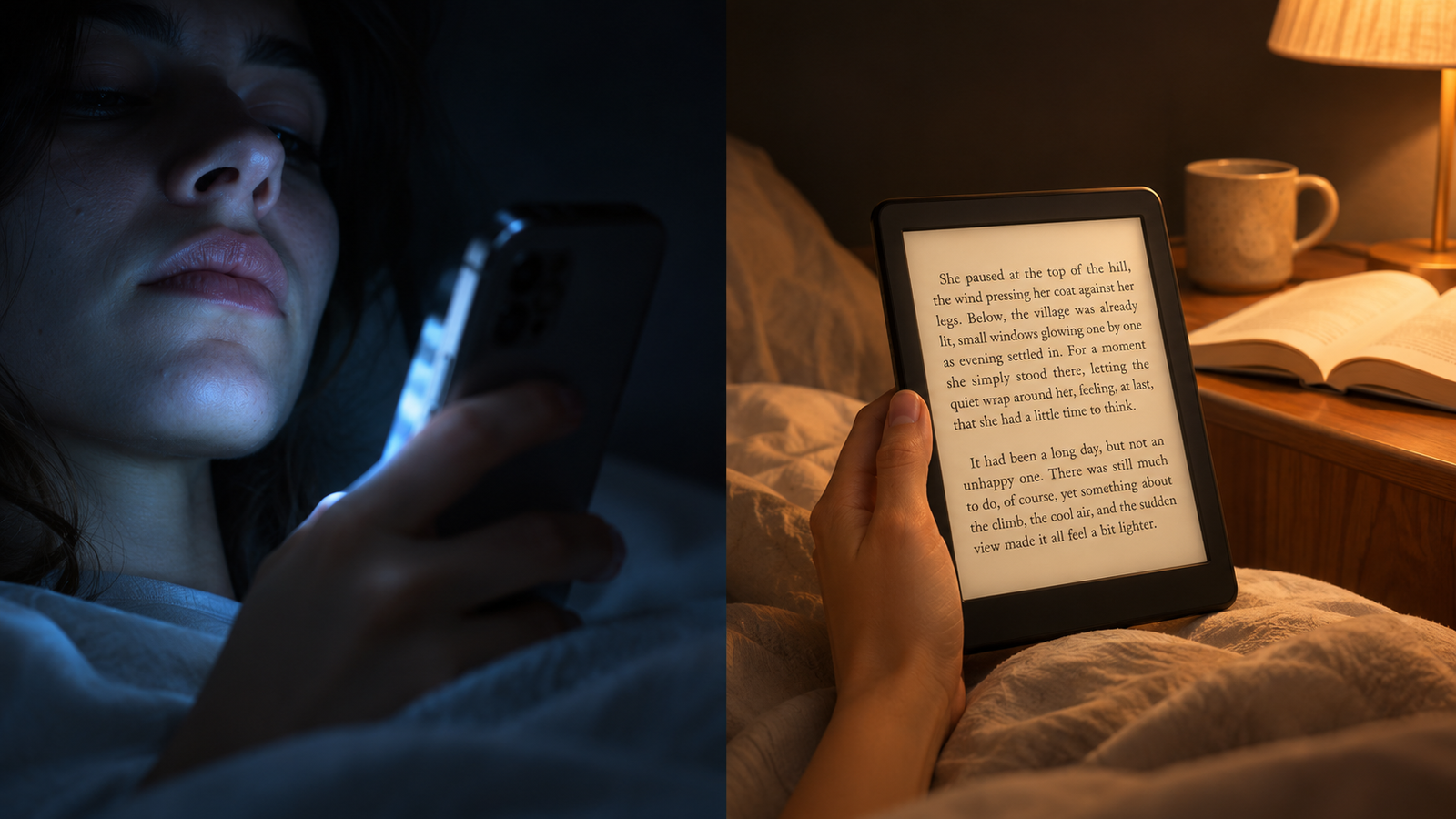
Read on your phone for two hours, and you know the feeling. Your eyes go gritty. Your attention drifts to notifications you swore you’d ignore. You put it down feeling oddly tired.
Read on a Kindle for two hours and something’s different. It’s calmer. Closer to a paperback. But not identical to one, and most readers sense that too, without being able to say why.
The difference is real, and it isn’t marketing. It comes from three layers stacked on top of each other:
- The display physics. Light bouncing off ink versus light shining straight into your eyes.
- Your body’s response. Blink rate, visual fatigue, and the sleep hormone melatonin.
- Your brain’s map of the text. How you build memory and attention around a page you can (or can’t) hold.
E Ink wins clearly on some of these. It ties paper on others. On a couple, print still has the edge. Below, we break down each layer using the actual research, flag the claims that get exaggerated, and finish with the settings and habits that make Kindle reading feel as good as it can.
9to5Kindle may earn a commission from qualifying purchases made through links in this article. Read our affiliate disclosure.
The Short Answer: Your Kindle Reflects Light, Your Phone Shoots It at You
A Kindle feels different because its screen works like paper, not like a phone. An E Ink display has no light behind it. It reflects the light already in the room, the same way a printed page does, and the image sits completely still between page turns. A phone or tablet does the opposite: it beams light out of the screen and into your eyes, refreshing the image constantly. That one difference cascades into everything else: less visual fatigue, a weaker hit to your sleep hormones at night, and readability in direct sun. Throw in the fact that a Kindle can’t ping you with Instagram, and you get the calmer, deeper reading session most owners notice. Paper still holds a small edge on memory and the physical sense of progress, which we’ll get to.
| Paper book | Kindle (E Ink) | Phone / tablet (LCD/OLED) | |
| How light reaches your eyes | Reflected room light | Reflected room light, plus an optional front light aimed at the page | Emitted from behind or within the screen, aimed at you |
| Flicker | None | None on a static page | Possible, depending on panel and brightness |
| Direct sunlight | Easy | Easy, often better than indoors | Washed out, glare |
| Distractions | None | Minimal: books only | Constant: apps, notifications |
| Battery between charges | Not applicable | Weeks | About a day |
| Page feel / haptics | Paper, weight, thickness | Tap or button, no thickness cue | Tap or swipe on glass |
How E Ink Actually Works (Without the Engineering Degree)
Millions of Tiny Capsules of Black and White Particles
Under the glass of your Kindle sits a film packed with microcapsules. E Ink describes them as each roughly the width of a human hair, and there are millions of them.
Inside each capsule, tiny white and black pigment particles float in a clear fluid. The white ones carry one electric charge; the black ones carry the opposite. Apply a voltage to a spot on the screen and the particles move: black up to the surface for a letter, white up for the background. That’s the whole trick. It’s called an electrophoretic display, which is just a fancy way of saying “particles moved by an electric field.”
The crucial part: what you see is actual pigment, sitting near the surface, just like ink on paper. There are no pixels glowing.
Why the Screen Only Uses Power When the Page Changes
Once those particles are in place, they stay there. No power needed. Engineers call this bistability.
This is why a Kindle lasts weeks on a charge while your phone dies by dinner. The display only draws power during the split second you turn a page. The rest of the time, the page is just… sitting there. No refresh cycle. No redraw 60 or 120 times a second. A static E Ink page is, for practical purposes, a still image.
Reflective vs Emissive: The Single Biggest Difference
This is the core of the whole article, so it’s worth slowing down.
A reflective display (paper, E Ink) needs outside light to be seen. Light from the room hits the page and bounces back to your eye.
An emissive display (LCD, OLED) produces its own light. LCDs shine a backlight through a stack of filters; OLEDs light up each pixel directly. Either way, the screen is a light source pointed at your face.
That explains a pattern every Kindle owner has noticed. Take a phone outside on a sunny day and you’re squinting, cranking brightness to maximum, fighting glare. Take a Kindle outside and the page actually looks better, because more ambient light means more light bouncing off the ink. Paper behaves the same way. Your phone is competing with the sun. Your Kindle is using it.
The Front Light Is Not a Backlight
“But my Paperwhite lights up in the dark.” True. It has a front light, not a backlight, and the difference matters.
The LEDs sit along the edge of the display. Their light travels through a thin, transparent light-guide layer on top of the E Ink film and gets directed down onto the page. The light hits the ink first, then reflects up to you, a bit like reading a book by a lamp that’s built into the page. Amazon’s 2026 lineup uses a light guide with micro-deflectors designed to cut stray light and keep the glow even across the screen.
Compare that with an LCD, where the backlight sits behind the image and shines straight through it toward your eyes.
Two practical upshots. First, in daylight you can turn the front light all the way to zero, and the Kindle still works perfectly, something no phone can do. Second, at night the front light only needs to be bright enough to illuminate the page, not to overpower a room. If you’ve never adjusted yours, our guide to the Kindle settings you should change immediately walks through brightness, warmth, and more.
What’s Happening to Your Eyes
Visual Fatigue: E Ink vs LCD vs Paper
The study most people point to here is Benedetto et al. (2013) in PLOS ONE, and it’s a good one because it tested actual Kindles.
Researchers had participants do long reading sessions on three things: a Kindle Paperwhite (E Ink), a Kindle Fire HD (LCD), and a printed paper book. Each format got its own prolonged session, spaced roughly ten days apart. They measured visual fatigue two ways: objectively, by tracking blink rate, and subjectively, with a visual fatigue questionnaire.
The result: the LCD tablet produced more visual fatigue than both the E Ink Kindle and paper. And E Ink versus paper? No meaningful difference. The authors concluded that, on visual fatigue, E Ink is very similar to paper.
What it doesn’t prove: it’s one study, with a small group of young adults, on 2013 hardware. It didn’t test modern OLED phones, warm light, or night reading. But it lines up with what most long-time E Ink readers report, and it’s the cleanest head-to-head we have.
Blinking, Dry Eyes, and Why Screen Time Feels Gritty
When you focus hard on a bright screen, you tend to blink less. Fewer blinks means the tear film on your eyes dries out faster, and that’s a big part of the scratchy, tired-eye feeling people call digital eye strain.
Here’s the honest caveat: a Kindle doesn’t magically make you blink. If you lock in on a gripping thriller for three hours, you can still end up with dry eyes, on E Ink or on paper. The 20-20-20 rule still applies: every 20 minutes, look at something about 20 feet away for 20 seconds. E Ink removes the glare and flicker. It doesn’t remove the staring.
Flicker and PWM: The Invisible Reason Some Screens Tire You
Many phones dim their OLED screens using PWM (pulse-width modulation). Instead of lowering the brightness smoothly, the screen switches on and off very rapidly, and spends more time “off” as you dim it. Most people never consciously see it. Some sensitive users report headaches and eye fatigue from it, especially at low brightness in the dark.
A static E Ink page has no refresh cycle at all, so the page itself doesn’t flicker. That’s a genuine advantage.
One honest note: Amazon doesn’t publish how the Kindle front light is dimmed. So while the page is flicker-free, we can’t claim the front light is flicker-free at every brightness level without independent measurements. If you’re PWM-sensitive, reading in daylight with the light off is the safest bet.
Contrast, Sharpness, and Pixel Density
Every current Kindle e-reader in the 2026 lineup, from the Kindle (2026) up, runs at 300 ppi for black-and-white text. At that density, individual pixels effectively disappear at normal reading distance. Letters have clean edges, and your visual system isn’t straining to resolve jagged type.
Now the part E Ink marketing glosses over: E Ink is grayer than paper. The “white” is a light gray, and the contrast is lower than a crisp printed page. Amazon says the 2026 Kindle Paperwhite has the highest contrast ratio of any Paperwhite yet, and it’s a noticeable step up from older models. But hold one next to a fresh paperback in good light and the paperback still looks whiter. That’s why turning on a little front light, even in daytime, can make text pop.
Glare and Sunlight
Kindle screens use a matte, anti-glare surface. Combined with the reflective display, that’s why you can read on a beach or by a bright window without hunting for shade. A glossy tablet in the same spot turns into a mirror. If you read outdoors a lot, this alone is reason enough to own an E Ink device.
What’s Happening to Your Sleep
The Famous 2015 Study Everyone Misquotes
If you’ve ever read a headline saying “e-readers ruin your sleep,” it almost certainly traces back to Chang et al. (2015), published in PNAS.
Here’s what the researchers did. Twelve healthy young adults spent about two weeks in a controlled lab. For five evenings, they read for roughly four hours before bed on a light-emitting device. For five evenings, they read a printed book. Then the researchers compared the two.
On the device nights, participants took longer to fall asleep (nearly 10 minutes, per Penn State’s summary), produced less melatonin, showed a later circadian rhythm, got less REM sleep, and were groggier the next morning.
Now the part almost every headline leaves out. The “light-emitting eReader” in that study was an iPad. Not a Kindle Paperwhite. Not a front-lit E Ink device. The researchers did measure other devices’ light output, and they noted that the plain, unlit Kindle of that era doesn’t emit light at all.
So the study is strong evidence that bright, backlit tablets at bedtime are bad for sleep. It is not direct evidence about front-lit E Ink.
So Is a Kindle Safe Before Bed?
Much safer than a tablet, with caveats.
A front-lit Kindle at low brightness sends far less light toward your eyes than an iPad at a comfortable reading level, because the light is aimed at the page, not at you, and it only needs to be bright enough to see the ink. Models with warm light shift the glow from bluish-white toward amber, cutting the short-wavelength blue light that does most of the damage to melatonin.
The honest caveats:
- There’s less direct research on front-lit E Ink and sleep than on tablets. “Better than an iPad” is well supported. “Zero effect” isn’t.
- Any light at night counts. A Kindle at full brightness and cool white is still a light source in a dark room.
- Content matters. A page-turner keeps you awake whatever it’s printed on. “One more chapter” is a habit problem, not a display problem.
Warm Light and Dark Mode: Settings That Actually Help
If you read in bed, three settings make the biggest difference:
- Turn brightness down to the lowest comfortable level. In a dark room, that’s often just a few notches. Tap the top of the screen, then use the brightness slider.
- Use warm light on a schedule. On models that support it, set warmth to come on automatically at sunset so you don’t have to remember. Note the base Kindle (2026) still has no warm light; the Paperwhite and Colorsoft do.
- Try Dark Mode. White text on black lights up far fewer areas of the screen, which some readers find easier in a pitch-dark room.
We cover the fastest ways to change these in our roundup of 50 Kindle shortcuts, gestures, and hidden tricks, and a few more lesser-known options in Kindle features most owners never discover.
What’s Happening in Your Brain
The “Screen Inferiority” Effect: Real, but Narrower Than You Think
You’ll often hear that people understand less when they read on screens. There’s truth in it. But the details matter a lot.
The biggest evidence comes from two meta-analyses, studies that pool dozens of earlier experiments:
- Delgado et al. (2018), Educational Research Review looked at studies from 2000 to 2017 and found a small but real advantage for paper. The researchers call this the screen inferiority effect. It grew when people read under time pressure, and it showed up for informational (expository) texts but not for narrative ones like novels.
- Clinton (2019), Journal of Research in Reading pooled 33 studies and reached a similar conclusion: a small paper advantage, apparently limited to expository texts, with no difference for narrative texts. One finding stands out: screen readers were worse at judging how well they’d understood. They tended to overestimate their comprehension.
Three things to keep in perspective:
- The effect is small. We’re talking about a modest dip on comprehension tests, not a collapse.
- It’s mostly about textbooks and articles, not novels. If you read fiction on a Kindle, the meta-analyses suggest you’re largely fine.
- Most of these studies used computers and tablets, not E Ink. Scrolling a laptop screen with email in the next tab is a very different experience from a single-purpose e-reader. Lumping them together as “screens” is part of why the headlines overreach.
The Kindle vs Paperback Study
The study that tested a Kindle directly is Mangen, Olivier and Velay (2019) in Frontiers in Psychology.
Fifty participants read a 28-page mystery story (about an hour of reading) either in a paperback or on a Kindle DX. Then they took a battery of tests: how engaged they felt, what they recalled, and whether they could reconstruct the plot.
On most measures, the two groups performed about the same. Kindle readers were just as engaged and remembered characters and events about as well.
The gap showed up in one specific place: chronology. Paperback readers were better at putting the story’s events in the right order and placing them in time.
The researchers’ explanation is the interesting part. A paper book gives you constant physical feedback. Your left hand feels the pages you’ve read pile up; your right hand feels what’s left. That kinesthetic sense of progress may help your brain build a timeline of the story. A Kindle gives you a percentage in the corner instead.
Two caveats worth knowing. The Kindle DX is a 2009-era device with slower page turns and no front light. And this is one experiment with 50 people. It’s a strong hint, not a verdict.
Your Brain Maps Text Like a Landscape
Think about the last time you hunted for a passage in a paper book. You probably remembered that it was “near the top of a left-hand page, about a third of the way in.”
That’s spatial memory at work. As Ferris Jabr explained in Scientific American, the brain seems to treat a text as a kind of physical landscape, with landmarks: the corners, the spine, the thickness on either side. Those landmarks make it easier to form a mental map of where things are.
A Kindle weakens those landmarks in two ways:
- Every page looks the same. Same size, same position, no left page versus right page.
- Text reflows. Change the font size and the passage that was at the top of page 84 is now in the middle of page 112. The location isn’t fixed, so your brain can’t anchor to it as reliably.
This is one reason you might remember the story perfectly but struggle to find a specific scene again without the search bar.
Deep Reading vs Skimming Mode
Reading researcher Maryanne Wolf, in her book Reader, Come Home, argues that heavy screen use trains us toward fast skimming and away from deep reading: the slow, immersive kind where you make connections, notice nuance, and lose track of time.
This is where a Kindle genuinely shines. It’s a single-purpose device. No notifications, no social feeds, no “just checking” email. That lowers your cognitive load: less of your mental energy goes to resisting distraction, and more goes to the book. A phone asks you to read and resist twenty other apps. A Kindle just asks you to read.
That’s also why Kindle reading often feels closer to paper than the screen-versus-paper studies suggest. Many of those “screen” conditions came with the baggage of a multi-purpose device. A Kindle mostly doesn’t.
Why a Kindle Can Feel Faster (or Slower) Than Paper
Early e-readers were measurably slower. A 2010 Nielsen Norman Group usability test with an early Kindle and the first iPad found people read somewhat slower on both than on print. That was more than 15 years ago, on hardware with sluggish page turns and lower resolution.
Modern Kindles turn pages much faster, and Amazon says the 2026 Kindle opens books 30% faster than the 2024 model. In practice, how “fast” a Kindle feels comes down to small things: whether the page turn lands the instant you tap, whether a full-screen flash interrupts you, and whether you’re reading at a font size that lets your eyes move comfortably. Get those right, and most readers stop noticing the device at all.
The Physical Feel: Hands, Weight, and Haptics
No Page Weight, No Book Thickness
With a paperback, you always know where you are. Thick stack on the right? Early days. Thin sliver left? Climax incoming. You never look at a number. Your hands just know.
A Kindle replaces all of that with a few digits at the bottom of the screen. That’s the same physical cue the Mangen study suspected was behind the chronology gap.
You can’t add weight to a Kindle, but you can choose the progress cue that works best for your brain. Tap the bottom-left corner of the screen while reading to cycle through the options:
- Location in the book
- Page number (when the book supports real page numbers)
- Time left in chapter
- Time left in book
- Or nothing at all
Many readers find time left in chapter the closest substitute for feeling the pages run out. It gives you a sense of pace, not just position. The progress bar along the bottom helps too.
One-Handed Reading and Weight
Here’s where the Kindle beats paper outright. A paperback forces you to hold it open with both hands, or crack the spine. A hardcover gets heavy fast. A Kindle weighs less than most hardcovers and stays the same weight whether you’re reading a novella or a 1,200-page fantasy epic.
If you read lying down or with a coffee in one hand, physical page turns help even more. The Kindle Click is a small Bluetooth remote that turns pages without touching the screen. Amazon’s new Page-Turn Cover [AFFILIATE-LINK-NEEDED-PAGE-TURN-COVER] adds physical page-turn buttons to select 2026 models. We broke down which devices work with which accessory in our guide to Amazon’s new Kindles and page-turn accessories.
Touch Screen vs Turning a Page
Turning a paper page is a small physical ritual: you lift a corner, feel the texture, flip it over. Researchers sometimes describe this kind of hand-to-text feedback as part of how we “feel” our way through a book. A tap on flat glass doesn’t carry the same signal.
Some readers genuinely miss it. Others stop noticing within a week. Physical buttons and remotes don’t recreate paper, but they make the action deliberate again, which is part of why so many long-time readers love them. And if you miss flipping back through pages, Kindle’s Page Flip view (swipe up from the bottom while reading) lets you skim nearby pages as thumbnails without losing your place.
Not All Kindles Feel the Same
Black-and-White Paperwhite and Kindle
For pure text, monochrome E Ink is still the most paper-like option. You get 300 ppi, the cleanest blacks, and the highest contrast in the lineup. The Kindle Paperwhite (2026) adds a 7-inch screen, adjustable warm light, and waterproofing. The 6-inch base Kindle has the same sharpness but no warm light, which matters if most of your reading happens after dark. If you’re torn, our Kindle Paperwhite vs Kindle Basic comparison goes deeper.
Kindle Colorsoft: Why Color E Ink Looks a Little Different
The Kindle Colorsoft (2026) adds a color filter layer on top of the E Ink film. Black-and-white text still renders at 300 ppi, but anything in color drops to 150 ppi, half the density.
That filter layer also changes the look of plain text slightly. Amazon itself acknowledged in its Colorsoft FAQs that the extra layer affects the texture or brightness of text compared with a grayscale Kindle. Put a Colorsoft beside a Paperwhite and the Colorsoft page often looks a touch darker and less crisp. For novels, the Paperwhite is the purer experience. For comics, cookbooks, children’s picture books, and color highlights, the Colorsoft is worth the trade. See how it stacks up against its closest rival in our Kindle Colorsoft vs Kobo Libra Colour comparison.
Kindle Scribe: Big Screen, Writing, and Active Reading
The Kindle Scribe (2025) changes the feel in two ways. Its large screen shows more text at once, which gives your eyes a bigger “page” to map, and it handles PDFs and textbooks far better than a 6- or 7-inch screen.
Then there’s the pen. Some research suggests that writing notes by hand helps people process and remember material better than typing, though the evidence is mixed and the effect depends on how you take notes. The practical takeaway is simpler: when you annotate, you engage with the text more actively, and active reading tends to stick. If that’s your style, look at our guides to the best Kindle for note-taking and the best Kindle for reading PDFs. Want color for your notes and highlights? The Kindle Scribe Colorsoft adds it.
Older Kindles: Lower ppi, Slower Refresh, No Warm Light
If your Kindle is a few generations old, part of the “feel” you’re experiencing is age. The 2019 base Kindle, for example, ran at 167 ppi, so text looked noticeably softer than on today’s 300 ppi screens. Older models also have slower page turns, more ghosting, less even front lights, and no warm light at all.
So if someone tells you Kindle reading “feels cheap,” it’s worth asking what they tried. See how the generations compare in our ranking of every Kindle ever released, and if you’re wondering whether yours is due for retirement, check how long a Kindle lasts.
Edge Cases and Myths
Myth: “E Ink is identical to paper”
Close, not identical. On visual fatigue, the research puts E Ink right alongside paper. On contrast, whiteness, texture, and the physical feel of a book, paper still wins. E Ink is the closest thing a screen has come to paper. That’s different from being paper.
Myth: “Kindles have no blue light”
Any Kindle with a front light emits light, and white LEDs include blue wavelengths. What’s true is that the light is far less intense and less direct than a tablet’s, and on warm-light models you can shift it toward amber. The old, unlit Kindles really did emit nothing; you needed a lamp.
Myth: “Reading on screens ruins comprehension”
The evidence shows a small paper advantage, mainly for informational texts and timed reading, and mostly from studies on computers and tablets. For novels on an E Ink device, the gap is small to nonexistent on most measures, with chronology as the notable exception in the one direct Kindle study.
Ghosting and the Black Flash
Because E Ink particles don’t always return perfectly to position, faint traces of the previous page can linger. That’s ghosting. To clean it up, the Kindle periodically does a full refresh: the screen flashes black for a split second, resetting every particle.
If ghosting bothers you, turn on Page Refresh in the Kindle’s reading settings to force a full refresh on every page turn. You’ll see more flashes, but cleaner pages. On newer Kindles, ghosting is mild enough that most people leave it off.
Cold Weather and Hot Sun
The fluid inside the microcapsules gets more sluggish in the cold, so page turns slow down, and images may not fully settle on a freezing day. In extreme heat, like a Kindle left on a car dashboard, the display can be damaged. Amazon lists an operating range for its devices; keep your Kindle within it and let a cold device warm up before reading.
Reading in Total Darkness
In a completely dark bedroom, a Kindle front light set to just a few notches is usually plenty. You only need enough light to see the ink. That’s a fraction of the light a bedside lamp throws across the room, and nowhere near what a tablet at reading brightness sends toward your face.
Kids and E Ink
E Ink is easier on young eyes than a tablet, and there are no games or video to pull kids away from the book. But long, unbroken sessions are still long sessions: breaks and outdoor time matter for every screen, E Ink included. See our best Kindle for kids guide for model picks and parental controls.
Older Readers and Low Vision
A Kindle can actually be easier than paper for readers with weaker eyesight. You can enlarge the text, increase font boldness, switch to a high-contrast font, or use Assistive Reader to have the book read aloud. We cover the full set in our guide to Kindle accessibility features for seniors.
How to Make Kindle Reading Feel Better (Practical Checklist)
The science points to a handful of simple changes. Here are the ones worth doing today:
- Turn the front light off outdoors. In daylight, let the room or the sun light the page, exactly like paper.
- Put warm light on a schedule. Have it switch on automatically in the evening so you never forget.
- Match brightness to your environment. Bright indoors, lower at dusk, just a few notches in bed.
- Increase font boldness. A notch or two of extra weight makes up for E Ink’s slightly gray background and makes text easier to read in dim light.
- Pick a font and margins you actually like. Spend five minutes testing. Comfortable type reduces effort over long sessions.
- Switch the progress display to “time left in chapter.” Tap the bottom-left corner. It’s the closest substitute for feeling the pages run out.
- Highlight and take notes. Active reading builds memory, and your highlights sync across devices for later review.
- Use Page Flip to skim back. Swipe up while reading to browse nearby pages as thumbnails, like thumbing back through a paperback.
- Put your phone in another room. The Kindle can’t distract you. Your phone can.
- Follow the 20-20-20 rule. Every 20 minutes, look about 20 feet away for 20 seconds. Your eyes still need breaks.
For step-by-step instructions on each setting, see our guide to the Kindle settings you should change immediately.
Which Kindle Feels Best to Read On?
If the science above has you shopping, here’s the honest shortlist based on reading feel alone:
- Best overall reading feel: Kindle Paperwhite (2026). 7-inch, 300 ppi, Amazon’s highest-contrast Paperwhite display yet, adjustable warm light, and waterproof. For most readers, this is the one.
- Best premium reading feel: Kindle Paperwhite Signature Edition. Everything above, plus a front light that adjusts brightness automatically to the room, more storage, and charging-dock support. Ideal if you read in constantly changing light.
- Best on a budget: Kindle (2026). The same 300 ppi sharpness in a smaller, lighter body. The catch: no warm light, so it’s less ideal for heavy bedtime readers.
- Best for color: Kindle Colorsoft (2026). Comics, cookbooks, picture books, and color highlights. Text is very slightly less crisp than on a Paperwhite.
- Best for active reading and writing: Kindle Scribe (2025). A big screen for PDFs and textbooks, plus a pen for notes in the margins. Pick the Kindle Scribe Colorsoft if you want color.
Want the full breakdown? Our best Kindle in 2026 guide compares every model in detail, and our latest Kindle deals page tracks current discounts.
Frequently Asked Questions
Is reading on a Kindle better for your eyes than a phone?
Yes, for most people. A Kindle’s E Ink screen reflects light like paper instead of shining it at you, has no flicker on a static page, and stays readable in sunlight without glare. In a 2013 study comparing a Kindle Paperwhite, a Kindle Fire HD tablet, and a paper book, the LCD tablet caused more visual fatigue, while E Ink and paper performed about the same.
Is reading on a Kindle as good as reading a paper book?
For eye comfort, very close. For comprehension of novels, mostly yes. Where paper still edges ahead is the physical sense of progress and spatial memory. One study found paperback readers were better at recalling the order of a story’s events. Settings like “time left in chapter” and active highlighting help narrow that gap.
Does a Kindle emit blue light?
Only from its front light, and only when it’s switched on. White LEDs include some blue wavelengths, but the light is aimed at the page rather than your eyes and is much dimmer than a tablet’s. On models with warm light, you can shift the tone toward amber to cut blue light further, especially in the evening.
Is it OK to read a Kindle in bed with the lights off?
Generally, yes. Keep the front light as low as you can comfortably read, turn on warm light, and consider Dark Mode. That’s a fraction of the light a tablet emits. The famous study showing e-readers disrupt sleep used an iPad, not a front-lit Kindle. Still, any light at night has some effect, so lower is always better.
Do you remember less when reading on a Kindle?
Mostly not, for fiction. Large reviews of the research find a small comprehension advantage for paper, mainly with informational texts and timed reading, and mostly on computers and tablets. The one direct Kindle-versus-paperback study found similar results on most measures, but paperback readers did better at reconstructing the story’s timeline.
Why does my Kindle screen flash black when turning pages?
That’s a full refresh. E Ink can leave faint traces of the previous page, called ghosting. Every so often, the Kindle flashes the screen black to reset all the ink particles and give you a clean page. You can make it happen on every page turn by turning on Page Refresh in your reading settings.
Does color E Ink cause more eye strain than black-and-white?
There’s no strong evidence that it does. But color E Ink adds a filter layer that makes text look slightly darker and less crisp, and color content displays at 150 ppi versus 300 ppi for black and white. For long sessions of plain text, many readers find a black-and-white Paperwhite a little more comfortable.
Can a Kindle help you read more?
For many people, yes. It’s always with you, holds thousands of books, works one-handed, and doesn’t interrupt you with notifications. Features like Kindle+ and library borrowing also lower the cost of trying new books. We dig into the evidence in Kindle vs printed books: which helps you read more?
The Bottom Line: It Feels Different Because It Is Different
A Kindle doesn’t feel like your phone because it isn’t built like your phone. It reflects light like paper. It holds a still image like paper. And it shuts out the notifications that turn every screen session into a split-attention exercise.
On your eyes, the research puts E Ink right alongside paper. On sleep, a dim, warm front light is a world away from a bright tablet at bedtime. Where paper still wins is memory and the physical sense of a book: the weight in your hands, the thickness of what’s left, the fixed spot on the page where a scene lives. That gap is real but small, and the right settings and habits narrow it further.
If you want the most paper-like reading experience available today, the Kindle Paperwhite (2026) is the one to get. Already own a Kindle? Spend ten minutes with our essential Kindle settings guide, and keep an eye on our latest Kindle deals if an upgrade is on your list. And if you’re wondering how far you could take it, see whether a Kindle can replace your entire personal library.