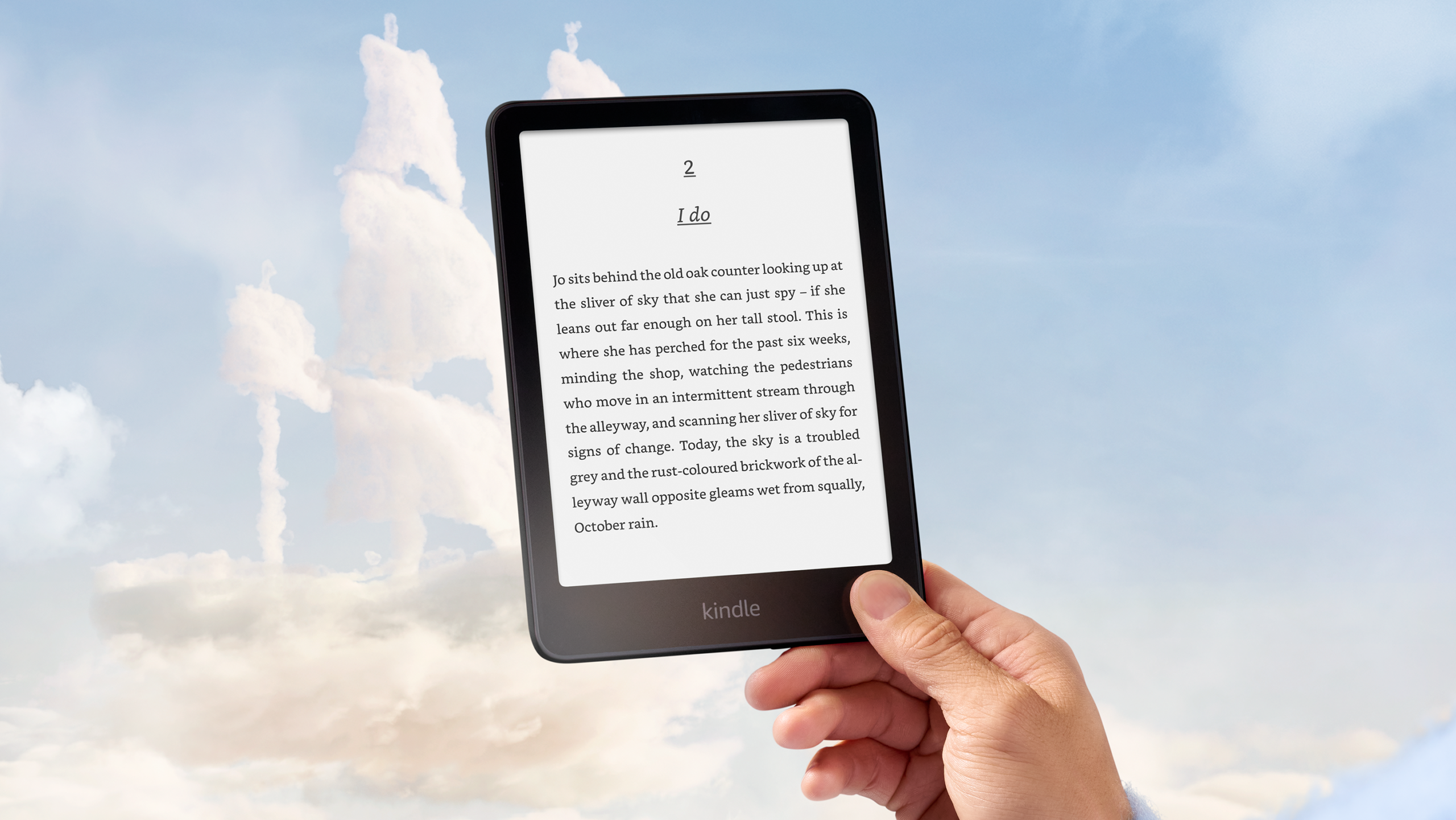
Most people take a new Kindle out of the box, tap through the setup screen, and start reading right away. That is usually fine. But it also means most readers never touch the settings menu at all.
That is a mistake. Amazon ships every Kindle with default settings that work for the average user, not for you specifically. Some of these defaults quietly drain the battery. Others make the screen harder to read than it needs to be. A few even affect your privacy.
The good news is that fixing all of this takes about ten minutes. A handful of small adjustments can noticeably improve:
- Reading comfort
- Battery life
- Page-turn speed
- Privacy
- Organization
- Accessibility
This guide walks through the Kindle settings worth changing immediately after setup, whether you own a basic Kindle, a Paperwhite, a Paperwhite Signature Edition, a Kindle Colorsoft, or a Kindle Scribe. Some features are model-specific, and this guide notes that wherever it applies.
Before You Begin
Kindle settings are spread across a few different menus, and knowing where to look saves a lot of time.
Quick Settings appear when you tap the top of the screen while reading or browsing the Home screen. This menu holds brightness, warm light, Wi-Fi, and airplane mode.
All Settings is where the deeper options live. You can reach it through the Quick Settings panel or through the top menu. This is where Wi-Fi & Bluetooth, Device Options, and Accessibility settings are found.
Device Options covers things like device name, restart, reset, and storage.
Reading Options appear inside an open book. Tap the middle of the screen, then look for the “Aa” icon. This controls font, margins, line spacing, and page refresh.
Home & Library settings control how books are displayed and sorted on the Home screen and in your Library.
Accessibility settings are tucked inside All Settings and include VoiceView, screen magnifier, and font adjustments for readers with low vision.
Screen Brightness and Warm Light sliders are available directly from Quick Settings, so they never require digging through menus.
Once you know where each of these lives, changing settings becomes fast and easy.
Display Settings You Should Change
The display is where most of the reading experience happens, so this is the highest-impact section in the entire guide.
Adjust Brightness
Kindle devices often ship with brightness set higher than most readers actually need. Amazon does this so the screen looks good in bright retail lighting and product photos, not because it is ideal for everyday reading.
High brightness increases eye strain during long reading sessions. It also uses more battery than most people realize, especially on Kindles with a frontlight.
For indoor reading, a brightness level between 5 and 10 (on a 24-point scale) usually feels comfortable. Outdoors, brightness can be pushed higher since sunlight competes with the screen. At night, brightness should drop significantly, often below 5.
Anyone who reads primarily in the evening should lower brightness immediately. Anyone who reads mostly outdoors in direct sunlight can leave it closer to default.
Enable Warm Light (Supported Devices)
Warm Light is available on the Paperwhite, Paperwhite Signature Edition, Kindle Colorsoft, and Kindle Scribe. It is not available on the basic Kindle.
This setting shifts the frontlight from cool white toward amber and orange tones. There is a common belief that this is mainly about blocking blue light before bed. That is only part of the story. Warm tones are also simply easier on the eyes during long reading sessions, regardless of the time of day.
For nighttime reading, many users find a warm light level between 15 and 25 comfortable. During the day, warm light can stay low or off, since natural light already balances the color temperature.
Night readers benefit the most from this setting. Daytime readers may only need a small amount, if any.
Dark Mode
Dark Mode inverts the screen, showing white or light gray text on a black background.
Pros: It reduces glare in dark rooms and can feel gentler on the eyes at night. Some readers also find it simply more comfortable for long sessions.
Cons: In bright rooms or outdoors, Dark Mode can be harder to read than standard black-on-white text.
When it helps: Nighttime reading, dark bedrooms, and low-light environments.
When it doesn’t: Daytime reading, outdoor reading, or brightly lit rooms.
Battery implications: On E Ink Kindles, Dark Mode has a minimal effect on battery life, unlike on phone or tablet screens. E Ink does not use backlit pixels the same way, so the battery savings people expect from Dark Mode on other devices mostly do not apply here.
Font Size
Font size affects both readability and reading fatigue. Text that is too small forces the eyes to work harder, especially during long sessions.
Older readers, or anyone with mild vision difficulty, usually benefit from increasing font size two or three steps above default. Readers with strong vision may prefer a smaller size, since it fits more text per page and reduces page turns.
A good starting range for most readers is one or two steps above the smallest default option. From there, it is worth adjusting until reading feels effortless rather than strained.
Font Type
Kindle offers several font options, and each behaves differently over long reading sessions.
- Bookerly is Amazon’s default reading font. It was designed specifically for E Ink screens and works well for most fiction and general reading.
- Ember has a slightly more geometric, modern look. Some readers find it clearer at smaller sizes.
- OpenDyslexic is designed for readers with dyslexia. It uses heavier bottom-weighted letters that help some readers track text more easily.
- Publisher fonts preserve the font chosen by the book’s original publisher, which can matter for typography-heavy books.
For most long reading sessions, Bookerly remains a solid default. Readers who experience eye fatigue may want to try Ember or increase boldness slightly instead of switching fonts entirely.
Boldness
Increasing text boldness by just one or two levels can make a bigger difference than changing font size or font type.
Bold text creates more contrast against the background, which reduces the effort needed to distinguish letters. This is especially useful in bright light, where thin default text can look washed out.
Readers using Warm Light at night often find that adding slight boldness compensates for the softer contrast that warm tones create.
Margins
Kindle offers narrow, medium, and wide margin options.
Narrow margins fit more text per page, which benefits readers who prefer fewer page turns.
Medium margins offer a balance between text density and visual breathing room, and work well for most readers.
Wide margins reduce text density and can feel less overwhelming, particularly for readers with focus or attention difficulties.
There is no universally correct choice here. It mostly comes down to personal reading comfort.
Line Spacing
Line spacing affects how easily the eyes move from one line to the next.
Tighter spacing fits more text on the screen but can cause the eyes to accidentally jump to the wrong line, especially for readers with dense font sizes. Looser spacing reduces this risk and often improves reading speed for longer sessions, even though it means more page turns overall.
Readers who frequently lose their place mid-page should increase line spacing first, before adjusting anything else.
Orientation
Most Kindle reading happens in portrait mode, and this remains the best default for standard fiction and nonfiction.
Landscape mode benefits specific use cases. Kindle Scribe users working with PDFs, textbooks, or wide-format documents often find landscape easier to read, since it matches the original page layout more closely. Comic and manga readers may also prefer landscape for wider panel layouts.
For standard novels and articles, portrait remains the more comfortable choice.
Reading Settings Worth Changing
Beyond the display, several reading-specific settings affect the day-to-day experience of using a Kindle.
Turn Off Popular Highlights (Optional)
Popular Highlights show passages that many other readers have highlighted, marked with a small underline in the text.
Advantages: Some readers enjoy seeing which passages resonated with others, especially in nonfiction or widely discussed books.
Disadvantages: Other readers find the underlines distracting, since they interrupt the natural flow of the page.
Readers who enjoy book club-style engagement may appreciate this feature. Readers who prefer an unmarked, distraction-free page should turn it off in Reading Options.
Vocabulary Builder
Vocabulary Builder automatically saves words that a reader looks up in the built-in dictionary, then turns them into flashcards for review later.
Every Kindle owner benefits from enabling this, since it works passively in the background. There is no extra effort involved beyond normal reading.
Language learners benefit the most, since the feature naturally reinforces new vocabulary through repeated exposure and review, without requiring a separate app or notebook.
Word Wise
Word Wise displays short, simplified definitions directly above difficult words in the text.
Students benefit from Word Wise when reading material above their current vocabulary level, since it reduces the need to stop and look words up manually.
Language learners benefit similarly, since it offers instant context without breaking reading flow.
Children reading above their typical grade level often benefit the most, since Word Wise can make challenging books more accessible without switching to an easier title.
Advanced readers may find Word Wise unnecessary and distracting, since it adds visual clutter to pages they already understand fully.
Continuous Scrolling
Continuous Scrolling is available on select newer Kindle models and replaces traditional page turns with a smooth, scroll-based reading experience.
Pros: It can feel more natural for readers accustomed to scrolling on phones and tablets.
Cons: It removes the traditional sense of “pages,” which some readers use to track progress and pacing.
Battery effects: Continuous Scrolling can use slightly more battery than standard page turns, since the screen refreshes more frequently during scrolling motion.
Page Refresh
Page Refresh determines how often the screen fully redraws to eliminate ghosting, the faint outline of previous text that can remain visible on E Ink screens.
Ghosting happens because E Ink pixels do not fully reset with every single page turn. Page Refresh forces a complete screen redraw at set intervals to clear this residue.
Refreshing every page keeps the screen looking its cleanest but uses slightly more battery. Refreshing less frequently saves a small amount of battery but allows minor ghosting to build up over several pages.
Most readers do best leaving Page Refresh at its default frequency, only adjusting it if ghosting becomes noticeably distracting.
Reading Progress
Kindle offers several ways to display reading progress at the bottom of the screen:
- Page in Book shows a traditional page number.
- Time Left in Chapter estimates minutes remaining based on personal reading speed.
- Time Left in Book estimates minutes remaining for the entire book.
- Location shows Kindle’s internal location marker, which stays consistent across font size changes.
- None hides progress indicators entirely.
Time-based indicators tend to work best for most readers, since they translate directly into a sense of how long reading will take. Location is most useful for readers who frequently reference specific passages or discuss books with others using page-independent citations.
Battery-Saving Settings
Battery life is one of the biggest advantages E Ink devices have over tablets and phones, but a few default settings quietly work against that advantage.
Turn Off Bluetooth
Bluetooth allows Kindle to connect to headphones or speakers for Audible audiobooks. When it stays on but unused, it continues to draw a small amount of power in the background.
Anyone not actively listening to audiobooks should turn Bluetooth off. Audible listeners should simply turn it back on when needed, rather than leaving it on permanently.
Airplane Mode
Airplane Mode disables both Wi-Fi and Bluetooth at once, which meaningfully extends battery life between charges.
Readers who download books in batches, then read offline for days or weeks, benefit the most from enabling Airplane Mode after downloads finish. Wi-Fi is worth leaving on for readers who rely on frequent Whispersync updates, active book club sync, or regular new purchases throughout the week.
Automatic Downloads
Automatic Downloads pushes newly purchased books, and in some cases samples, directly to the device without a manual download step.
This setting is worth leaving enabled for most readers, since it makes new purchases available instantly without extra taps. Readers who manage limited storage on an older Kindle model may prefer to disable it and download books manually instead, to keep more control over what takes up space.
Power Saver
Kindle’s sleep mode is not the same as fully powering off the device. Sleep mode pauses most background activity but keeps the device ready to wake instantly when the cover opens or a button is pressed.
Enabling Power Saver mode, where available, restricts background connectivity further during sleep, extending battery life significantly for readers who do not need instant wireless sync the moment the device wakes.
Restart vs. Power Off
A restart clears temporary memory and resolves most minor glitches, such as a frozen page or a slow-loading Library. It does not erase any content or settings.
Powering off completely conserves battery for extended storage, such as when a Kindle will not be used for several weeks. For everyday troubleshooting, a simple restart is almost always the better first step.
Privacy Settings
Privacy settings on Kindle are easy to overlook, but they affect how much reading data Amazon collects and how the device behaves around personal information.
Disable Reading Insights (If Desired)
Reading Insights tracks metrics like reading speed, time spent per session, and books finished, then displays this data back to the reader.
Some readers find this data motivating. Others prefer not to have detailed reading habits tracked and stored at all. Disabling Reading Insights stops this specific tracking without affecting core reading functionality.
Manage Ads (Special Offers Models)
Kindles sold at a discount often include “Special Offers,” which display ads on the lock screen and, in some cases, on the Home screen.
These ads are generally unobtrusive, since they only appear on the lock screen rather than interrupting active reading. Readers who dislike them can remove Special Offers, either through Amazon’s account settings or by paying a one-time fee, depending on when and where the device was purchased.
Sync Settings
Whispersync keeps reading progress, bookmarks, and notes synced across every device linked to the same account.
Pros: Reading picks up exactly where it left off, whether on a Kindle, phone, or tablet.
Cons: Sync requires periodic Wi-Fi connections, which uses a small amount of battery.
Privacy considerations: Sync data is tied to the Amazon account and used to power features like Reading Insights and personalized recommendations, so readers concerned about data collection may want to review what syncing shares.
Personalized Recommendations
This setting controls whether the Home screen displays book suggestions based on past reading and purchase history.
Readers who enjoy discovering new titles may want to keep this enabled. Readers who prefer a cleaner, distraction-free Home screen focused only on their own Library often choose to disable it.
Home Screen Improvements
A cluttered Home screen makes it harder to find what you actually want to read. A few adjustments fix this quickly.
Library View
Kindle offers both grid view, which shows book covers, and list view, which shows text-based entries with more detail per line.
Grid view is easier for visually identifying books quickly. List view fits more titles on screen at once and works well for readers with large libraries.
Filters
Kindle’s Library can be filtered by:
- Downloaded
- Unread
- Collections
- Authors
- Series
Filtering by “Downloaded” is especially useful for readers who want to see only what is available offline, which matters most for anyone using Airplane Mode regularly.
Collections
Collections work like folders, letting readers group books by genre, author, series, or reading status.
A simple, sustainable approach works best: create a handful of broad collections rather than dozens of narrow ones. Series-based collections and “Currently Reading” collections tend to be the most useful long-term.
Sort Options
Books can be sorted by:
- Recent
- Title
- Author
- Series
“Recent” works well for readers who bounce between several books at once. “Author” or “Series” sorting benefits readers with large libraries who often look for a specific author’s full catalog.
Home Screen Layout
By default, the Home screen mixes personal Library titles with Amazon recommendations. Readers who want to prioritize their own books can adjust Home screen settings to reduce recommended content and highlight recently opened titles instead.
Accessibility Settings
Accessibility settings often go unnoticed, even though many readers could benefit from them.
VoiceView is Kindle’s screen reader, reading menus and book text aloud. It is designed for readers who are blind or have low vision.
Screen Magnifier enlarges specific portions of the screen for readers who need closer detail without changing the entire font size.
Large Text increases the size of menu text, separate from in-book font size, making navigation easier for readers with low vision.
High Contrast mode strengthens the visual difference between text and background, benefiting readers with limited vision or light sensitivity.
OpenDyslexic font, mentioned earlier, benefits readers with dyslexia through its distinct letter weighting.
Touch Adjustments modify how sensitive the touchscreen is, which can help readers with limited fine motor control navigate more reliably.
Anyone who struggles with standard Kindle text size, contrast, or touch sensitivity should explore this menu, even if they do not consider themselves to have a diagnosed accessibility need.
Kindle Scribe-Specific Settings
The Kindle Scribe includes several settings that do not appear on any other Kindle model.
Notebook Preferences control default templates, page style, and folder organization for new notebooks.
Pen Shortcuts allow the Premium Pen’s side button to trigger actions like switching tools or erasing, saving time during active note-taking.
Palm Rejection prevents accidental marks when a hand rests on the screen while writing, and is worth confirming is enabled for anyone new to writing on a Scribe.
Writing Toolbar settings control which tools appear by default, such as pen type, highlighter, and eraser size.
PDF Settings affect how documents display and how annotations are saved within PDFs specifically.
Templates offer pre-built page layouts, including lined, grid, and planner-style formats, which can be set as defaults for new notebooks.
These settings only appear on Kindle Scribe, since no other current Kindle model supports writing or note-taking.
Kindle Colorsoft-Specific Settings
The Kindle Colorsoft introduces color display settings that other Kindle models do not have.
Color Mode toggles between color and grayscale display, useful for readers who want to conserve battery when reading text-only content.
Brightness recommendations differ slightly on Colorsoft, since color pixels can appear dimmer than grayscale text at the same brightness level, often requiring a slightly higher setting for equivalent visibility.
Warm Light functions the same way as on other models but can shift color accuracy slightly, which matters for readers viewing colored images or covers.
Color Saturation, where available, allows readers to adjust how vivid colors appear, which matters most for comics and illustrated content.
Battery considerations are important here, since color rendering uses more power than standard grayscale text, especially with images-heavy content.
Reading comics, children’s books, and magazines all benefit noticeably from Colorsoft’s color display, since covers, illustrations, and layouts appear far closer to their original print versions.
Hidden Settings Most Owners Never Discover
Beyond the standard settings menus, several practical features go unnoticed by most Kindle owners.
- Swiping down from the top of the screen brings up a quick brightness slider without opening a full menu.
- Tapping the top of the screen while reading reveals navigation controls without leaving the current page.
- Long-pressing a word brings up dictionary definitions, Wikipedia summaries, translations, and, on supported models, AI-powered explanations.
- Tapping the lower-left corner of the screen while reading lets readers switch between reading progress display styles instantly.
- Creating multiple font themes, such as one for daytime and one for nighttime reading, allows fast switching between saved display setups.
- Collections can organize books not just by genre, but by reading status, such as “To Read” or “Currently Reading.”
- Favorite font and layout combinations can be pinned for quick access, rather than reconfigured every time.
- EPUB files can be sent wirelessly to a Kindle through Amazon’s Send to Kindle service, without needing a cable.
- X-Ray, where supported, lets readers explore recurring characters, places, and terms throughout a book.
- Some software versions support an on-screen clock display while reading, useful for readers who don’t want to exit the book just to check the time.
Recommended Settings for Different Types of Readers
Different reading habits call for different setup priorities. This table offers a starting point.
| Reader Type | Recommended Settings |
|---|---|
| New Kindle users | Medium brightness, default font, Vocabulary Builder enabled |
| Students | Word Wise on, Vocabulary Builder on, wide margins for focus |
| Elderly readers | Larger font size, increased boldness, high contrast mode |
| Night readers | Warm Light enabled, low brightness, Dark Mode on |
| Travelers | Airplane Mode after downloads, Automatic Downloads off, Power Saver on |
| Manga readers | Landscape orientation, Colorsoft color mode (if available) |
| Comic readers | Color mode on (Colorsoft), higher brightness for detail |
| Heavy readers | Time Left in Book progress, Collections by series, Sync enabled |
| Battery-conscious users | Bluetooth off, Airplane Mode, Page Refresh reduced |
These combinations are starting points rather than fixed rules. Most readers eventually adjust one or two settings from their category to match personal preference.
Common Mistakes New Kindle Owners Make
A few habits show up repeatedly among new Kindle owners, and each one has a simple fix.
Leaving brightness at maximum. This increases eye strain and drains battery faster than necessary. Lower it to a comfortable indoor level.
Ignoring Warm Light. Many owners never try it, even though it takes seconds to enable and noticeably reduces eye strain at night.
Never using Collections. Without Collections, large libraries quickly become difficult to navigate. Even a few basic categories help significantly.
Never restarting the device. A quick restart resolves most freezing or lag issues, yet many owners assume something is permanently wrong instead.
Keeping Bluetooth on unnecessarily. This quietly drains battery for a feature most readers only use occasionally.
Assuming Page Refresh should always stay maximized. Higher refresh rates use more battery without meaningfully improving most readers’ experience.
Overlooking accessibility features. Many of these settings help readers who do not consider themselves to have any special accessibility need, such as anyone who simply prefers larger menu text.
Not customizing fonts and margins. Default settings are rarely the most comfortable option for any specific reader.
Relying only on the Home screen instead of the Library. The Home screen mixes recommendations with personal books, while the Library shows the full collection without clutter.
FAQ
Which Kindle settings save the most battery? Turning off Bluetooth, enabling Airplane Mode between downloads, and using Power Saver mode make the biggest difference.
Should I leave Wi-Fi on all the time? Only if frequent syncing, new purchases, or book club updates matter throughout the week. Otherwise, enabling it briefly for downloads and turning it off afterward saves more battery.
Does Dark Mode save battery? Not significantly. E Ink screens do not use backlit pixels the way phone screens do, so Dark Mode mainly affects comfort rather than battery life.
Is Page Refresh bad for battery life? Higher refresh frequency uses slightly more battery, but the difference is usually small. Ghosting prevention is the main benefit, not battery savings.
What brightness level is best for reading? Around 5 to 10 (on a 24-point scale) works well indoors, with lower levels at night and higher levels outdoors in direct sunlight.
Should I turn off Popular Highlights? Only if the underlines feel distracting. Readers who enjoy seeing widely highlighted passages can leave it on.
What does Warm Light actually do? It shifts the frontlight toward amber tones, reducing eye strain during long reading sessions, particularly at night.
Can changing settings make Kindle faster? A restart often resolves lag more effectively than any single setting change, though reducing Page Refresh frequency can marginally speed up page turns.
Will changing these settings affect my books? No. Display, battery, and privacy settings do not alter book content, purchases, or highlights.
How do I restore the default settings? Most menus include a “Reset to Default” option within that specific settings screen. A full device reset restores all settings but also erases personal content, so it should only be used as a last resort.
Do these settings work the same across all Kindle models? Most core settings work the same everywhere. Warm Light, color options, and writing tools are the main exceptions, since they depend on specific hardware.
Should Automatic Downloads stay enabled? For most readers, yes. Readers managing very limited storage may prefer manual downloads instead.
Why does my Kindle feel slower after months of use? Accumulated cache and background data can cause minor slowdowns over time. A restart, and occasionally a check for software updates, usually resolves this.
Conclusion
A Kindle is far more customizable than most owners realize. The default settings work well enough for general use, but they rarely match any one reader’s actual habits, environment, or preferences.
Spending just a few minutes adjusting brightness, font, battery, and privacy settings can noticeably improve day-to-day reading comfort. As reading habits change, whether that means more night reading, more travel, or simply aging eyes, it is worth revisiting these settings again.
There is no single “correct” configuration. The best approach is to experiment with a few combinations and settle on whatever makes reading feel effortless.