
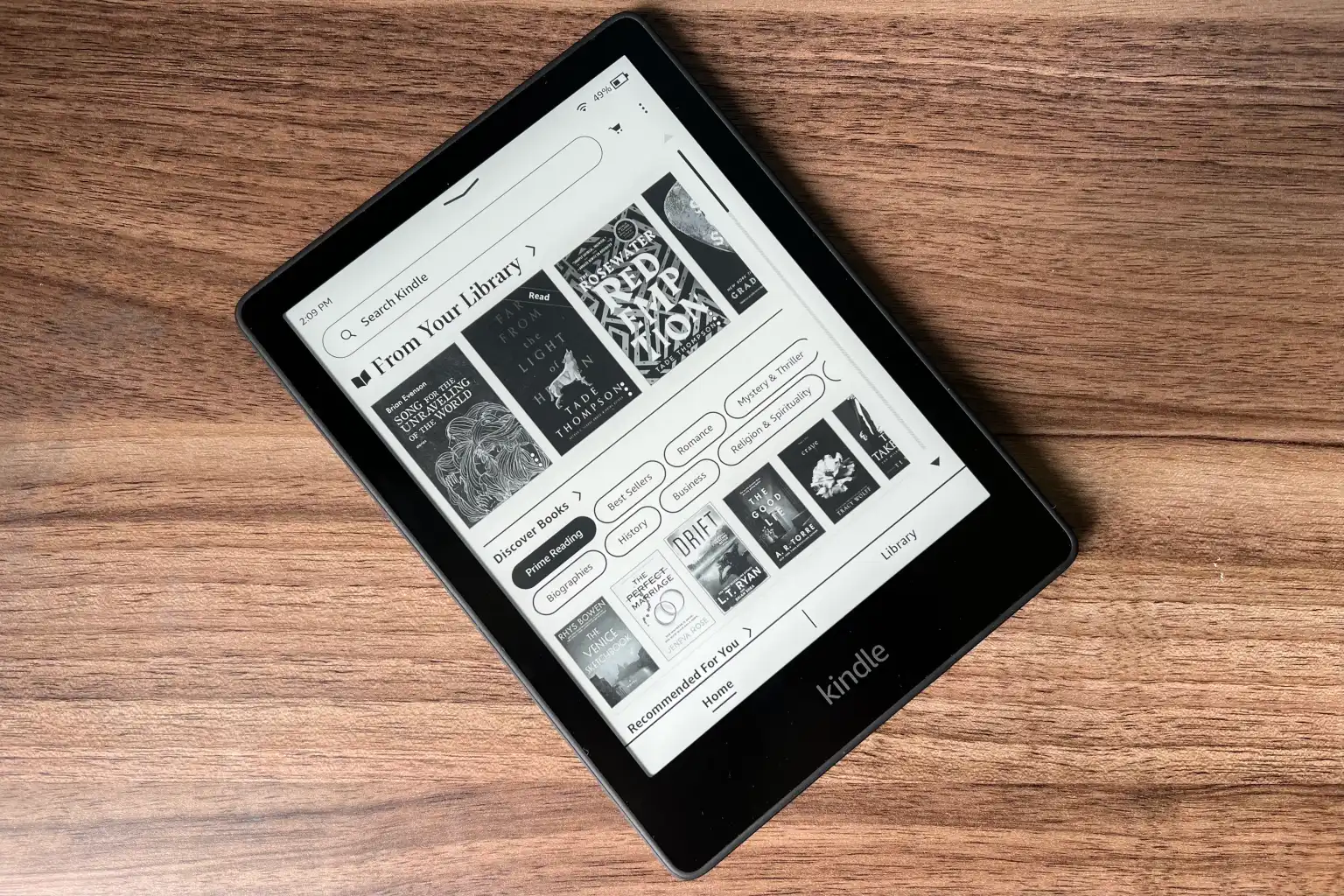
Readers often download EPUB books from places other than Amazon. It’s the format that public domain libraries, independent authors, and DRM-free bookstores use. However, problem arises when readers attempt to load such EPUB titles onto their Kindle devices the same way they would a PDF.
Unfortunately, it does not work that way as Kindle devices do not open EPUB files copied over USB. This might be surprising to a lot of people, especially those switching from other e-readers.
However, the good news is that Amazon now officially supports EPUB files. That said, it only works through specific methods, and it always involves a conversion step behind the scenes. This guide explains exactly how that works.
By the end of this article, readers will know the various ways of getting an EPUB onto a Kindle device or Kindle app. This includes the Send to Kindle website, email, the Kindle app itself, and Calibre. It also covers common upload errors, formatting quirks after conversion, and which method fits different types of readers.
What Is an EPUB File?
EPUB stands for “electronic publication.” It is an open e-book format that almost every e-reader and reading app supports, except Kindle devices in their native state.
The format was built for reflowable text. This means the words on the page can resize and rearrange themselves depending on screen size, font size, and orientation. A large-print reader and a phone screen show the same EPUB differently, but both display it correctly.
Why EPUB Became the Standard
EPUB is an open standard, non-proprietary format for e-books maintained by the W3C (World Wide Web Consortium). It is designed to be interoperable across devices and platforms. Since the specification itself is openly published, any company can build software that reads or creates it. Apple Books, Kobo, Google Play Books, Nook, and library apps like Libby all use EPUB as their primary format.
Amazon took a different path. Kindle devices rely on proprietary formats instead, which is one reason EPUB and Kindle have never worked together automatically.
EPUB vs. PDF
PDF files use a fixed layout. Every page looks exactly the same no matter what device displays it. That works well for printed documents, but it is a poor fit for small e-reader screens, since text cannot resize to match.
EPUB solves this by keeping the text reflowable. Readers can increase font size, switch fonts, or change line spacing, and the book still looks clean.
EPUB vs. Kindle Formats (AZW3, KFX, MOBI)
Kindle devices read their own family of formats. AZW3 (also called KF8) was the standard for years. KFX is newer and adds features like Enhanced Typesetting, which improves hyphenation and spacing. MOBI is the oldest format and has been phased out since late 2023 of new uploads.
None of these formats are interchangeable with EPUB. A Kindle cannot open an EPUB directly, and other e-readers cannot open AZW3 or KFX formats.
Why Most Bookstores Sell EPUB Instead of Kindle Files
Stores go with the EPUB format because it is open-standard, which is unlike Kindle’s proprietary format that ties everything to Amazon. EPUB files are compatible with most devices, irrespective of their display size. That is why public domain sites, independent publishers, and library systems almost always distribute EPUB files.
| Feature | EPUB | Kindle Formats (AZW3 / KFX) | |
|---|---|---|---|
| Text reflow | Yes | No (fixed layout) | Yes |
| Works natively on Kindle | No | Yes | Yes |
| Works on most e-readers | Yes | Yes, but poorly on small screens | No |
| Common source | Non-Amazon bookstores, libraries | Documents, scanned books | Kindle Store |
| Supports DRM | Sometimes | Sometimes | Yes (Amazon’s own DRM) |
| Best for | Novels, general reading | Fixed layouts, forms, print-style documents | Kindle-exclusive reading features |
Can Kindle Read EPUB Files?
This is where a lot of confusion starts. The short answer is: yes, but not directly. It’s possible because Amazon has built a workaround.
Kindle devices cannot open EPUB files copied straight onto them through USB. The device’s software simply does not recognize the format. If someone drags an EPUB into the Kindle’s documents folder, it will not appear in the library.
However, Amazon’s ‘Send to Kindle’ service does accept EPUB uploads. When a reader submits an EPUB through ‘Send to Kindle’, Amazon’s servers automatically convert it into a Kindle-compatible format (usually KFX or AZW3, depending on the device) before delivering it.
This means readers never actually view the original EPUB file on their Kindle. They are reading a converted copy that Amazon generated behind the scenes. It looks and feels similar to the original, but it is technically a different file.
Common misconception: “Kindle supports EPUB now” does not mean Kindle devices open EPUB files directly. It means Amazon’s conversion pipeline accepts EPUB as an input format and converts it into a Kindle-compatible format.
Before You Begin
A few things need to be in place before sending an EPUB to Kindle. Most readers already have everything they need.
- A Kindle device or the Kindle app (iOS, Android, Windows, or Mac)
- An Amazon account linked to that device or app
- A Wi-Fi connection for the Kindle device (needed to receive the converted file)
- An EPUB file that is free of DRM
- Enough free storage on the Kindle
A Quick Note on DRM
DRM stands for digital rights management. It is a layer of protection that some publishers add to prevent unauthorized copying of an e-book.
Amazon’s ‘Send to Kindle’ service cannot process EPUB files protected by other companies’ DRM systems, such as Adobe’s. If an EPUB was borrowed from a library through Adobe Digital Editions, or purchased from a store that locks files to its own app, ‘Send to Kindle’ will reject it.
DRM-free EPUB files download without this restriction, so they upload without any issues. Public domain books, most independent author releases, and many small press titles are DRM-free by default.
Method 1: Send EPUB Using Amazon’s Send to Kindle Website (Recommended)
For most readers, this is the easiest and most reliable option. It works from any computer with a browser, and it requires no extra software.
Step-by-Step Instructions
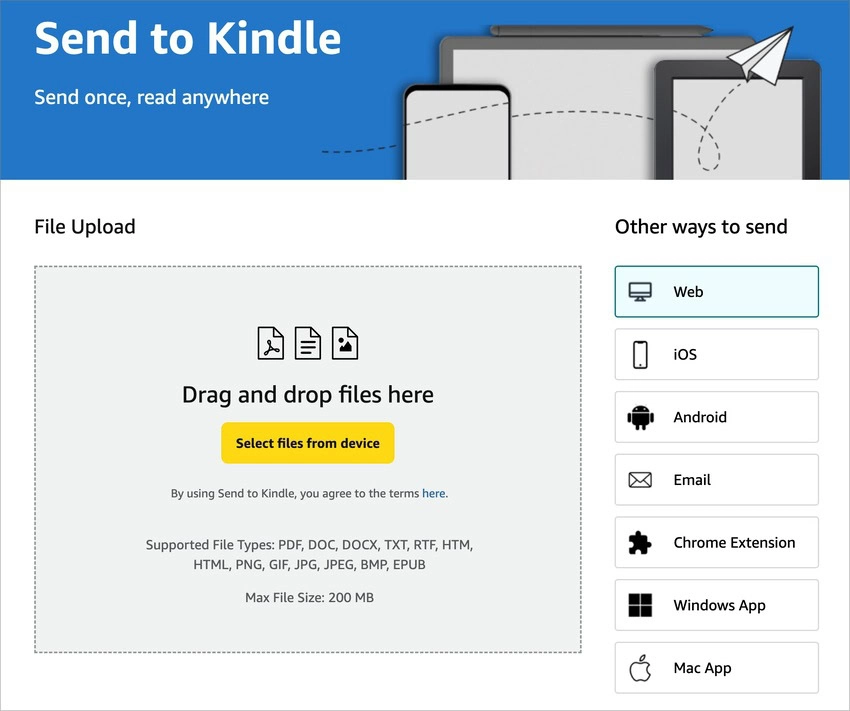
- Open the Send to Kindle website. Go to ‘amazon.com/sendtokindle’ in any web browser.
- Sign in. Use the same Amazon account that is linked to the Kindle device or app.
- Drag and drop the EPUB file. Alternatively, click to browse and select it from a folder.
- Select the destination devices. Choose which Kindle device or app should receive the book.
- Choose whether to add it to the Kindle Library. Turning this on lets the book sync to any device tied to the account later.
- Click Send. The upload begins immediately.
- Wait for conversion. Amazon converts the EPUB on its servers, usually within a minute or two for a standard novel.
- Sync the Kindle. Connect the device to Wi-Fi if it is not already, and the converted book will appear in the library.
What to Expect
Upload time: Usually a few seconds to a couple of minutes, depending on file size and internet speed.
Maximum file size: Up to 200 MB per document.
Supported formats: PDF, DOC, DOCX, TXT, RTF, HTML, PNG, GIF, JPG, BMP, and EPUB.
Advantages: No software installation needed, works on any device with a browser, supports large files, and syncs across every linked Kindle device or app.
Limitations: Requires an internet connection for both the upload and the Kindle’s download. Further, it will not accept DRM-protected files.
Tip: If a book will not upload, check the file size first. Files over 200 MB need to be compressed or converted through Calibre before they can be sent this way.
Method 2: Send EPUB via Email to Kindle
This method has been around longer than the web uploader, and many readers still prefer it because it works from any email client.
Finding the Kindle Email Address
Every Kindle device and Kindle app has its own unique email address. To find it, go to Amazon’s ‘Manage Your Content and Devices’ page, open ‘Preferences’, and select ‘Personal Document Settings’. The address will follow a format similar to name@kindle.com.
Approving a Sender
Amazon only delivers documents sent from approved addresses. Before sending anything, add the sending email address to the ‘Approved Personal Document Email List’, found on the same ‘Personal Document Settings’ page. Readers can approve up to 15 addresses.
Sending the Attachment
Attach the EPUB file to a new email and send it to the Kindle address. A subject line is not required. Readers can send up to 25 attachments in a single email, as long as the combined size stays under 50 MB.
Larger files can be compressed into a ZIP archive, since Amazon’s conversion service automatically opens ZIP files and processes what is inside.
Delivery and Syncing
Amazon attempts delivery for up to 60 days if the Kindle is offline when the email arrives. Once the device connects to Wi-Fi, the converted book appears in the library automatically.
Common Mistakes
- Sending from an email address that was never approved. This is the most frequent reason emails silently fail to deliver.
- Forgetting that the file must be an attachment, not pasted into the email body.
- Attaching a DRM-protected EPUB, which Amazon cannot convert.
- Sending oversized attachments that exceed the 50 MB combined limit.
Method 3: Send EPUB Using the Kindle App
The Kindle app itself can also send EPUB files, though the process looks different depending on the platform.
Android
Open the file manager or downloads folder and locate the EPUB file. Tap the share icon and select Kindle from the share menu. The file opens inside the Kindle app and begins converting automatically. Some devices show “Open with” instead of a share menu, which works the same way.
iPhone and iPad
Download the EPUB file, then use the Files app or the share sheet from wherever the file is stored. Select the Kindle app as the destination. iOS handles this slightly differently across apps, so if Kindle does not appear immediately, look under “More” in the share sheet.
Windows and Mac
The Kindle reading app for desktop is meant for reading books already in a library, not for uploading new personal documents. To send a file from a computer, use the separate ‘Send to Kindle’ application for PC or Mac instead. After installing it, readers can drag an EPUB directly onto the app window, and it uploads the same way the website does.
Cloud Syncing
Files sent this way go through the same Amazon conversion pipeline as the web and email methods. Once uploaded, they sync to the Kindle Library and appear on every linked device and app.
Platform note: Mobile share-sheet integration can vary between phone manufacturers and Android versions. If Kindle does not appear as a sharing option, updating the Kindle app usually resolves it.
Method 4: Using Calibre
Calibre is a free, open-source software for managing e-book libraries. It is not an Amazon product, but it has become the standard tool for readers who deal with large collections or need more control over formatting.
Why Advanced Users Prefer It
Calibre can convert files, edit metadata, manage covers, and organize books into collections, all in one place. For readers with hundreds of EPUB files, it is far faster than uploading books one at a time through a browser.
The Conversion Step
Kindle cannot read EPUB files over USB, even with Calibre involved. What Calibre actually does is convert the EPUB into a Kindle-compatible format, typically AZW3, before the transfer happens. That converted file is what actually gets copied to the device.
Advanced users who want Amazon’s newer KFX format with Enhanced Typesetting can install the KFX Output plugin, though this also requires installing Kindle Previewer 3 alongside Calibre.
USB Transfer
Once a book is converted, connect the Kindle to a computer with a USB cable. The device will appear as an external drive. Copy the converted file into the “documents” folder, then safely eject the Kindle.
Metadata, Covers, and Collections
Calibre also lets readers clean up messy files before they ever reach a Kindle. This includes editing the title, author, and series information, replacing a poor-quality cover image, and grouping related books into collections for easier browsing.
When Calibre Is the Better Option
Calibre makes the most sense for readers managing large personal libraries, converting many files at once, or working without a reliable internet connection, since USB transfer does not require Wi-Fi. It is overkill for someone who just wants to send a single novel.
Which Method Is Best?
Every method gets an EPUB onto a Kindle, but they are not equally convenient. The table below compares them directly.
| Criteria | Send to Kindle Website | Kindle App | Calibre + USB | |
|---|---|---|---|---|
| Ease of use | Very easy | Easy | Easy | Moderate |
| Speed | Fast | Fast | Fast | Fast (no upload wait) |
| Cloud sync | Yes | Yes | Yes | No |
| Annotation support | Yes | Yes | Yes | Yes, once on device |
| Library backup | Yes | Yes | Yes | No (local only) |
| Multiple devices | Yes | Yes | Yes | One device at a time |
| Best for beginners | Yes | Somewhat | Yes | No |
| Offline use | No | No | No | Yes |
Recommendation: Beginners and casual readers should stick with the ‘Send to Kindle’ website. Readers who frequently forward newsletters or documents from other apps will appreciate email. Mobile-first readers should use the Kindle app’s share menu. Anyone managing a large personal library, or working without steady internet access, will get the most value from Calibre.
How Long Does EPUB Conversion Take?
For a typical novel-length EPUB, conversion usually finishes in under a minute once the file reaches Amazon’s servers. The upload itself may take longer on a slow connection, but the actual conversion step is quick.
Larger books take more time. Image-heavy books, textbooks with diagrams, and comics can take several minutes instead of seconds, since Amazon’s servers have to process every embedded image.
Occasionally, delivery is slow for reasons unrelated to file size. Amazon’s servers experience temporary backlogs during peak hours, and a weak Wi-Fi signal on the Kindle itself can delay the final sync even after conversion is complete.
Why Your EPUB Isn’t Uploading
Most upload failures come down to a short list of causes.
| Problem | Fix |
|---|---|
| DRM protection | Use a DRM-free version of the file, or read it in the original retailer’s app |
| Corrupted EPUB | Open it in Calibre and run “Check Book” to find and repair errors |
| Unsupported or invalid EPUB structure | Re-export the file or convert it to a fresh EPUB in Calibre |
| Password protection | Remove the password before attempting to send it |
| Oversized file | Use the 200 MB web uploader instead of the 50 MB email limit, or compress images |
| Weak or no internet connection | Confirm both the sending device and the Kindle have a stable connection |
| Amazon service issues | Wait and try again later; occasional outages do happen |
| Unapproved sender (email method only) | Add the sending address to the Approved Personal Document Email List |
Why Your Book Looks Different After Conversion
Conversion is rarely perfect, and readers coming from other e-readers sometimes notice small changes.
Fonts: Kindle applies its own typography rules on top of the original file, so the font a reader sees may not match the one embedded in the EPUB.
Layout: Kindle tends to force full justification on body text and adjusts margins to fit its own rendering engine, regardless of the original CSS styling.
Missing illustrations: Some embedded images, especially certain SVG graphics, do not always carry over cleanly during conversion.
Table formatting: Complex tables are one of the most common casualties of conversion. Simple tables usually survive; heavily styled ones often do not.
Embedded fonts: Custom fonts baked into the EPUB may or may not transfer, depending on licensing and how they were embedded.
Hyperlinks: Internal links, like a table of contents linking to chapters, generally work fine. External web links usually still function too, though clicking them on an e-ink screen is a slower experience.
Footnotes: These sometimes convert into pop-up notes instead of jumping to the bottom of the page, depending on how they were coded.
Page numbers: Kindle uses its own location-tracking system rather than traditional page numbers, so the numbering readers see may not match a printed edition.
None of this means the conversion failed. It simply reflects that Amazon’s system is rebuilding the file rather than displaying the original one exactly as it was created.
Can You Highlight and Take Notes?
Yes. Once an EPUB has been converted and delivered, it behaves like any other Kindle book for reading features.
Highlights and notes: Fully supported, and they save automatically to the reader’s account.
Dictionary lookups: Work the same way as they do on Kindle Store purchases.
Vocabulary Builder: Available for supported languages, and words looked up while reading a converted EPUB are added just like any other book.
X-Ray: Usually not available. X-Ray data is generated by Amazon for Kindle Store titles, and personal documents rarely include it.
Syncing across devices: Highlights and notes sync through Amazon’s Whispersync system, as long as the book was added to the Kindle Library during upload rather than sent to a single device only.
Can You Send EPUB Books Purchased Elsewhere?
Yes, with some conditions. This is one of the main reasons people search for this topic in the first place.
Common examples include public domain classics from sites like Project Gutenberg or Standard Ebooks, DRM-free releases from independent publishers and self-published authors, personal documents like manuscripts or reports, free EPUB downloads from official author or publisher sites, and books from DRM-free storefronts.
A Note on Legal Considerations
Readers should only send files they have the legal right to use, whether that means a public domain title, a purchase they legitimately own, or their own personal document. Copyright law protects the rights of authors and publishers, and Amazon’s systems are built around respecting those rights.
This also means ‘Send to Kindle’ will not accept EPUB files locked with DRM from another retailer, and readers should not attempt to strip that protection just to force an upload. If a book was purchased from a store with its own DRM, the better option is to read it in that store’s official app instead of trying to work around the restriction.
Readers who rely on Kindle Unlimited for their reading habit can find more on how that subscription interacts with personal uploads in our Kindle Unlimited guide.
Tips for the Best Reading Experience
A few small habits make a noticeable difference in how converted EPUB books look and behave.
- Rename files before uploading. Clear titles like “Author – Book Title.epub” make library browsing easier than generic filenames.
- Edit metadata for cleaner libraries. Use Calibre to fix missing author names or incorrect titles before sending.
- Use high-quality EPUB sources. Well-formatted files from reputable sources convert far more reliably than poorly made ones.
- Keep the Kindle synced. Connect to Wi-Fi regularly so highlights, notes, and new uploads stay current.
- Archive important personal documents. Keep a backup copy on a computer, since personal uploads are not treated the same way as Kindle Store purchases.
- Verify formatting before a long trip. Open a converted book once before relying on it offline, in case something needs adjusting first.
Frequently Asked Questions
Does Kindle support EPUB now?
Yes, but only through ‘Send to Kindle’. Amazon converts the file to a Kindle-compatible format before delivering it; the Kindle itself never opens the EPUB directly.
Why won’t Kindle open EPUB through USB?
Kindle firmware does not include software to render EPUB files. USB transfer only works with formats Kindle already understands, like AZW3, KFX, PDF, or TXT.
Is Send to Kindle free?
Yes. There is no charge to upload documents through the website, email, or the Kindle app.
Can I upload multiple EPUB files at once?
Yes, through the web uploader or by attaching multiple files to a single email, up to 25 attachments per email.
Is there a file size limit?
The web uploader accepts files up to 200 MB. Email is limited to 50 MB total per message.
Do uploaded books sync across devices?
Yes, as long as the option to add the book to the Kindle Library was selected during upload.
Can I remove uploaded books later?
Yes. Personal documents can be deleted from the Kindle Library through ‘Manage Your Content and Devices’, the same way Kindle Store purchases are removed.
Can I send comics?
Yes, though comics and other image-heavy EPUB files take longer to convert and may benefit from Calibre’s specialized comic conversion settings.
Will covers appear correctly?
Usually. Covers embedded properly in the EPUB typically transfer without issue. Poorly formatted covers sometimes need to be replaced using Calibre.
Can I upload EPUB from my phone?
Yes, using the Kindle app’s share menu on Android or the share sheet on iOS.
Does Kindle convert EPUB automatically?
Yes. Conversion happens automatically on Amazon’s servers as soon as the file is received, with no extra steps required from the reader.
Is MOBI still supported?
No, not for new uploads. Amazon retired MOBI support in late 2023 in favor of EPUB and its own newer formats like AZW3 and KFX. However, legacy support remains for sideloading MOBI files over USB — though these files lack modern Kindle features such as enhanced typesetting, syncing, and cover handling.
Common Myths About EPUB on Kindle
“Kindle reads EPUB natively.” It does not. Every EPUB sent to a Kindle goes through Amazon’s conversion process first.
“USB transfer works with EPUB.” It does not. USB sideloading only works with formats Kindle firmware understands (AZW3, KFX, PDF, TXT). Raw EPUB won’t show up unless converted first.
“EPUB support means no conversion happens.” Support means Amazon accepts EPUB as an input. A conversion still happens on the back end every time.
“MOBI is still the preferred format.” MOBI has been retired from Send to Kindle uploads since late 2023. It’s not “preferred” anymore, though legacy sideloading via USB is still possible. AZW3/KFX are the current standards.
“Calibre is always necessary.” Calibre is optional. It is useful for advanced users (batch conversions, metadata fixes, comics). Casual readers can send most EPUB files through the website, email, or Kindle app.
Final Verdict
For most readers, the Send to Kindle website is the easiest and most complete solution. It handles large files, works from any browser, and syncs across every device tied to an Amazon account.
Email is worth setting up for readers who frequently forward documents from other apps or services, since it skips the browser entirely once approved senders are configured.
Calibre earns its place with readers managing large personal libraries, converting many files at once, or working without reliable internet access.
Once the workflow makes sense, sending an EPUB to Kindle becomes a quick, repeatable process rather than a source of frustration. The format never becomes truly native to Kindle, but with the right method, that difference stops mattering in daily use.

this product is nifty.
The box this comes in is 5 inch by 6 mile and weights 15 ton!!