You finish book two in a series and open your Kindle library for book three. The books you bought from Amazon are grouped together. The ones you sent yourself may still be scattered across the library. That’s the kind of small annoyance that can make a perfectly good Kindle feel like it’s missing something.
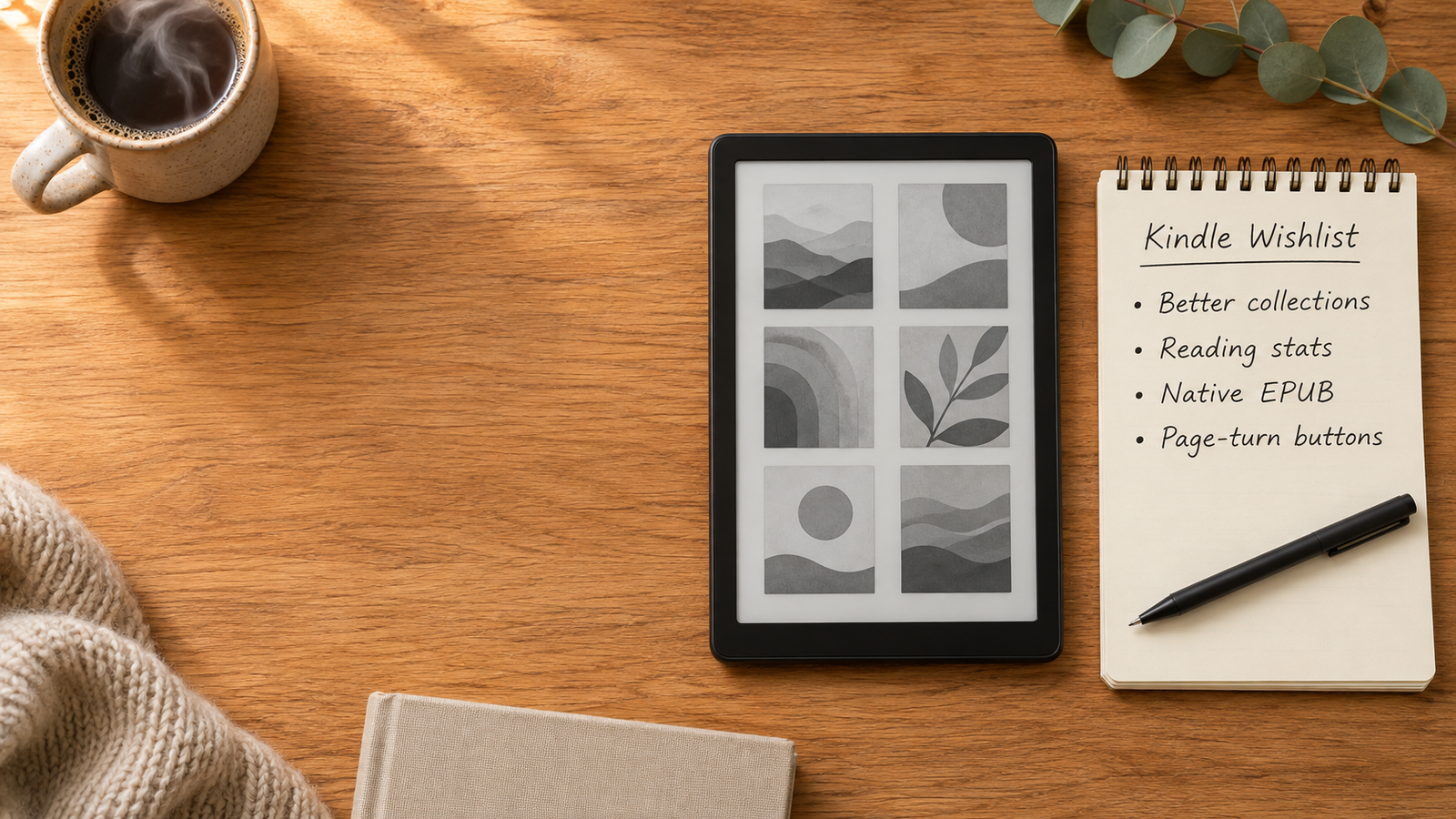
A useful Kindle wishlist starts with frustrations like that. Some fixes could come through software. Others need new hardware or a library partner. A few already exist in a limited form. The strongest requests: library control that covers every book you own, reading stats on the e-reader itself, direct EPUB support, simpler library loans, and page-turn buttons built into the device.
Let readers organize the whole Kindle library
Group and order books from outside the Kindle Store
Picture a fantasy series. You bought books one and two from Amazon, then sent yourself book three, a DRM-free EPUB from the author’s store. On your Kindle, the first two sit in a tidy series stack. Book three floats on its own.
That’s how the feature works. In late October 2026, Amazon released firmware 5.20.1.02, which groups books in a series in the Library tab. TechRadar’s review of the 2026 Kindle found that only titles bought or borrowed from the Kindle Store, including Kindle+ (the renamed Kindle Unlimited), get grouped. Books sent through Send to Kindle still appear as individual titles. TechRadar also reported that the same firmware reached the 2024 entry-level Kindle.
Three different tools get lumped together here:
- Automatic series grouping stacks eligible Store titles using Amazon’s own catalog data. You can’t add a book to a stack yourself.
- Manual series order doesn’t exist on Kindle. Filling in series fields in Calibre helps sorting, but it won’t create a stack.
- Collections let you put any book or personal document into a folder you name. They’re the best workaround today, but a folder isn’t a series. No “book 3 of 7” labels. No nudge toward the next volume.
The fix is easy to describe: let readers assign any book, personal documents included, to a series, set its number, and slot it into the same stack as their Store purchases. Kobo e-readers already read series information from sideloaded files, so this isn’t an exotic ask.
Give readers more control over Collections and library views
Today’s library isn’t bare. On a current Kindle, you can switch between grid and list views, sort by recent, title, or author, filter by read status or content type, and open a separate Collections view. You can also decide whether collections show up in the main library. Our guide to Kindle settings worth changing shows where those switches live.
What readers want goes a step further:
- Collection covers you choose. In an April 2026 wishlist thread, owners asked for recognizable collection covers, so “Book Club” doesn’t look like “Cookbooks” at a glance.
- A preferred default view. A discussion of the October 2026 library redesign shows why some owners want more say over how the library looks after an update changes it. That was one owner’s rollout experience, not everyone’s, but the request to lock in a layout is reasonable.
- Hide without deleting. Readers want to tuck away finished books, samples, or old documents without removing them from their account. Filters and the Downloaded view get you partway. A “hide from library” option would finish the job.
None of this needs new hardware.
Put useful reading stats on the Kindle itself
Show reading history where the reading happens
Inside a book, your Kindle tells you where you are: page or location, percentage read, and estimated time left in the chapter or book. Back out to the library and a finished book simply gets marked as read. There’s no on-device record of how many days you read this month or how close you are to a yearly goal.
Amazon does track this. Its Kindle Reading Challenges guide says books bought or borrowed from Amazon and read on a Kindle device, the Kindle app, or Kindle for Web count toward books read, streaks, and achievements. But you view those challenges in the Kindle app. In January 2026, The eBook Reader pointed out that Kindle e-readers still couldn’t show reading stats, goals, or challenge achievements. TechRadar’s 2026 Kindle reviewer also named Kobo-style reading stats as something she’d have liked to see.
So the gap isn’t counting. It’s showing.
Picture a simple stats screen on the Kindle itself. It could show how many days you read this month, how many hours you spent reading, which books you finished this year, and how close you are to a goal you set. It should be a setting you switch on, not something forced on you. Some readers love streaks. Others find them stressful, as comments under that eBook Reader post show. An on/off switch suits both. One catch: Amazon’s challenges only count books bought or borrowed from Amazon. A dashboard that also counted books you added yourself would help readers who get books elsewhere.
Make it easier to find the exact place you stopped
This one is our own suggestion rather than a widely voiced request, so treat it as a smaller item. The idea: a bookmark that marks an exact point on a page, not just the page itself.
That’s different from what Kindle does now. Syncing remembers your reading position across devices. A highlight marks text you want to keep. A bookmark, added by tapping the top-right corner, marks a page. Since a late-2025 update, your saved bookmarks sit inside the notebook alongside notes and highlights.
Here’s why it helps. You’re halfway down a dense page when your stop arrives. Later, you bump up the font size, the text reflows, and “this page” no longer means much. A subtle line-level marker would drop you back on the right sentence. The workaround, highlighting the sentence and deleting it later, works. It’s clunky.
Make personal e-books easier to bring onto Kindle
Let Kindle open EPUB files directly
You buy a DRM-free novel from an independent store and download the EPUB. You plug in your Kindle, expecting to drag the file across. That doesn’t work, because Kindle e-readers don’t open EPUB files natively.
Kindle does accept EPUB, just not that way. Amazon’s Send to Kindle service takes the file through the web uploader, email, the desktop apps, or the Kindle mobile apps, converts it to a Kindle format, and delivers it to your library. How to Send EPUB Files to Kindle walks through each route. USB transfer still works for formats Kindle supports, so if you prefer a cable, convert the EPUB first with a tool like Calibre.
The request is a direct local path: copy a compatible, DRM-free EPUB onto the device and open it, with no conversion. Two limits are worth stating plainly. Native support wouldn’t unlock DRM-protected EPUBs bought from other stores. Converted files still have a real advantage, though, because they sync across your Kindle devices and apps.
The irony: since January 20, 2026, Amazon has let verified buyers download some DRM-free Kindle books as EPUB or PDF files when the author or publisher allows it. EPUBs can now leave Amazon more easily than they land on a Kindle.
Make library borrowing easier to manage
Let readers browse or manage loans closer to the device
In the US, borrowing a library e-book for Kindle runs through Libby or your library’s OverDrive website. You find a title, borrow it, choose to read it with Kindle, and complete the handoff on Amazon’s site. The loan then appears in your Kindle library. Libby’s official Kindle help says most Libby books can be read on a Kindle e-reader and that the option is available in the US only. Title eligibility varies. Not every book offers a Kindle format, and Libby notes that if you download a loan in another format, such as EPUB, you can’t send it to Kindle without borrowing it again. Our guide on How to Borrow Library Books on Kindle covers the full process.
The friction sits around the loan. Browsing the catalog, placing holds, and renewing all happen in Libby or on the OverDrive site. A loan appearing in your Kindle library doesn’t mean the device offers the Libby experience. Kobo e-readers, by contrast, build OverDrive borrowing into the device.
So the precise request is on-device discovery, borrowing, hold management, and renewal for US library users, something Amazon and OverDrive would need to build together.
International expansion is a separate issue. Kindle delivery of library books depends on the arrangement between Amazon and OverDrive, and it currently covers US libraries. That’s a question of availability and partnerships, not a setting Amazon forgot to switch on.
Bring back page-turn buttons built into the Kindle
Why a remote and built-in buttons solve different problems
Scenario one: your Kindle sits on a stand while you eat lunch or walk on a treadmill. A remote is the right tool.
Scenario two: you’re standing on a crowded train, one hand on the rail, Kindle in the other. You want to turn pages with the thumb already gripping the device. That’s the case for buttons on the Kindle itself. Touch works, but flush-front screens leave little room to rest a thumb; TechRadar’s reviewer reported numerous accidental page turns on the 2026 Kindle.
No Kindle has shipped with built-in page-turn buttons since the Oasis was discontinued in 2024. Kindle Features That Disappeared Over the Years covers that history. Amazon now offers three alternatives, and they’re not interchangeable:
- Kindle Click is a Bluetooth remote with assignable forward and back buttons. Side buttons adjust brightness, and holding both puts the Kindle to sleep, though the remote can’t wake it. Amazon’s compatibility list covers the 2026 Kindle, Paperwhite, and Colorsoft, the 2024 Kindle, Paperwhite, and Colorsoft; and several Kindle Scribe models. Older devices, including the 2022 Kindle and 11th-generation Paperwhite, aren’t supported. Amazon’s setup guide asks you to update your Kindle’s software before pairing.
- The Page-Turn Cover attaches magnetically and connects through pogo pins on the back of the device, adding physical buttons to the cover. It fits only the 2026 Kindle Paperwhite Signature Edition and the 2026 Kindle Colorsoft Signature Edition. It needs no pairing or charging.
- Double tap lets you tap the sides or back of the device to turn pages. Amazon’s double tap help page limits it to the Paperwhite Signature Edition and Colorsoft Signature Edition released in 2024 or later.
If your Kindle came out in 2024 or later, check Kindle Click on Amazon. If you own a 2026 Paperwhite Signature Edition or 2026 Colorsoft Signature Edition, you can check the Page-Turn Cover on Amazon.
That leaves a gap. The remote handles scenario one on most recent Kindles. The cover handles scenario two, but only on two premium models. At launch, the cover cost $79.99 on top of a Signature Edition that started at $249.99. Standard Kindle, Paperwhite, and Colorsoft owners have no built-in button option. If you’re weighing workarounds, see Best Kindle Accessories You Actually Need.
Which requests should Amazon tackle first?
| Reader request | What Kindle offers today | What would still help | What kind of change it needs |
|---|---|---|---|
| Series grouping for every book | Automatic grouping for Kindle Store and Kindle+ titles; Collections for anything | Assign any book to a series and set its order | Software |
| More library control | Grid and list views, sorting, filters, Collections view | Chosen collection covers, a preferred default view, hide without deleting | Software |
| On-device reading stats | Progress inside each book; challenges in the Kindle app | Optional dashboard on the e-reader | Software |
| Exact-spot resume marker | Synced position, highlights, page bookmarks | A sentence-level marker | Software |
| Native EPUB | Send to Kindle converts DRM-free EPUB files | Open compatible DRM-free EPUBs copied to the device | Software |
| Easier library loans | US Libby and OverDrive delivery to Kindle | On-device browsing, holds and renewals; wider availability | Software and partner agreement |
| Built-in page-turn buttons | Kindle Click (2024 and later); Page-Turn Cover and double tap (Signature Editions) | Buttons on the device across the lineup | Hardware |
This is an editorial assessment, not a popularity ranking.
Better library organization deserves top priority. Readers repeat that task every time they choose a book, and the series fix would help anyone who mixes Store purchases with personal files. Reading stats come next, because Amazon already collects the data. Built-in buttons matter most to a smaller group: one-handed readers, commuters, and former Oasis owners. For them, the need is real, but it requires new hardware, and Kindle Click already covers the hands-free case.
If double tap or the Page-Turn Cover is what you want, compare the current Kindle models or check the Kindle Paperwhite Signature Edition on Amazon. Don’t buy a new Kindle to fix series grouping or reading stats, though; every current model shares those limits.
Frequently Asked Questions
Can Amazon add these features to older Kindles? Software requests such as library controls or on-device stats could reach Kindles still receiving updates, as the October 2026 series-grouping firmware reached the 2024 Kindle. But none has a confirmed rollout plan. Hardware-linked features are a different story: the Page-Turn Cover needs pogo pins found only on the 2026 Signature Editions.
Can I already read EPUB books on a Kindle? Yes, after conversion. Send a DRM-free EPUB through Send to Kindle and Amazon converts it for your library. What you can’t do is copy an EPUB to the device over USB and open it as-is.
Which Kindles work with Amazon’s page-turn accessories? Kindle Click works with the Kindles on Amazon’s compatibility list, which covers models released in 2024 or later plus several Scribes. The Page-Turn Cover fits only the 2026 Paperwhite Signature Edition and 2026 Colorsoft Signature Edition. Check your exact model before you buy.
Will buying the latest Kindle fix these problems? Only the hardware-specific ones. A Signature Edition gets double tap, and the 2026 models also work with the Page-Turn Cover. Series grouping limits, missing on-device stats, EPUB conversion, and the Libby workflow apply across the platform, so a new Kindle carries the same gaps.
The bottom line
The most useful Kindle upgrade would remove a frustration readers encounter every week. Our pick: let any book, from any source, join a series and sit in the right order. It needs no new hardware, it helps every owner who sideloads, and it fixes the moment that starts every reading session: choosing what to read next.
If Amazon could fix one thing on your Kindle, what would you choose? Tell us your model and what you were trying to do when you ran into the problem.