A paperback book stays the same no matter how you hold it. The print is always the way it is. A Kindle is a whole new ball game. It offers a host of ways you can customize your reading experience. For instance, you can make the words bigger, you can make them bolder, you can spread out the lines, warm the light, and so on. You can even have some books read out loud to you.
All of this makes a Kindle a very convenient reading device, even more so for older readers. But most of the helpful settings are hidden in menus. Nobody points them out when you first turn the device on.
This guide explains those settings in plain English. We’ll cover what each one does, how to turn it on, and which ones help the most. We’ll also point out when a feature is missing from a certain Kindle. Not every Kindle has every feature.
Is a Kindle Good for Seniors?
For most older readers, yes.
Here’s why:
- You can make the words bigger. No need to buy a special large-print book.
- A Kindle is light. Most models weigh almost the same as a smartphone, and less than a paperback.
- A Kindle has its own built-in light. You don’t need a reading lamp.
- The battery lasts for weeks, not hours.
- You can look up any word you don’t know, right on the page.
- Some Kindles can read books out loud to you.
- Once you’re inside a book, there’s nothing to distract you. No pop-ups. No ads.
But a Kindle may not be easy to get started with for everyone right away:
- A touchscreen can feel strange if you’ve never used one.
- Some menus and buttons are small until you change the settings.
- You need an Amazon account and, usually, home Wi-Fi to set it up.
- One feature, called VoiceView, changes how the whole touchscreen works. More on that below.
- Browsing for a new book isn’t as simple as walking into a bookstore.
- Not every Kindle has the same features. It depends on how new your Kindle is.
Quick Guide: The Kindle Features That Help Seniors Most
| Feature | What It Does | Who It Helps | How Useful |
|---|---|---|---|
| Bigger book text | Makes the words in a book larger | Anyone who struggles with small print | Excellent |
| Bigger menu text | Makes the Kindle’s own menus larger | Anyone who finds menus hard to read | Excellent |
| Bold text | Makes letters thicker and darker | Anyone who finds thin text hard to see | Excellent |
| Font choice | Lets you pick a different letter style | Personal comfort | Very useful |
| Spacing | Adds space between lines and words | Anyone who finds text crowded | Useful |
| Dark Mode | Swaps to light text on a dark screen | Depends on the person | Depends on the reader |
| Brightness | Turns the built-in light up or down | Reading indoors or at night | Excellent |
| Warm light | Changes white light to a warm orange glow | Reading in the evening | Very useful |
| VoiceView | Reads the whole screen out loud, including menus | Serious vision loss | Powerful, but takes practice |
| Assistive Reader | Reads a book out loud and highlights the words | Tired eyes, long reading sessions | Excellent when it works |
| Bluetooth | Connects wireless headphones or a speaker | Listening to books | Useful |
| Saved settings | Remembers your favorite setup | Not having to redo everything | Very useful |
Want the easiest Kindle to buy for an older reader? [Check the Kindle Paperwhite price on Amazon]
1. Make the Words Bigger
Most Kindle books let you change the size of the text so that you are not stuck with small print.
Here’s how:
- Open a book.
- Tap near the top of the screen.
- Tap the small Aa button.
- Tap Font.
- Make the text bigger.
There are two different kinds of “bigger text” on a Kindle:
Book text changes the words inside the book you are reading.
Menu text changes the words in the Kindle’s own menus, which includes your Library and Home screen. To change this, go to Settings > Accessibility > Display > Text Size.
Making the book text bigger does not make the menus bigger too. They are two separate settings. You may want to turn on both.
2. Make the Words Bolder
Bold text is thicker and darker than normal text. Sometimes bold text is easier to read than simply making the text huge.
To turn it on: tap Aa > Font > Bold.
A good place to start: make the text a little bigger, then add a bit of bold. Read a page or two. If it still feels hard to read, try more of either setting. There’s no perfect combination. It depends on your eyes.
3. Try a Different Letter Style
Every person finds a different font easier to read. There’s no single “best” font for everyone.
Kindle comes with a few fonts to try, including one called OpenDyslexic. Some readers with dyslexia find this font easier to read. It won’t work the same way for everyone, though.
Don’t just glance at the tiny font preview in the settings menu. Pick one, then read a full page. That’s the only real way to know if you like it.
4. Add More Space Between the Lines
Sometimes text feels hard to read even when it’s big enough. Often, that’s because the lines are too close together.
Try these:
- More space between lines
- Text lined up on the left, instead of stretched to fill the whole line
- Wider or narrower margins around the text
Keep adjusting until the page feels calm and easy to look at rather than crowded and cluttered.
5. Save Your Settings So You Don’t Have to Redo Them
Once you find a text size, font, and spacing you like, save it. That way, you won’t have to set it up again every time you open a new book.
On the Kindle app, this is called a Theme. There are ready-made ones called Compact, Standard, Large, and Low Vision. You can also save your own.
This helps a lot if someone else — like an adult child — is setting up the Kindle for you. Set it up once, and it’s ready to go from then on.
6. Get the Brightness Right
Kindle e-readers come with E Ink displays, which, as is well known, are reflective in nature. This makes them entirely dependent on ambient light for readability. To help with reading in the dark, some Kindle models include a front-light feature, which essentially consists of tiny LED lights arranged around the display. Their main purpose is to illuminate the screen, and unlike traditional displays, no light shines directly into the eyes.
You can turn the brightness up or down. Brighter light is not always better.
- In a bright room: turn the light up a little, if there’s glare.
- In a dim room: turn the light down.
- In the dark: use a low, gentle light. You don’t need it on full brightness.
7. Warm Light Is Gentler at Night
Warm light changes the screen’s light from white (cold) to a soft orange (warm) color. This allows for a more comfortable reading experience in the evening or even in complete darkness.
Not every Kindle has this feature, though. Kindle models with integrated front light feature include the Kindle Paperwhite, Paperwhite Signature Edition, and Kindle Colorsoft.
If you read a lot at night, warm light is one of the best reasons to choose a Paperwhite over the cheapest Kindle. [Check the Kindle Paperwhite price on Amazon]
8. Dark Mode: Good for Some, Not for Everyone
Dark Mode flips the screen around. Instead of dark text on a light background, you get light text on a dark background.
Some people love it, especially at night. Others find it harder to read than the normal look. It’s simply a personal choice, not a rule.
Dark Mode is available on the entry-level Kindle, the Paperwhite, the Paperwhite Signature Edition, and the Colorsoft. Turn it on in Settings > Accessibility, or in the quick menu at the top of the screen.
One thing to know: PDFs can sometimes look strange with Dark Mode on. If a PDF becomes hard to read, try turning Dark Mode off just for that document.
9. Assistive Reader Can Read a Book Out Loud
Assistive Reader is a Kindle feature that reads a book to you. As it reads, it highlights each word on the screen so you can follow along.
Turn it on from Aa > More > Assistive Reader.
This helps when:
- Your eyes get tired from reading
- You want to listen and read along at the same time
- You want to hear a book without paying extra for the audiobook
- You wish to continue with your book while being into something else, like driving, doing household chores, etc.
There’s a catch, though. Assistive Reader only works with books that support it. Look for the words “Enhanced Typesetting: Enabled” on a book’s page before you buy it. Right now it only works in English, Spanish, French, German, and Italian languages.
10. VoiceView Reads the Whole Screen, Not Just the Book
Assistive Reader reads the words inside a book. VoiceView is different. It reads everything on the screen — menus, buttons, settings, and the book itself.
VoiceView is powerful, but it changes how the touchscreen works. Once it’s turned on, you tap something once to select it, then tap twice to open it. This may take some getting used to.
VoiceView also needs wireless headphones or a speaker. It can’t speak out loud through the Kindle by itself.
If you can see reasonably well and just want bigger text, VoiceView is probably more than you need. Assistive Reader, or simply making the text bigger, will likely be enough. VoiceView is built for people with serious vision loss who need help getting around the whole device, not just the book.
11. Wireless Headphones and Speakers
Bluetooth lets your Kindle connect to wireless headphones or a speaker. Kindle’s Bluetooth is only for audio. It won’t connect to a phone, a keyboard, or a mouse.
To connect headphones: go to Settings > Wi-Fi > Bluetooth > Bluetooth Devices. Then follow the instructions that came with your headphones to put them into pairing mode.
If you plan to use VoiceView or listen to audiobooks, a comfortable pair of Bluetooth headphones is worth having. [Check comfortable Bluetooth headphones on Amazon]
12. Reading vs. Listening: Three Different Things
These three things may sound alike, but obviously, they aren’t the same:
- A Kindle e-Book. This is the written book. You read it with your eyes.
- Assistive Reader. A computer voice reads a Kindle book out loud to you.
- An Audible audiobook. A professionally recorded version, usually with a real human narrator. You typically buy this separately.
(Not every book has an audiobook version. Always check before you expect one.)
13. Small Helpers: Dictionary, Wikipedia, and Translation
A few small features make reading much easier:
- Dictionary. Press and hold on any word to see what it means.
- Wikipedia. Look up a word or topic, if you have Wi-Fi.
- Translation. Turn words into another language.
These aren’t official “accessibility” tools. But they take the extra work out of reading, especially if you’re getting back into books after time away from them.
Which Kindle Is Easiest to Hold and Use?
This isn’t a full buying guide. For that, see our Best Kindle for Seniors guide. Here, we’re just connecting the settings above to real devices.
The cheapest Kindle is the smallest and lightest. It’s a good choice if you want something simple. The downside: the screen is small, so bigger text means fewer words fit on each page. It also has no warm light.
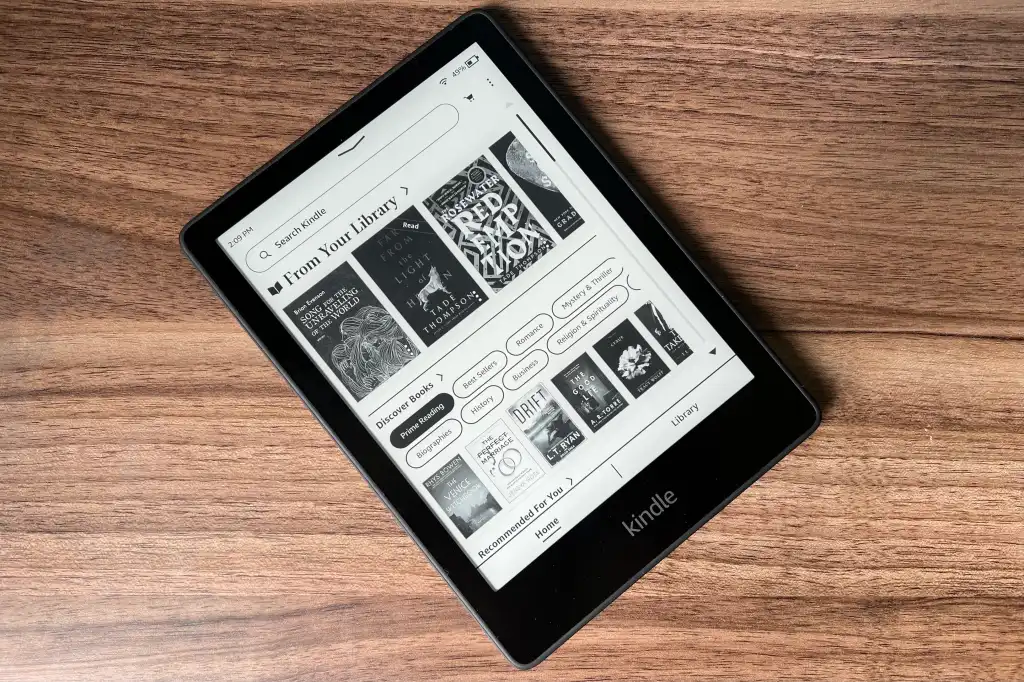
Kindle Paperwhite is the best all-around choice for most senior readers. It has a bigger screen, warm light, Dark Mode, VoiceView, and Assistive Reader.
Kindle Paperwhite Signature Edition is the same as the regular Paperwhite, but it charges wirelessly and can adjust its own brightness. Nice extras, but not needed just for accessibility.
Kindle Scribe. Amazon recently changed this lineup. There are now three versions: one with no built-in light, one with a light, and a color version called Scribe Colorsoft. The Scribe has an extra-large screen, which is great for very large text. But it’s heavier and more expensive. And the version with no light has no brightness control at all. That’s a poor choice if you read at night.
Kindle Colorsoft shows color, which is nice for book covers and comics. It also has warm light and Dark Mode. Color itself doesn’t make a Kindle easier to use. It’s simply an extra, added on top of the same features as the Paperwhite.
| Kindle | Best For | Main Advantage | Downside |
|---|---|---|---|
| Kindle basic | Budget, lightweight | Simple and light | Small screen, no warm light |
| Kindle Paperwhite | Most seniors | Bigger screen, warm light | Costs more than the basic Kindle |
| Paperwhite Signature Edition | Extra convenience | Auto light, wireless charging | Most expensive Paperwhite |
| Kindle Scribe | Very large text | Huge screen | Heavy and expensive |
| Kindle Colorsoft | Readers who want color | Color pictures and covers | Costs more than Paperwhite |
What Works on Which Kindle
| Feature | Cheapest Kindle | Paperwhite | Colorsoft | Scribe |
|---|---|---|---|---|
| Bigger book text | Yes | Yes | Yes | Yes |
| Bold text and spacing | Yes | Yes | Yes | Yes |
| Bigger menu text | Yes | Yes | Yes | Yes |
| Dark Mode | Yes | Yes | Yes | Yes |
| Warm light | No | Yes | Yes | Depends on the model |
| VoiceView | Yes | Yes | Yes | Yes |
| Assistive Reader | Yes | Yes | Yes | Yes |
| Bluetooth headphones | Yes | Yes | Yes | Yes |
Kindle software changes often. The Colorsoft only got Dark Mode in 2026, for example.
A Simple 5-Minute Setup
This is written for someone setting up a Kindle for a parent or grandparent. It also works if you’re setting up your own Kindle for the first time.
- Connect to Wi-Fi. Let the Kindle update itself if it asks to.
- Open a normal book, not a PDF or comic.
- Make the text bigger. Add a little bit of bold.
- Try two or three fonts. Pick your favorite.
- Add space between the lines if it still feels crowded.
- Set the brightness for the room where you’ll read most. Turn on warm light if the Kindle has it.
- Try Dark Mode. Keep it, or turn it back off.
- Save these settings so you don’t have to redo them later.
- Turn on bigger menu text if menus are still hard to read.
- Set up headphones and Assistive Reader now, if you plan to use them.
- Learn just the basics: turn the Kindle on, open the Library, open a book, turn pages, go back Home, change the brightness.
Don’t try to learn every feature on the first day. It’s better to know a few things well than to feel confused by too many choices.
Set Up the Kindle Before You Give It as a Gift
If you’re giving a Kindle to a parent or grandparent, don’t hand it over still in the box. Set it up first. It saves a lot of frustration later.
Before giving it away:
- Set up the Amazon account, with their permission
- Connect to Wi-Fi and update the software
- Turn on the settings from this guide
- Add a few books they might enjoy
- Connect any headphones, if needed
- Add a simple, easy-to-open cover
Never write someone’s password down somewhere unsafe, even to make things easier.
Bigger Text Has One Downside
The bigger you make the text, the fewer words fit on the screen. That means more page turns. Sometimes a sentence even gets split between two pages.
This is one reason a Paperwhite or Scribe can feel better than the cheapest Kindle if you need very large text. A bigger screen fits more words, even at a large size, so reading feels smoother with fewer interruptions.
There’s no single “best” text size. It’s a mix of size, boldness, spacing, and screen size, all working together.
Not Every Book Works the Same Way
Most Kindle books let the words move around and resize. This is sometimes called “reflowing.”
PDFs are different. A PDF is more like a photo of a page. The words don’t move, so making the text bigger doesn’t always help.
Some books also list accessibility details from the publisher, like whether the book works well with screen readers. You can check this on the book’s page before buying. Not every publisher adds this information, though.
Don’t assume every book or document behaves the same way. PDFs, especially, are the exception.
Kindle Device vs. Kindle App: Which Is Easier?
You don’t need to own a Kindle device to read Kindle books. There’s also a free Kindle app for phones and tablets.
A Kindle device is simple, easier on the eyes, and free of distractions. There aren’t any notifications, and the battery lasts for weeks.
The Kindle app can use your phone or tablet’s own accessibility tools, like extra-large text or a magnifier. The app also has a couple of things a Kindle device doesn’t: ready-made “Large” and “Low Vision” settings, and a tool called Reading Ruler, a colored bar that highlights one line at a time so it’s easier to keep your place.
The Kindle device isn’t always the easier choice. If you already know how to use your phone’s accessibility settings, the app might actually work better for you.
When a Kindle Might Not Be the Right Choice
A Kindle isn’t right for everyone. It might not be a good fit if someone:
- Finds touchscreens hard to use, even with practice
- Needs stronger magnification than Kindle can offer
- Mostly reads complicated PDFs, not regular books
- Already relies on accessibility tools built into their phone or computer
- Wants physical buttons to turn pages, since no current Kindle has these
- Finds it hard to manage an online account
- Struggles to remember to charge a device, even once a month
- Mostly reads colorful magazines or comics and doesn’t own a color Kindle
A Kindle is a great tool for many people. But it isn’t the right answer for everyone, and that’s okay.
Common Mistakes to Avoid
- Making the text huge, but forgetting about bold and spacing
- Keeping the brightness on full, even in a dark room
- Assuming Dark Mode is better for everyone
- Buying the lightest Kindle without checking if it has warm light
- Handing someone a Kindle without setting it up first
- Mixing up Audible (a real narrator) with Assistive Reader (a computer voice)
- Thinking VoiceView and Assistive Reader are the same thing
- Assuming every book works with Assistive Reader
- Assuming a PDF will resize like a normal book
- Assuming every Kindle has the exact same features
Helpful Accessories
A few simple extras can make a big difference:
- A light, easy-to-open cover — [Check Price]
- A stand, so you can read without holding the Kindle — [Check Price]
- Comfortable Bluetooth headphones, for VoiceView or audiobooks — [Check Price]
- A long USB-C charging cable, kept somewhere easy to reach — [Check Price]
Common Questions
Is a Kindle easy for seniors to use? Yes, for most people. It takes a little time to learn the menus. Once the text size and lighting are set up, reading feels simple.
Which Kindle is easiest for an older person? The Kindle Paperwhite. It has a bigger screen, warm light, and every major accessibility feature.
Can I make the text on a Kindle really big? Yes. Open the Aa menu inside any book. You can also make the menus themselves bigger, in Settings.
Can a Kindle read a book to me out loud? Yes, in two ways. Assistive Reader reads a book aloud and highlights the words. VoiceView reads the whole screen, including menus, for people with serious vision loss.
What is VoiceView? A feature that reads the entire screen out loud through wireless headphones. It changes how you tap the screen, so it takes some practice.
Does Kindle have Dark Mode? Yes. Dark Mode swaps to light text on a dark background. Most current Kindles have it.
What’s the best font for seniors? There isn’t one “best” font. Try a few, including OpenDyslexic, and see which one feels easiest.
Is the Kindle Scribe good for seniors? It’s great for very large text, thanks to its big screen. But it’s heavier and pricier than a Paperwhite. Skip the version with no built-in light if you read at night.
Do I need Wi-Fi all the time? No. You need Wi-Fi to set up the Kindle and download books. Once books are downloaded, you can read them without it.
Can someone else set up a Kindle for my parent? Yes. With their permission, this is completely fine, and it usually makes things much easier for everyone.
The Short Version
If you remember nothing else, remember this: the biggest help usually comes from just five things.
- Bigger text.
- Bolder text.
- More spacing.
- Better lighting.
- A bigger screen.
If someone needs more help than that, Assistive Reader and VoiceView are the next step.
For most older readers, the Kindle Paperwhite is the best place to start. [Check the Kindle Paperwhite price on Amazon] ·
Want something lighter? [Check the Kindle price] ·
Need a bigger screen? [Check the Kindle Scribe price]
A Kindle won’t fix every challenge that comes with aging eyes or new technology. But it can do something a paperback never can: it can change to fit you, instead of the other way around.
Taking a few extra minutes to set up the text size, boldness, and lighting is often more helpful than buying the most expensive Kindle. Start simple. Adjust as you go.
[Check the latest Kindle Paperwhite price on Amazon]