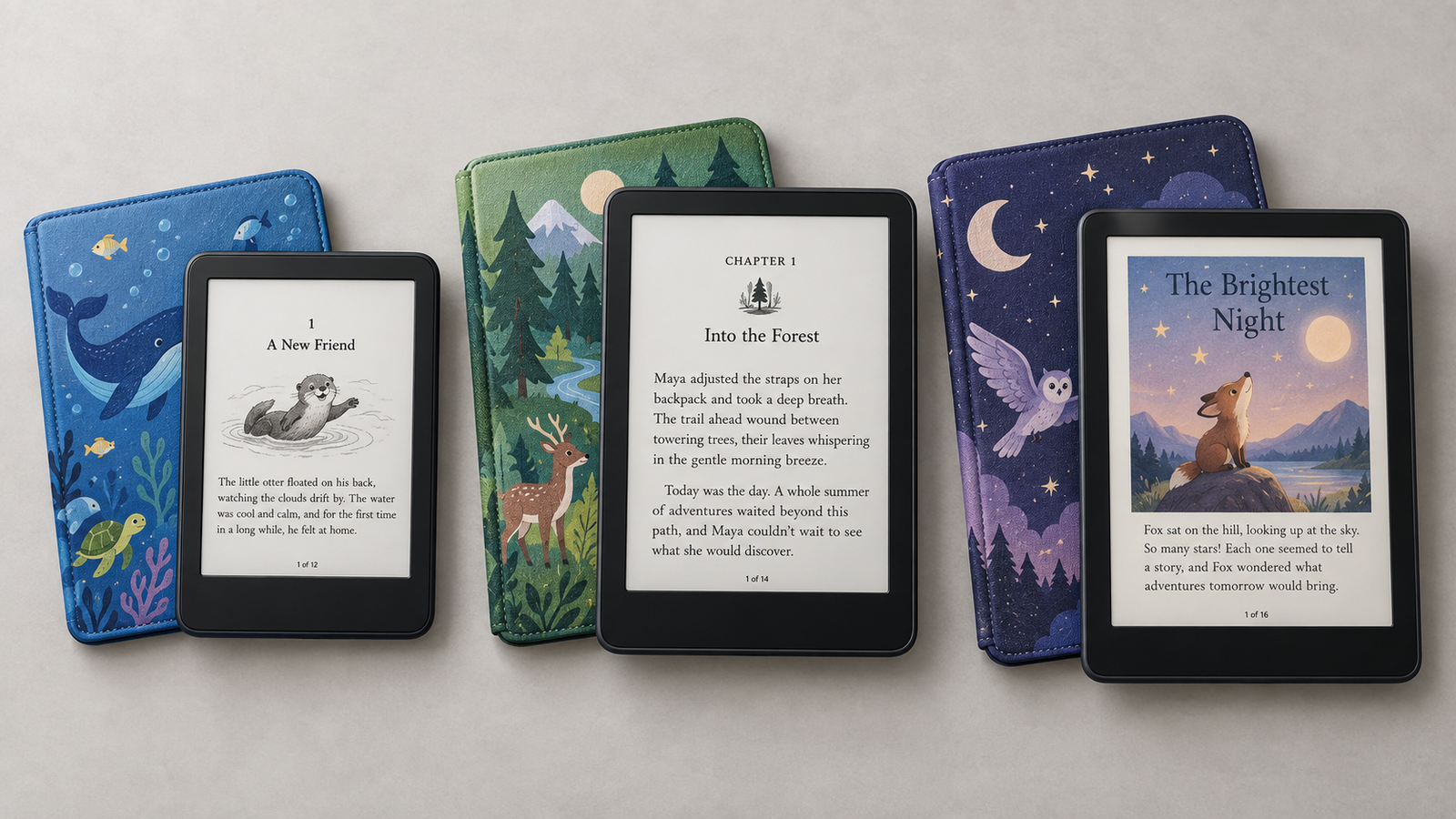
A Kindle Kids box looks purpose-built for children. Open it up, though, and the reader inside is largely the same hardware Amazon sells adults. What actually changes is the cover, a subscription called Amazon Kids+, a replacement guarantee, and software that hides the store and the browser.
That distinction should shape how you shop. A Kindle can be an excellent, distraction-free reading device for a child — but whether the “Kids” version is worth the premium over a standard Kindle depends on age, how much your child reads, how careful they are with electronics, and whether you’ll keep paying for Kids+ once the included period ends. This guide covers the real cost, the real limits, and which model fits which kid — not just a spec sheet.
What is a Kindle Kids edition?
“Kindle Kids” refers to both a specific entry-level bundle and the wider family of child-oriented packages, which now includes Kindle Kids, Kindle Paperwhite Kids, and Kindle Colorsoft Kids. All three are the Kids’ versions of their respective Kindle models.
The Kids bundle generally adds:
- A kid-friendly cover with a magnetic closure
- A child profile inside Amazon Kids, plus a limited included period of Amazon Kids+ (a separate paid subscription dedicated entirely to kids)
- A 2-year worry-free guarantee — if it breaks from normal kid use, Amazon replaces it, no questions asked
- An ad-free experience while the child profile is active
- Access to Parent Dashboard for reading goals, age filters, and activity tracking
The screen, processor, and battery are the same as the corresponding standard Kindle. You’re mostly paying for the bundle, not different hardware.
Kindle Kids is not a Fire tablet
Amazon dropped “Kindle” from its tablet branding years ago — they’re sold simply as Fire tablets now, including a “Fire Kids” line. A Kindle Kids device uses an E Ink screen that is considered more eye-friendly and is hence better suited for reading activity; a Fire Kids tablet uses a color LCD and runs apps, games, and video. A Kindle lasts weeks on a charge with essentially no games or video; a Fire Kids tablet behaves like a small Android tablet with limits layered on top. If reducing screen distraction is the goal, that’s the whole case for a Kindle over a Fire tablet.
Which Kindle Kids models are available?
Amazon currently sells three Kids bundles in the US, all on 2024–2025 hardware:
| Feature | Kindle Kids | Kindle Paperwhite Kids | Kindle Colorsoft Kids |
|---|---|---|---|
| Regular price | $169.99 | ~$219.99 | $299.99 |
| Display size | 6″ | 7″ | 7″ |
| B&W resolution | 300 ppi | 300 ppi | 300 ppi |
| Color support | No | No | Yes (E Ink color layer) |
| Color resolution | — | — | 150 ppi |
| Storage | 16 GB | 16 GB | 16 GB |
| Waterproofing | No | Yes (IPX8) | Yes (IPX8) |
| Warm (amber) light | No | Yes, adjustable | Yes, adjustable |
| Auto-adjusting light | No | No | No |
| Wireless charging | No | No | No |
| Ads | None in child profile | None in child profile | None in child profile |
| Included Kids+ period | 6 months | 6 months | 12 months |
| Included cover | Yes | Yes | Yes |
| Replacement protection | 2-year worry-free guarantee | 2-year worry-free guarantee | 2-year worry-free guarantee |
| Claimed battery life | Up to 6 weeks | Up to 12 weeks | Up to 8 weeks |
| Best for | Budget, younger readers | Most families | Comics, illustrated books |
Paperwhite Kids pricing moves with promotions, so treat that figure as approximate. Colorsoft Kids includes a full year of Kids+, double the other two — worth weighing against its higher price.
As an Amazon Associate, 9to5Kindle earns from qualifying purchases.
Compare Today’s Kindle Kids Prices
(Prices checked on Amazon.com and subject to change.)
Kindle Kids versus a regular Kindle
The buying question that matters: are you paying for different hardware, or mainly for a bundle? Mostly the bundle. Amazon’s support documentation confirms you can create a child profile with the same controls on a standard Kindle, Paperwhite, or Colorsoft—you just skip the cover, the warranty upgrade, and the free Kids+ period, and subscribe separately or curate manually.
So the real comparison is Kids bundle price versus standard Kindle plus a case plus whatever Kids+ you’d actually use. A standard 16 GB Kindle currently runs $149.99 with ads ($169.99 ad-free) — close to the Kids bundle price before adding a case or subscription. The Kids bundle usually wins once you count the cover and guarantee, but if you already own a spare Kindle, or your child is older and won’t touch Kids+, a standard model with a third-party case can cost less overall.
Compare the Kids bundle with the standard Kindle before buying.
Amazon Kids and Amazon Kids+ are not the same thing
This is the most confusing part of the purchase, so it’s worth separating clearly.
What Amazon Kids does
Amazon Kids is the free, child-profile parental-control layer — included on every Kids device and addable free to a standard Kindle. It provides age-based filtering, reading goals and progress through Parent Dashboard, device bedtime scheduling, purchase restrictions, and a PIN to exit into the adult experience. On a Kindle specifically, there’s no web browser or social media inside the child profile — those exist only on the adult side, behind the PIN.
What Amazon Kids+ adds
Amazon Kids+ is a separate, paid content subscription. It includes a rotating library of children’s e-books and audiobooks (roughly ages 3–12) and isn’t a parental-control feature. It’s what’s “free” for 6 or 12 months with a bundle before it starts billing. The catalog includes complete series like Harry Potter and the first books of others, but it’s curated and rotating, not everything in print. Don’t assume a specific title your child wants is included without checking. Kids+ isn’t required to keep using the Kindle once the included period ends; the device and controls keep working regardless.
What happens when the included Amazon Kids+ subscription expires?
The Kindle does not stop working when Kids+ ends. The child simply loses access to titles borrowed from the Kids+ catalog — the device, profile, cover, and guarantee are unaffected.
After the included 6 or 12 months, Kids+ auto-renews monthly unless canceled: $5.99/month for Prime members, $7.99/month otherwise (annual: $48 and $79), covering up to four child profiles per subscription. Cancel anytime through Parent Dashboard or Customer Service; cancellation takes effect at the end of the current billing period. Individually purchased books stay in your library permanently. Only the subscription-borrowed titles disappear. Sideloaded personal documents are unaffected too, since they’re never part of the Kids+ catalog.
How much does a Kindle for kids really cost?
The checkout price is the start, not the total. Add the device, any Kids+ renewal ($0–$96/year), purchased books, a replacement cable if needed, and — for older kids — a plainer case once the cartoon cover stops fitting.
Illustrative first-year example (Paperwhite Kids, checked September 16, 2026): device ~$219.99 with 6 months of Kids+ included. Renewing the remaining 6 months at the Prime rate adds about $36. This makes it roughly $256 for the year, versus $219.99 if you cancel and rely on the library and occasional purchases instead.
| Approach | Rough cost pattern |
|---|---|
| Kids bundle, cancel Kids+ after free period | Device price only, then $0/year |
| Kids bundle, renew Kids+ | Device price, then $48–$96/year |
| Standard Kindle + third-party case | Device + ~$15–$25 case, no included Kids+ |
| Reuse an existing family Kindle | $0 device cost, Kids+ optional |
Not every family will renew — plenty of kids do fine on library loans and books you already own.
Which Kindle is best for each child?
Younger children and first-time readers: the base Kindle Kids is the sensible start. It’s the smallest, lightest, cheapest, and the simplest option for a child still building reading stamina. It skips waterproofing and warm light, which matters less at the kitchen table than in bed at night.
Most school-age children: Kindle Paperwhite Kids offers the strongest balance — bigger screen, waterproofing for backpacks and pool days, adjustable warm light, and the longest claimed battery life of the three. For a reader roughly 8–12, this is the one to buy.
Comics, illustrated books, and highlighting: Kindle Colorsoft Kids makes sense specifically for graphic novels, comics, or heavily illustrated nonfiction. Color renders at 150 ppi versus 300 ppi for text, the color looks muted and paper-like rather than vivid, and battery life is shorter. If the shelf is mostly prose, the premium buys little.
Teenagers: often better served by a standard Paperwhite or Colorsoft — the cover can simply be swapped for something plainer, and depending on household settings the device can be used outside the child profile entirely.
Accident-prone children: the 2-year worry-free guarantee is the real draw here. It covers damage from ordinary kid use and mechanical defects. The guarantee is valid for two years from the date of purchase. If anything happens during this time, Amazon will replace the entire unit, no questions asked. It’s generous but not unlimited insurance against every scenario, so check the current terms before assuming a specific kind of damage is covered.
What ages are Kindles suitable for?
There’s no rigid cutoff — reading maturity matters more than age.
Ages 5–7: expect to help with navigation; Colorsoft Kids can help since covers and illustrations show in color, but for kids who mostly want picture books, a tablet or print book is often the better first choice.
Ages 8–12: the sweet spot for independent reading — chapter books, series discovery, Word Wise, reading goals, and a durable, waterproof design that survives backpacks and car rides.
Ages 13 and up: Kids+ becomes less relevant as teens move into YA and adult books; a standard Kindle offers more privacy and autonomy, and doubles as a device for school reading.
How Kindle parental controls actually work
Setup happens on-device or through Parent Dashboard (parents.amazon.com or the app): create the child profile, confirm age and a parental PIN, adjust age filters, add books you already own, and optionally set reading goals or a bedtime. This works the same whether the Kindle is a dedicated Kids bundle or a standard model with a child profile added.
Age filters are not a substitute for parental review. Filtering is imperfect and catalog availability changes — spot-check what actually lands in your child’s library.
Can children access the internet, social media, or the Kindle Store?
Inside the child profile: no browser, no social media, no app installs, no unsupervised purchasing. Parents add content through Parent Dashboard instead. Exit with the PIN, though, and the device reverts to a normal Kindle — full browser, full store, and sponsored lock-screen images reappear. It’s not accurate to call a Kindle internet-free, as it uses Wi-Fi constantly for downloads and syncing, but open browsing simply isn’t exposed while the child profile is active.
How parents add books they already own
Books purchased on the same account show up automatically, or you can push specific titles to a child’s profile via Manage Your Content and Devices → Settings → Household and Family Library on the web. Personal documents and non-Amazon e-books can be transferred via Send to Kindle, which accepts EPUB, PDF, DOC/DOCX, TXT, RTF, HTML, and common image formats; EPUB converts automatically. Books bought elsewhere with their own DRM generally can’t make this jump.
Can children borrow library books on Kindle?
Yes, but this happens to be largely a US feature. A parent borrows a Kindle-format e-book through Libby or the library’s OverDrive website, delivers it to the household Amazon account, then shares it into the child’s profile the same way as a purchased book. The Kindle syncs over Wi-Fi to pick it up. Availability depends on what your specific library and publisher offer in Kindle format. For the full walkthrough, see 9to5Kindle’s step-by-step guide to borrowing library books on Kindle.
Do Kindle Kids devices support audiobooks?
Yes, via Audible. But none of the three models has a built-in speaker, so audio requires Bluetooth headphones or a speaker. Kids+ includes a rotating selection of Audible titles, and purchased Audible books work the same way. Simultaneous text-and-audio playback varies by title, so don’t assume it’s universal.
Reading features children can actually use
There are plenty, including Word Wise, Vocabulary Builder, a built-in dictionary, adjustable font size and typeface, the OpenDyslexic font, bookmarks, notes, search, reading-goal tracking, and (on Paperwhite and Colorsoft Kids) dark mode and warm light are all available in the child experience. Not every adult Kindle feature carries over identically, so it’s worth a quick look together after setup.
Is a Kindle safe and comfortable for bedtime reading?
A Kindle’s front light shines across the screen rather than through it the way a phone or tablet backlight does. What actually helps at bedtime is dimming the display, switching to warm light where available, and keeping a consistent routine. The absence of games and notifications does more for a calm bedtime than any lighting spec.
Durability, waterproofing, and everyday care
Only Paperwhite Kids and Colorsoft Kids carry an IPX8 waterproof rating; the base Kindle Kids doesn’t. Here are a few ways you can keep your Kindle safe:
- Keep the cover closed in a backpack
- Avoid stacking heavy books on top of it
- Don’t leave it in a hot car
- Wipe the screen with a soft, dry cloth.
Waterproof means it survives accidental splashes and drops in water — not that it’s indestructible against drops onto hard surfaces.
Privacy and account considerations for parents
The Kindle is tied to the parent’s Amazon account, and reading activity is visible in Parent Dashboard. Purchases stay associated with whichever account made them. Don’t share your adult password or purchasing PIN with a child, and review Amazon’s current privacy and data settings for child profiles directly rather than assuming the defaults match your preferences.
Can siblings share one Kindle?
One Kids+ subscription covers up to four child profiles, and profiles switch on-device with separate progress and libraries. The limit is physical: one screen, one kid, at a time. If two children genuinely want to read simultaneously, that’s a real reason to buy a second device rather than fight over one.
If two children regularly read at the same time, compare the entry-level Kindle Kids price with the cost of sharing one premium model.
Check the latest price of the entry-level Kindle Kids model
Kindle Kids versus a Fire tablet
| Choose Kindle Kids if… | Choose a Fire tablet if… |
|---|---|
| Reading is the main purpose | Apps, video, and games matter |
| Long battery life matters | Color and animation matter |
| Fewer distractions is the goal | Broader entertainment is wanted |
| Chapter books dominate the library | Picture books and video dominate |
Neither is universally better: a Kindle minimizes distraction; a Fire Kids tablet does everything, at the cost of the exact distractions many parents are trying to avoid.
Kindle Kids versus physical books
Kindle advantages: portability, adjustable text, a built-in dictionary, instant access to a large library, and discretion for a struggling reader.
Print advantages: full-color picture books no E Ink screen matches, easy page-sharing, no account required, and simpler lending.
Most families do better mixing both rather than treating one as a full replacement.
The biggest Kindle Kids limitations parents should know
- Don’t expect Kids+ to include every book your child will ask for.
- Subscription titles aren’t owned; they disappear if you cancel.
- Some parental controls are less granular than expected.
- E Ink color is muted, not vivid — nothing like a tablet.
- Library integration depends on your specific library and publisher.
- Cartoon covers won’t appeal to every teenager.
- The 2-year guarantee has real terms and limits worth reading.
- A Kids bundle is poor value if you won’t use the cover, subscription, or warranty.
How to set up a Kindle for a child
- Charge the device and connect to Wi-Fi.
- Register it to the responsible adult’s Amazon account.
- Install any available software update.
- Create or select the child profile.
- Confirm the child’s age settings and set a parental PIN.
- Check the Kids+ renewal status and decide now whether to cancel.
- Adjust age filters to fit your child.
- Add any books or personal documents you already own.
- Review purchasing restrictions.
- Set a bedtime or reading goal if you want one.
- Show your child how to find, open, and return a book.
- Explain basic care — closing the cover, water limits, charging habits.
- Check Parent Dashboard again after the first week.
Frequently asked questions
Can Kindle Kids be used without Amazon Kids+? Yes. The device, parental controls, and any books you own or borrow keep working with no subscription at all.
Does Kindle Kids require a monthly subscription? No — the included 6 or 12 months is free, and you can cancel before it renews.
What happens to the books when Kids+ expires? Titles borrowed from the Kids+ catalog become inaccessible. Purchased books and sideloaded content remain unaffected.
Can an adult use a Kindle Kids device? Yes — exit with the PIN and it works like a standard Kindle, ads and all.
Can Kindle Kids access YouTube or social media? No. Those aren’t available on a Kindle e-reader at all, in or out of Kids mode.
Can children buy books without permission? No. Purchasing is blocked inside the child profile.
Can parents add their own Kindle books? Yes, through Family Library sharing or directly in Parent Dashboard.
Does Libby work with Kindle Kids? Yes — borrow through Libby, deliver to the household account, then share into the child’s profile.
Can two children share one Kindle? Yes, via separate profiles, but only one child can use the device at a time.
Is Kindle Kids waterproof? No, the base model isn’t. Paperwhite Kids and Colorsoft Kids both carry an IPX8 rating.
Is Kindle Colorsoft Kids worth the extra money? Only if your child reads a lot of comics or illustrated books. For text-heavy readers, it isn’t.
Is 16 GB enough for a child? Almost always — thousands of e-books, since text-based books are small files.
Does Kindle Kids have games? No. That’s the point of choosing a Kindle over a Fire tablet.
Can Kindle Kids play audiobooks? Yes, through Audible, but only with Bluetooth headphones or a speaker.
What is the best Kindle for an eight-year-old? Kindle Paperwhite Kids, for most families, thanks to the bigger screen and waterproofing.
What is the best Kindle for a teenager? Often a standard Paperwhite or Colorsoft, especially if a cartoon cover won’t appeal to them.
Does the two-year guarantee cover a broken screen? It’s built to cover normal kid-use damage — check Amazon’s current terms for exact exclusions.
Can the child-themed case be replaced? Yes, covers are removable and third-party cases fit the same hardware.
Are Kindle Kids devices advertisement-free? Yes, while the child profile is active. Ads can reappear if an adult exits to the standard experience.
Final verdict — which Kindle should parents buy for kids?
- Best affordable choice: Kindle Kids, for younger or first-time readers on a budget.
- Best for most families: Kindle Paperwhite Kids — the size, waterproofing, and warm light earn the price.
- Best for comics and illustrated books: Kindle Colorsoft Kids, only if that’s genuinely what your child reads.
- Best for teenagers: a standard Kindle or Paperwhite instead of a Kids bundle.
- Best no-cost option: set up a child profile on a Kindle you already own.
A Kindle Kids bundle earns its price when your family will actually use the cover, the subscription period, and the guarantee. If you’d skip all three, a standard Kindle is likely the smarter buy. Either way, the right Kindle for kids is the one that matches what your child already reads — not the most expensive box on the shelf.
Best Price on Kindle Kids · Best Price on Paperwhite Kids · Best Price on Colorsoft Kids ·