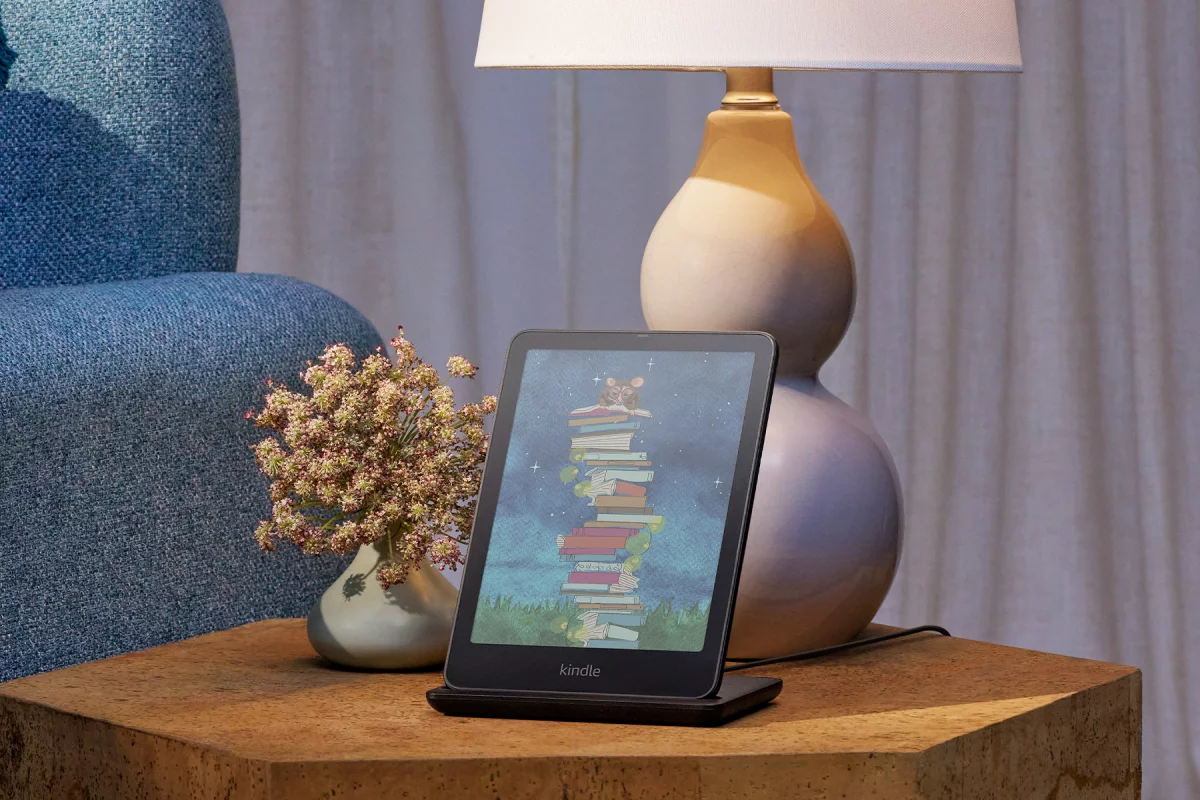
Most Kindle owners use less than half of what their device can actually do. They buy it to read books, and it does that job well. But somewhere between the home screen and the Kindle Store, dozens of features sit unused. Some are buried three menus deep. Others only appear with certain books, certain accounts, or certain Kindle models.
This guide walks through every corner of the Kindle experience: reading tools, library management, student features, Send to Kindle tricks, hidden settings, accidental discoveries, model-specific extras, cloud syncing, recent software improvements, and the features longtime Kindle owners on Reddit say they wish they had found years earlier. By the end, you should know your device far better than when you started.
There are a few reasons so much stays hidden. Some features only appear once a specific condition is met, like a supported book or a Signature Edition device. Others exist but sit three or four menus deep, in places nobody browses out of curiosity. And because Amazon rolls out changes gradually through software updates, a feature that didn’t exist last year may already be sitting on your Kindle right now, waiting to be turned on.
Section 1: Reading Features Most People Never Use
X-Ray
X-Ray shows every character, place, and term that appears in a book, along with a short description and every page where it shows up. Open a book, tap the top of the screen, then tap the X-Ray icon (it looks like an eye).
Not every book supports it. Publishers have to submit the data, so X-Ray works best on popular fiction and nonfiction, and rarely on self-published or older titles. It genuinely helps with long fantasy or historical novels that introduce dozens of characters, since it saves you from flipping back to remind yourself who someone is. It’s also useful in dense nonfiction, where X-Ray’s list of recurring terms and ideas can work almost like an index.
Word Wise
Word Wise prints a short, simple definition above harder words, right on the page. Turn it on from the book’s ‘Aa’ menu, then adjust the difficulty slider so it shows more or fewer hints.
It’s excellent for language learners and younger readers working through advanced text. Most owners never enable it because it’s off by default and easy to miss inside the font settings. Once your vocabulary in a given genre or language grows, it’s worth lowering the hint frequency rather than turning it off entirely, since it keeps working quietly in the background for the occasional word that still trips you up.
Like X‑Ray, Word Wise also works on only those titles where publishers provide metadata.
Vocabulary Builder
Whenever you look up a word in the built-in dictionary, Kindle automatically saves it. Vocabulary Builder turns those saved words into flashcards you can review later, complete with the original sentence for context.
📌 Most underrated Kindle feature: Vocabulary Builder quietly builds a personal flashcard deck out of every word you’ve ever looked up. Most owners never open it because it doesn’t ask for attention the way a notification would.
Instant Dictionary
Long-press any word for a definition without leaving the page. Kindle supports multiple dictionaries, including bilingual ones you can download for free from the Kindle Store, which helps if you’re reading in a second language.
The same lookup menu also offers a Wikipedia search and translation, powered by Amazon’s own Kindle Translate tool, which now covers English alongside Spanish, French, German, Italian, and Portuguese. Translation works word by word or phrase by phrase, which is enough for a quick check but not a full-text translation. Downloading a second-language dictionary in advance is worth doing before a trip, since the Kindle Store’s dictionary downloads still require Wi-Fi.
Popular Highlights
Popular Highlights show a faint underline beneath passages many other readers have highlighted, along with a count. They can point you toward a book’s most quoted lines, and in nonfiction they often surface the exact sentence that captures a chapter’s main idea. But they can also spoil pacing or clutter the page in a heavily annotated book, especially in popular fiction where dramatic lines get highlighted well before you reach them.
Turn them off under Settings > Reading Options if they distract more than they help.
Reading Progress Options
Tap the bottom of any page and you can switch between time left in chapter, time left in book, current page number, or Kindle location. You can also turn the whole display off for a distraction-free page.
Time left in chapter is the setting most readers say they wish they’d found sooner, since it turns “just one more chapter” into an honest decision instead of a guess.
Continuous Scrolling
Some books, specifically ones with Amazon’s Enhanced Typesetting, support continuous scrolling instead of page turns. This only works in the Kindle app for iPhone and Android, not on E Ink Kindle devices, and you enable it from the Aa menu inside a supported book.
Landscape Mode
Rotate a Kindle sideways and the text reflows into landscape orientation. It’s most useful for PDFs, comics, and manga, where a wider page shows more detail without shrinking the text. Manga readers in particular tend to prefer it, since two-page spreads are often drawn to be read as a single wide image.
Font Customization Beyond the Basics
The Aa menu holds more than font size. Boldness adds weight to thin fonts for easier reading in bright light. Publisher Font uses the book’s original designed typeface instead of Kindle’s default. OpenDyslexic is a font shaped specifically to help readers with dyslexia track letters more easily. Line spacing and margins can also be adjusted independently of font size, which matters more than most readers realize for long reading sessions.
📌 Best feature for students: Line spacing and margin adjustments make dense textbooks and PDFs far easier to read on a smaller screen, especially combined with Publisher Font for technical layouts.
Section 2: Kindle Library Features Most Owners Ignore
Once a library grows past a few dozen books, browsing by scrolling stops working. These features become essential the moment a Kindle library crosses into the hundreds.
- Collections let you group books into folders, like “To Read,” “Book Club,” or “Research,” separate from Amazon’s own categories. A book can belong to more than one Collection at once, so a research book can sit in both a subject folder and a “Currently Reading” folder.
- Filters narrow the library view to downloaded titles only, a specific format, or Kindle Unlimited books, which is the fastest way to find something when Wi-Fi isn’t available.
- Sorting options include title, author, recent, and most recently opened, which is often faster than searching, especially for readers who tend to remember when they bought a book rather than its exact title.
- Reading Insights track reading streaks, days read per month, and books finished over time. It only lives in the Kindle app and on Amazon’s website, not on the E Ink device itself.
- Book series grouping automatically bundles multi-book series into a single library tile instead of scattering titles across the shelf.
- Search inside your library finds a title or author instantly once your collection gets too large to scroll through.
- Mark as Read manually flags a book as finished without opening it, which keeps library stats accurate for books read elsewhere.
- Removing downloaded books without deleting purchases frees up device storage while keeping the book in your cloud library, ready to redownload anytime.
- Archive versus Delete matters more than it seems. Archiving removes a book from the device but keeps it in your Amazon library forever, so it stays one tap away from redownloading. Deleting removes personal documents from Amazon’s cloud entirely, which is not reversible for content you sideloaded yourself, so it’s worth double-checking which action you’re choosing before confirming.
Section 3: Features for Students and Researchers
A Kindle can function as a lightweight research tool, not just a novel reader, once these features are in play.
- Highlighting captures a passage with a tap-and-drag, and some devices support multiple highlight colors for categorizing themes or arguments.
- Notes attach a written comment to any highlight, useful for citations or your own analysis.
- Exporting notes lets you pull every highlight and note out of a book as a document, either through the Kindle app’s export option or the notebook page on Amazon’s site.
- Notebook consolidates every highlight and note from a book in one scrollable view. It’s built into Kindle Scribe and also available for any book at read.amazon.com/notebook.
📌 Best feature for students: The online Notebook page at read.amazon.com/notebook shows every highlight from every book in one searchable place, which is far faster than reopening each book individually before an exam or a paper deadline.
- Search through all highlights works from that same Notebook page, letting you find a specific quote across your entire library.
- The Clippings file is a plain text document called “My Clippings.txt,” automatically created when you connect an older Kindle to a computer via USB. It stores every highlight, note, and bookmark you’ve ever made in one file. Note that Amazon has phased out USB file browsing on some newer Kindles, so if your device no longer shows up as a drive on your computer, the online Notebook page is now the more reliable way to pull your highlights out.
- Reading PDFs works natively, with panel view and margin cropping to make small text more legible on a 6 or 7-inch screen.
- Send to Kindle document conversion automatically reformats Word documents and other files into a reflowable Kindle format, so text resizes properly instead of staying locked to a fixed page layout.
Section 4: Send-to-Kindle Features That Surprise People
Send to Kindle turns your device into a personal document reader, not just a Kindle Store client.
- EPUB support lets you upload EPUB files directly, no conversion software required, a genuine change from the Kindle’s older, more closed file policies.
- Word documents (.doc and .docx) convert automatically into readable Kindle format.
- PDFs can be sent as-is or converted to reflowable text, though conversion works better on simple layouts than dense multi-column ones.
- Images (JPG, PNG) can be sent and will display as an image-only book, handy for reference photos or scanned pages.
- Web articles can be sent from a browser using Amazon’s Send to Kindle browser extension or a mobile share sheet.
- Mobile sharing works from almost any app’s share menu once the Kindle app or Send to Kindle is set up on your phone.
- Email to Kindle gives every Kindle account a personal @kindle.com address. Attach a document and email it in, and it appears on your device over Wi-Fi.
- Automatic cloud syncing means anything sent this way is available across every registered device and app, not just the one it was sent to.
The most common mistake is sending from an email address that isn’t on your approved sender list in Amazon’s settings, which causes the document to silently fail to arrive with no error message at all. The second most common mistake is forgetting that very large files and heavily formatted documents may convert poorly, so simpler layouts tend to travel better. It’s also worth checking your approved sender list under Settings > Preferences > Personal Document Settings the first time a file doesn’t show up, since that’s the culprit far more often than a broken connection.
Section 5: Features Hidden Inside Settings
- Dark Mode inverts the page to a black background with white text. It’s available on the basic Kindle, Paperwhite, Paperwhite Signature Edition, and Kindle Scribe. Amazon has been rolling it out to Colorsoft models more recently; until it arrives, Colorsoft uses a similar feature called Page Color instead.
- Warm light scheduling shifts the front light from cool white to amber automatically as evening approaches, available on any Kindle with warm light.
- Auto brightness (Signature Edition models) uses an ambient light sensor to adjust the front light automatically as your surroundings change.
- Book Cover lock screen displays the cover of whatever you’re currently reading instead of a generic screensaver.
- PIN protection locks the device with a passcode, worth enabling if you share a household, lend your Kindle out often, or simply travel with it and want to prevent casual snooping.
- Bluetooth pairs headphones or a speaker for Audible playback, since no current Kindle has a built-in speaker or headphone jack.
- VoiceView is a screen-reader accessibility feature for low-vision or blind readers. It reads menus and book text aloud through a paired Bluetooth speaker or headphones, and is navigated with a distinct set of touch gestures rather than the normal tap-and-swipe controls.
- Page refresh options, found under Reading Options, control how often the screen does a full refresh to prevent ghosting. Refreshing less often can extend battery life slightly at the cost of some visible ghosting between pages.
- Power Saver, under Device Options > Advanced Options, puts the Kindle into a deeper sleep after a period of inactivity and reduces background syncing.
- Airplane Mode turns off Wi-Fi and Bluetooth entirely.
📌 Best battery-saving trick: Airplane Mode is the single biggest battery saver on any Kindle. The wireless radio checking for a signal, not the E Ink screen itself, is what drains a Kindle fastest between charges.
Section 6: Kindle Tricks Most Owners Discover Accidentally
- Pinch to change font size works in most books, just like photos on a phone.
- Tap two opposite corners simultaneously to take a screenshot, saved to internal storage.
- Long-press a word for an instant dictionary definition without opening a menu.
- Swipe down from the top of the screen to open Quick Settings, with shortcuts for Wi-Fi, brightness, and Airplane Mode.
- Tap and hold the progress bar at the bottom of a book to jump quickly to any page or location.
- Tap the magnifying glass icon to search inside the book you’re currently reading.
- Tap the menu icon to view a book’s full chapter list and jump straight to any section.
- A back arrow appears automatically after you tap into a footnote or X-Ray entry, letting you return to exactly where you left off.
📌 Works only on newer Kindle models: Swipe-down Quick Settings and pinch-to-zoom font resizing depend on a touchscreen and current firmware. Older button-based Kindles, like the Kindle Keyboard and Kindle Touch, use a completely different navigation system built around physical buttons and a directional pad instead of gestures.
Kindle Oasis models added physical page-turn buttons on top of the touchscreen, which changed how quick page navigation felt compared to a Paperwhite of the same era. If you’ve upgraded from an older generation, expect a short adjustment period before the newer gestures feel automatic.
Section 7: Features That Depend on Your Kindle Model
Not every “hidden” feature is missing because you overlooked it. Some genuinely don’t exist on your specific Kindle.
| Feature | Kindle (basic) | Paperwhite | Paperwhite Signature Edition | Colorsoft | Colorsoft Signature Edition | Kindle Scribe |
| Warm light | No | Yes | Yes | Yes | Yes | Yes |
| Waterproofing (IPX8) | No | Yes | Yes | Yes | Yes | No |
| Auto brightness | No | No | Yes | No | Yes | No |
| Wireless charging | No | No | Yes | No | Yes | No |
| Color display | No | No | No | Yes | Yes | No |
| Stylus support | No | No | No | No | No | Yes |
| Active Canvas | No | No | No | No | No | Yes |
| Notebook (handwriting) | No | No | No | No | No | Yes |
| Audible support | Yes | Yes | Yes | Yes | Yes | Yes |
| USB-C | Yes | Yes | Yes | Yes | Yes | Yes |
Amazon expanded the Scribe lineup further in 2026, adding a color Kindle Scribe Colorsoft and a Kindle Scribe variant without a front light. If you own one of these newer variants, check Amazon’s current product page for your exact model, since some software features roll out gradually after launch.
This is worth keeping in mind before assuming a “missing” feature is a settings problem. If a friend’s Paperwhite Signature Edition auto-adjusts its brightness and yours doesn’t, that’s not a bug on your basic Kindle. It’s a hardware difference, and no amount of digging through menus will make an ambient light sensor appear on a device that doesn’t have one.
Section 8: Cloud Features Most Owners Forget Exist
- Whispersync keeps your furthest page read, bookmarks, notes, and highlights synced across every device automatically.
- Reading across devices means you can start a chapter on your Kindle and pick it up mid-sentence on your phone.
- Kindle app synchronization extends the same syncing to iPhone, Android, tablets, and desktop apps.
- Cloud backup keeps every purchased book stored on Amazon’s servers, so a lost or broken device never means a lost library.
- Last page read is the specific Whispersync setting that makes cross-device syncing possible in the first place.
- Family Library lets you share purchased books with another adult on your Amazon Household, set up under Amazon’s account settings rather than inside the Kindle app itself.
- Household sharing extends beyond books to Kindle Unlimited access under the right account setup, though a subscription itself still typically covers one account’s borrowing at a time.
- Kindle Unlimited integration shows your subscription library alongside your purchased books, with borrowed titles clearly marked.
Section 9: Kindle Features That Have Quietly Improved Over the Years
Advice from a few years ago may already be outdated. Amazon has pushed real improvements through software updates alone, with no new hardware required.
- Better PDF support, including improved margin cropping and reflow for documents that used to be nearly unreadable on a small screen.
- A faster, more capable browser, still labeled “experimental,” but noticeably quicker than the browser from just a few years ago, and usable in a pinch for checking a fact or downloading a file directly.
- Faster page turns, with each Paperwhite generation shaving noticeable time off the previous one, part of why longtime owners often describe a new Kindle as feeling “snappier” even when the reading experience looks identical on the surface.
- Better search, both inside individual books and across an entire library, which matters far more once a library grows into the hundreds of titles.
- Enhanced annotation tools, including color-coded highlights and easier note organization.
- New notebook capabilities on Scribe, most notably Active Canvas, which lets you write directly in the margin of a book or document and has the surrounding text automatically reflow around your notes.
- AI reading tools, including a spoiler-free “Story So Far” recap for picking up a series after a long break, and a passage-level question-and-answer tool for looking something up without leaving the page.
- Limited DRM-free downloads, added in January 2026, which let verified buyers download EPUB or PDF copies of specific independently published books that have DRM disabled. It only applies to a small slice of the Kindle catalog so far, not mainstream publisher titles, but it’s a real shift for a platform that has historically kept books locked to its own apps and devices.
Section 10: Features Reddit Users Say They Wish They Had Discovered Earlier
Kindle communities online return to the same handful of features again and again when the topic of regret comes up. Call it community wisdom: features that quietly improve day-to-day reading but rarely get mentioned outside of forums.
- Airplane Mode for battery life tops the list by a wide margin.
- Time left in chapter shows up constantly as “the setting I wish I’d changed on day one.”
- Vocabulary Builder surprises longtime readers who didn’t realize their looked-up words were being saved automatically.
- Send to Kindle gets mentioned by readers who spent years manually converting files before discovering the email shortcut.
- X-Ray is often described as something people assumed was for “serious” readers only, then found themselves using constantly in long series.
- Pinch-to-zoom font resizing replaces a trip through the settings menu that most people didn’t know they could skip.
- The built-in browser gets used far more for checking word definitions or quick facts than for actual web browsing.
- A personal Kindle email address is frequently described as the single most useful thing nobody explains when you first set up the device.
The pattern across all of it: these aren’t obscure, hard-to-use tools. They’re simple settings that just happen to sit one menu deeper than most people ever look.
Feature Discovery Timeline
Most Kindle owners learn features on a predictable schedule, whether they realize it or not.
First week: Font size, brightness, basic library browsing, and how to buy or borrow a book.
First month: Highlighting, the dictionary lookup, Wi-Fi and Airplane Mode, and Collections for organizing a growing library.
First year: X-Ray, Word Wise, Send to Kindle, Whispersync across devices, and Reading Insights, usually stumbled into rather than sought out.
Rarely discovered at all: Vocabulary Builder, the Notebook export page, Power Saver mode, and most of the settings buried under Advanced Options.
Hidden Features by Reader Type
Casual readers get the most value from time-left-in-chapter, Dark Mode, and Collections for keeping a to-read list organized without it turning into a scrolling mess.
Students lean on Notebook, note exporting, PDF support, and Word Wise for unfamiliar academic vocabulary, especially when reading assigned texts outside their usual subject area.
Researchers rely on the Clippings file or Notebook export, cross-book highlight search, and Send to Kindle document conversion for reading papers and reports without printing everything out.
Language learners benefit most from Word Wise, adjustable dictionary difficulty, bilingual dictionaries, and Kindle Translate, ideally used together rather than any single one on its own.
Manga and comic readers should prioritize landscape mode, a larger or color screen, and page zoom for detailed panels that shrink too much on a standard 6-inch display.
Heavy Kindle Unlimited users get the most out of library filters, series grouping, and the Kindle Unlimited catalog view inside the library, which keeps borrowed titles from getting lost among purchased ones.
Top 10 Features Worth Turning On Immediately
- Time left in chapter
- Word Wise (even briefly, to see if it helps)
- Airplane Mode when not actively downloading
- Collections for your library
- Vocabulary Builder
- Dark Mode for night reading
- X-Ray on your current book
- A synced Send to Kindle email address
- Page Refresh adjusted to your preference
- PIN protection if you share your device
Features You’ll Probably Never Use (and That’s Okay)
Not every feature needs to earn a permanent spot in your routine.
VoiceView matters enormously for readers with visual impairments, but most sighted readers will never open it.
Screenshots are handy occasionally, for saving a recipe page or a quote, but they’re not a daily habit for most people.
The experimental browser works in a pinch for checking a fact, but it’s genuinely slow compared to a phone, and nobody should expect to browse the web comfortably on E Ink.
Continuous scrolling only appeals to a specific kind of reader, and it’s limited to the mobile app besides.
Skipping these isn’t a sign you’re using your Kindle wrong. Not every feature is built for every reader, and a balanced take on a device means admitting some tools just aren’t for you.
Myths About Kindle Features
“All Kindle books support X-Ray.” Not true. X-Ray depends on data the publisher submits, so many books, especially self-published or older titles, don’t support it at all. If the X-Ray icon looks grayed out on a book, that’s the reason, not a setting you’ve missed.
“Every Kindle has warm light.” Only the Paperwhite line, Colorsoft line, and Kindle Scribe include warm light. The basic Kindle only has a standard cool-toned front light, which is worth knowing before assuming a missing amber tone means something is broken.
“Dark Mode saves battery.” On E Ink, this isn’t really true. Unlike a phone’s OLED screen, E Ink uses almost no power to hold a static image regardless of whether it’s showing black text on white or white text on black. Battery drain on a Kindle comes mostly from wireless syncing and front light brightness, not screen color.
“Airplane Mode always extends battery life.” It helps significantly, but not because the E Ink screen uses less power. It works because it stops the Wi-Fi radio from continuously searching for a signal, which is one of the biggest background battery drains on any Kindle.
Conclusion
A Kindle is far more than a digital stand-in for paperbacks. Underneath the reading experience most people settle into within the first week is a genuine research tool, a language-learning aid, a document reader, and a library management system, most of it sitting one or two menus deeper than anyone thinks to look.
Nobody needs every feature covered here. Turning on even a handful, whether it’s time left in chapter, Vocabulary Builder, or a properly organized set of Collections, can noticeably change how a Kindle feels to use every day. Years of ownership don’t guarantee you’ve found everything. Sometimes it just takes someone pointing at the right menu.